Reset a User’s Password
This guide shows how to reset a user’s password in Authorium.
Password resets are useful when a user can’t access their account or if there’s a security concern such as a compromised profile.
What Happens After Reset?
The user receives an email with a secure link to create a new password.
When to Reset a User’s Password
You should reset a user’s password when:
- They can’t log in because they forgot it.
- You suspect their account has been compromised.
- Your security policy requires a password reset.
To Reset a User’s Password
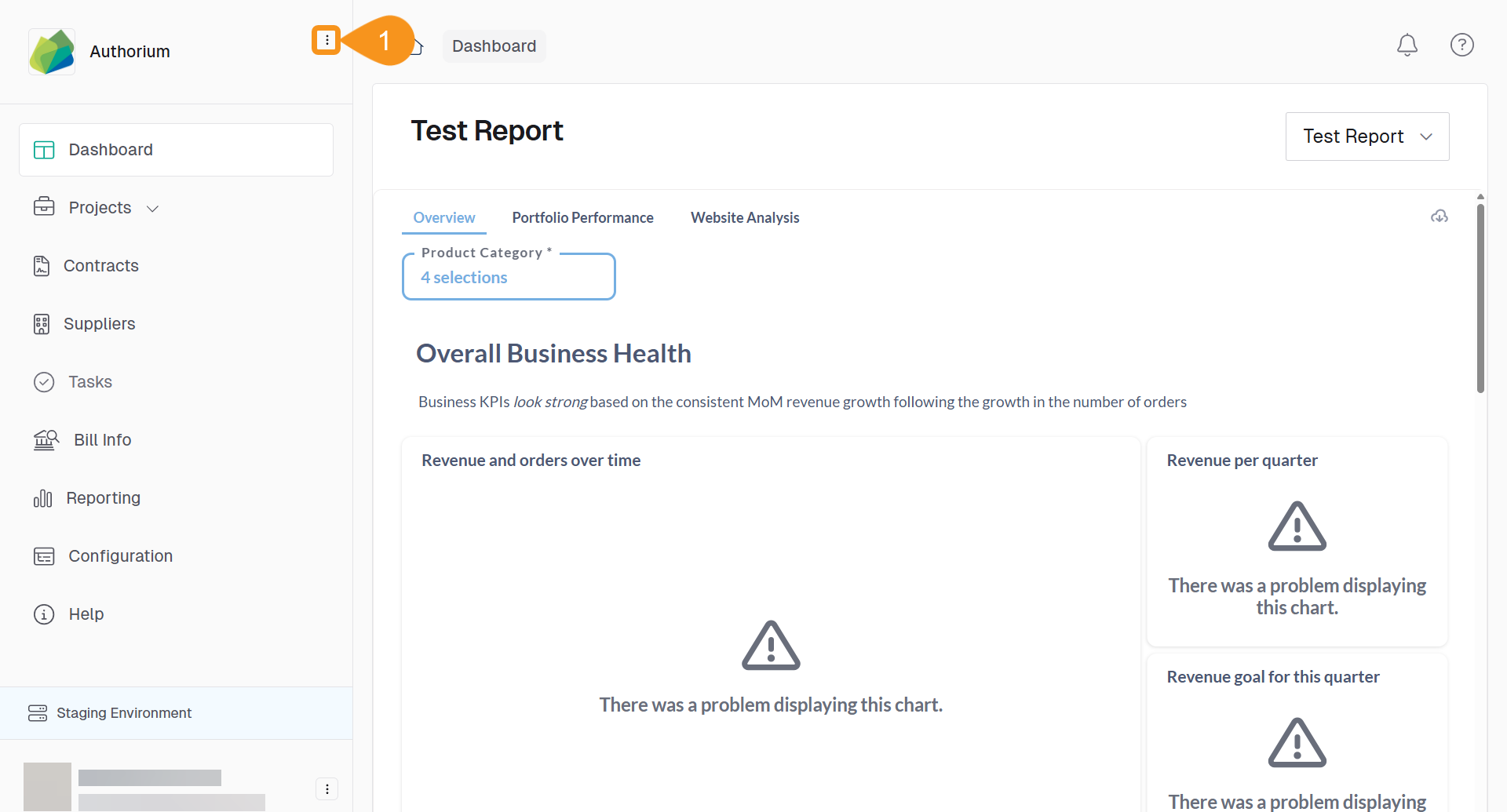
- From the Dashboard, go to the three-dots menu in the main navigation bar next to the logo.
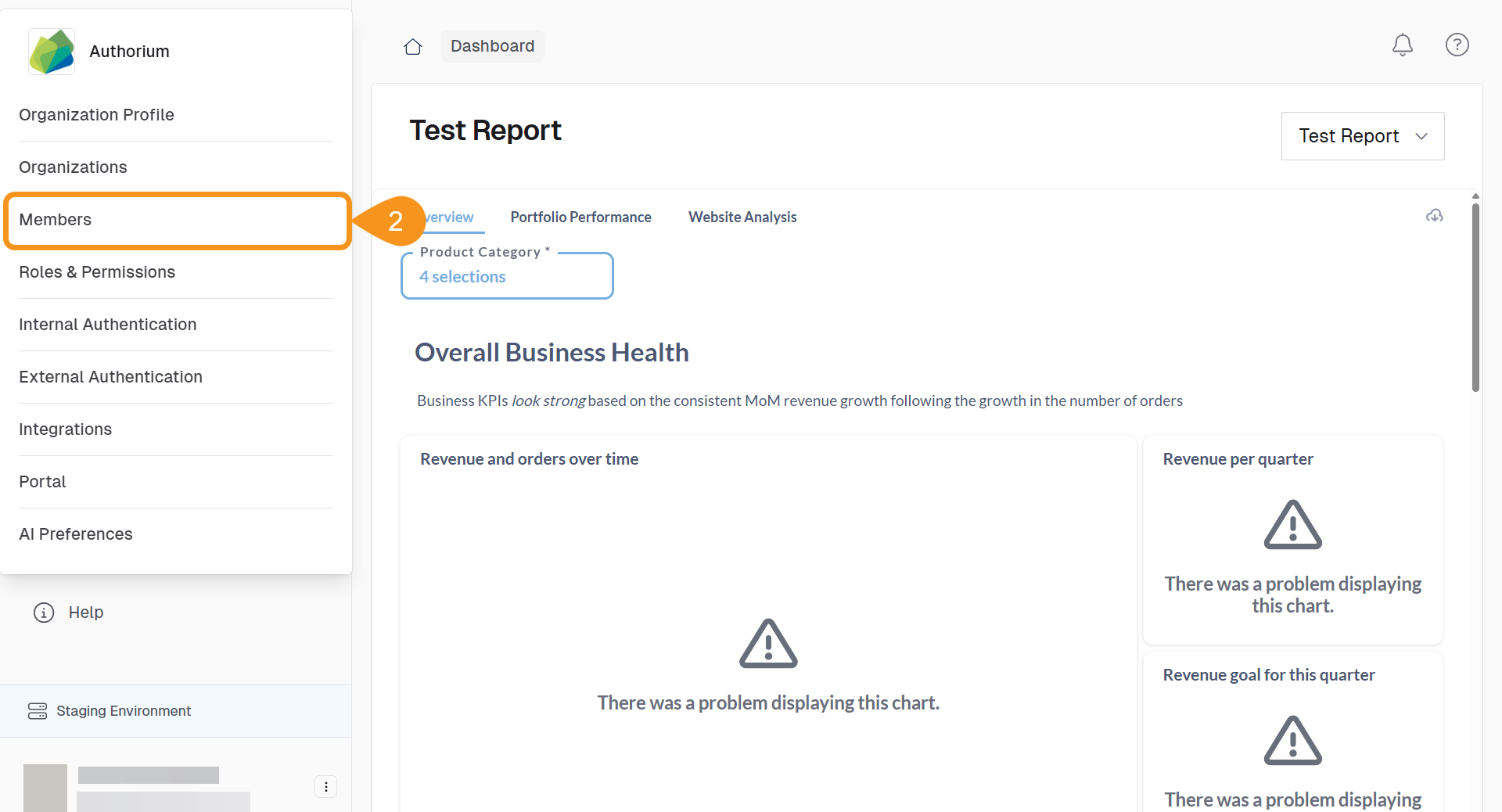
- Select Members.
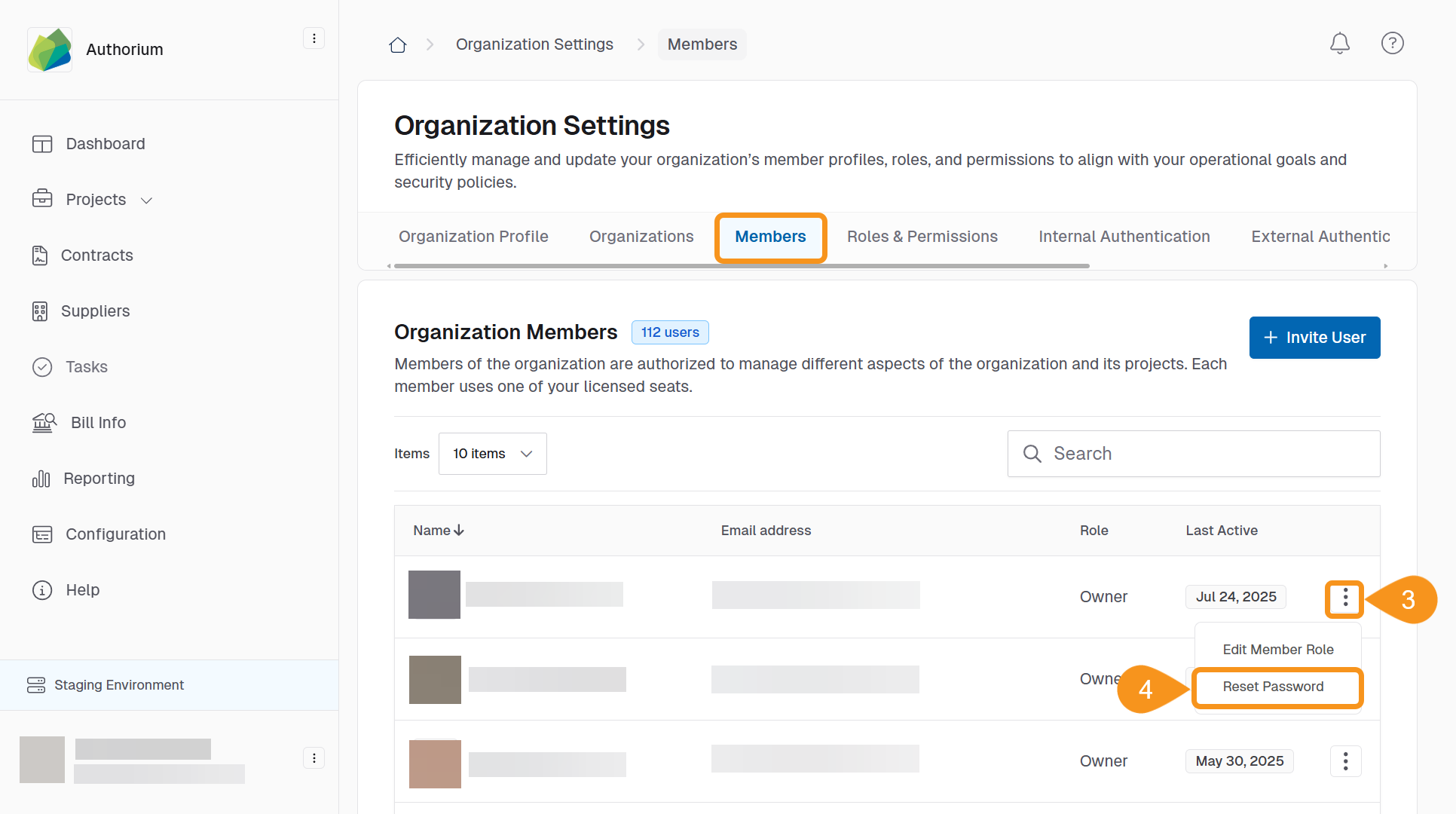
- Find the user whose password you want to reset and click the three-dots menu next to their name.
- Select Reset Password.
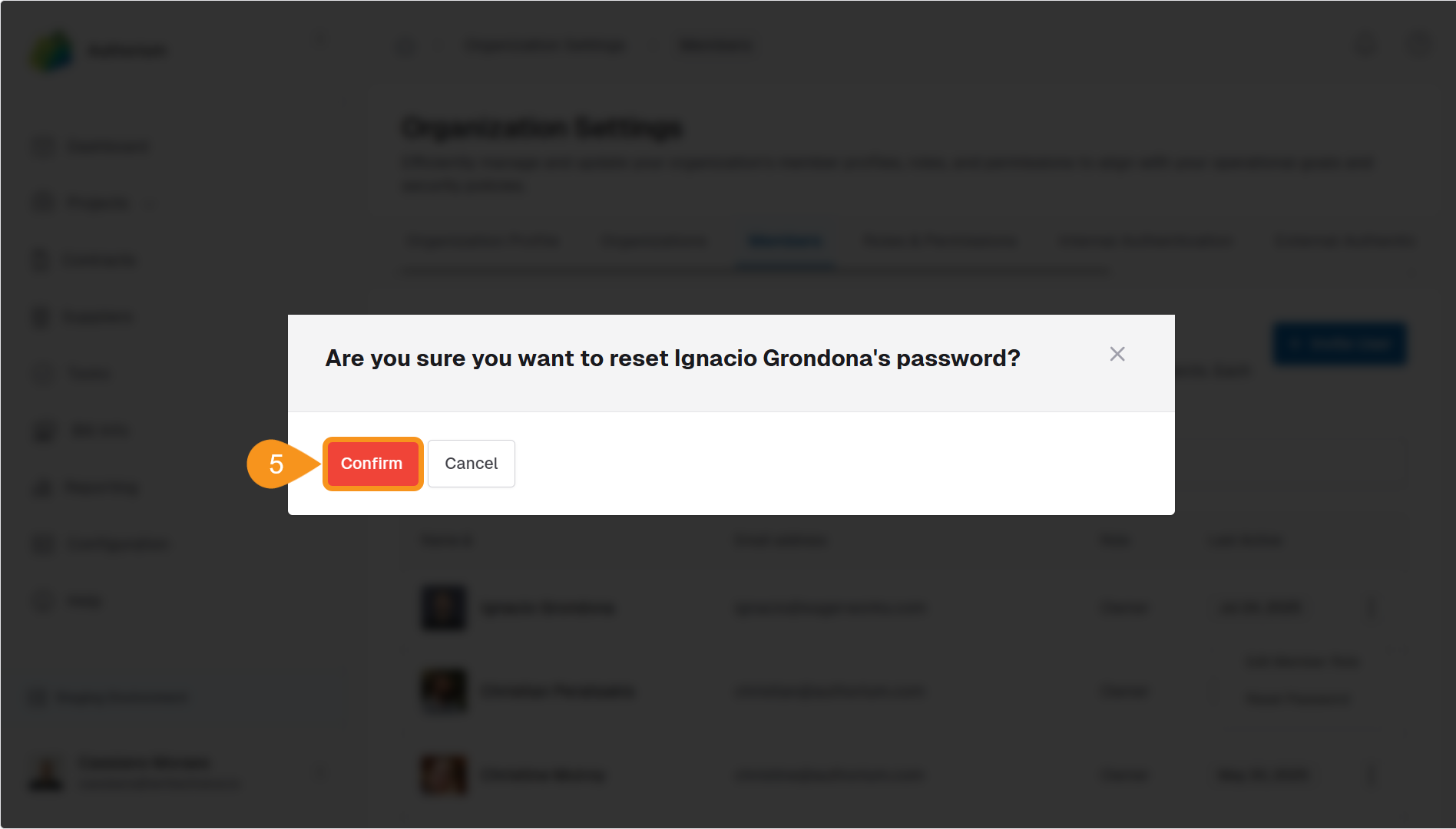
- Click Confirm to finalize the password reset.
Tip
You can reset a user’s password at any time. This doesn’t require the user to be logged out first.
See Also
To complement your knowledge of this process, check the following pages: