Set Up SSO with Microsoft Entra
Connect Authorium to your Microsoft Entra (formerly Azure AD) identity management system.
Prerequisites
Your IT team must:
- Create an application in Microsoft Entra for Authorium.
- Collect the following credentials:
- Identity Provider
- Authentication Protocol
- Client ID
- Tenant ID
- Secret Key
- Expiration Date
To Configure SSO in Authorium
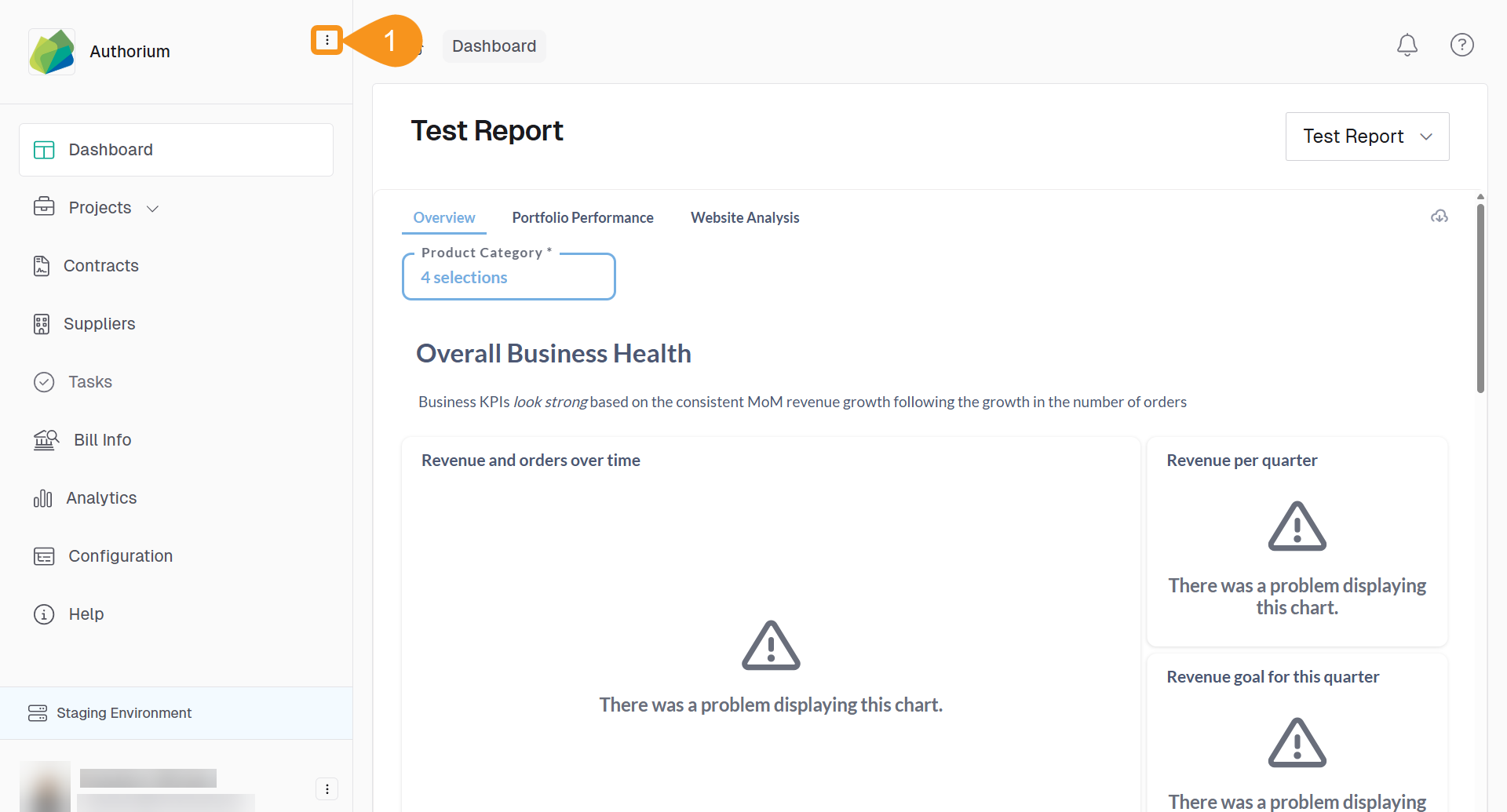
- From the Dashboard, go to the three-dots menu in the main navigation bar next to the logo.
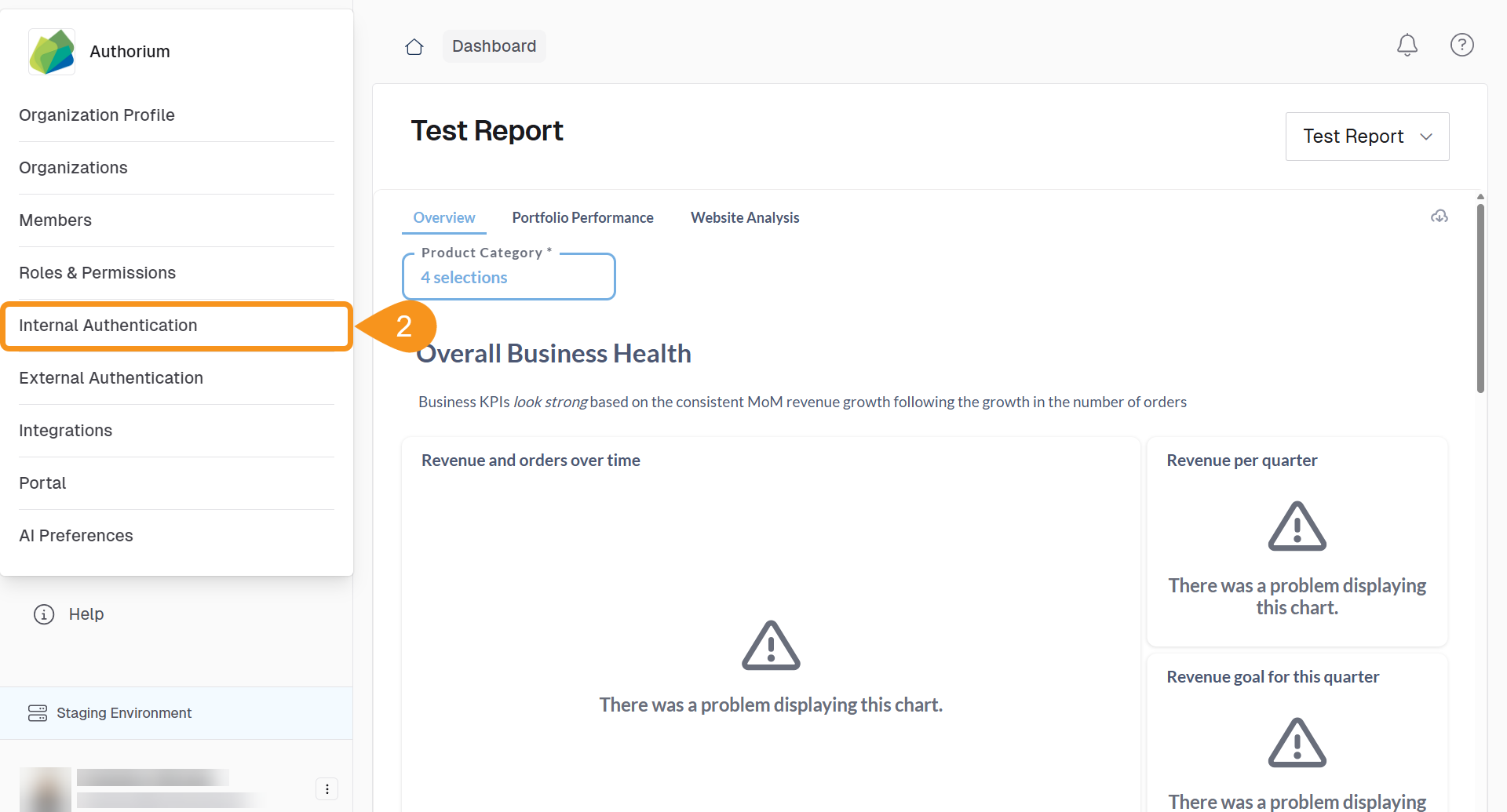
- Select Internal Authentication.
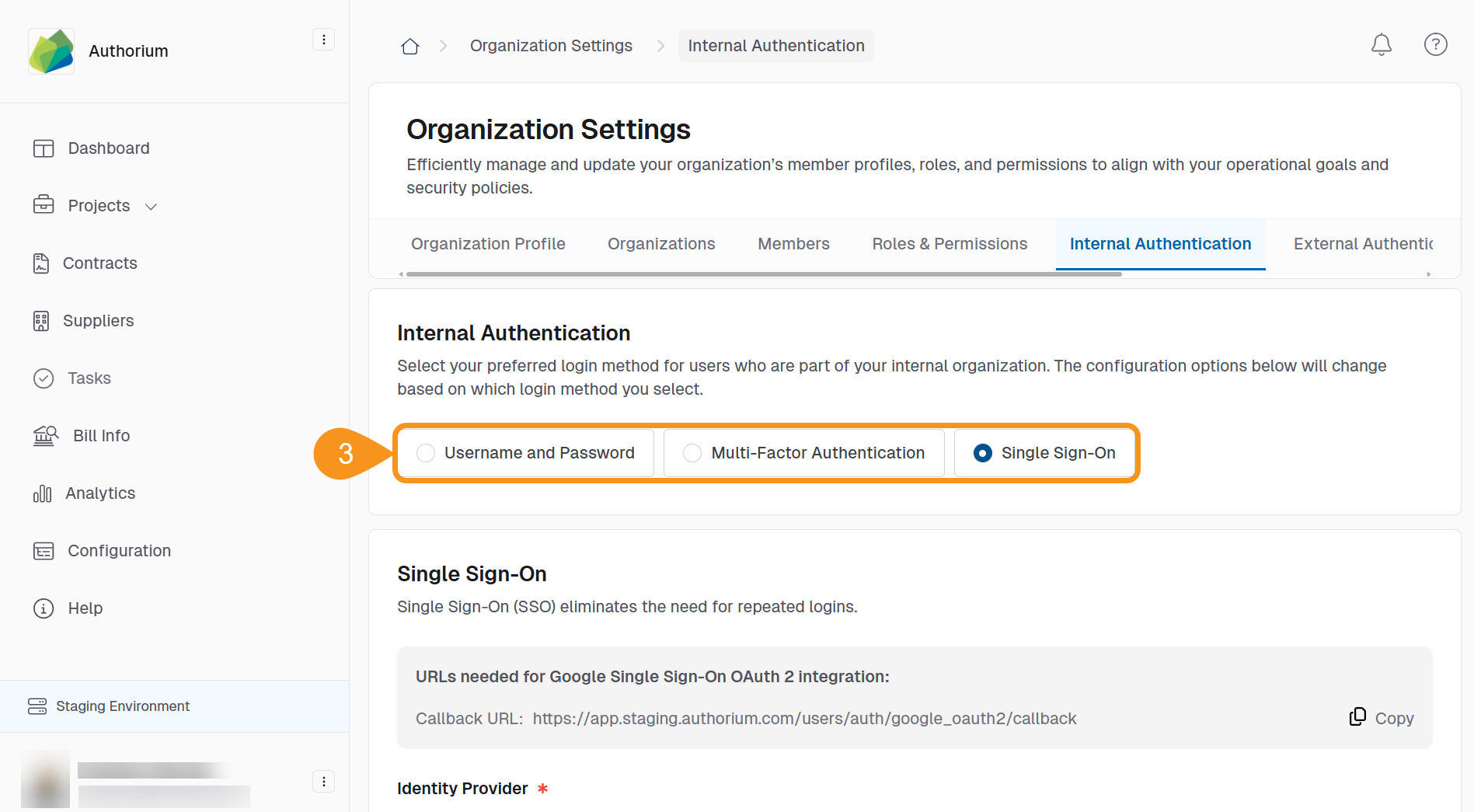
- Select Single Sign-On as the authentication method.
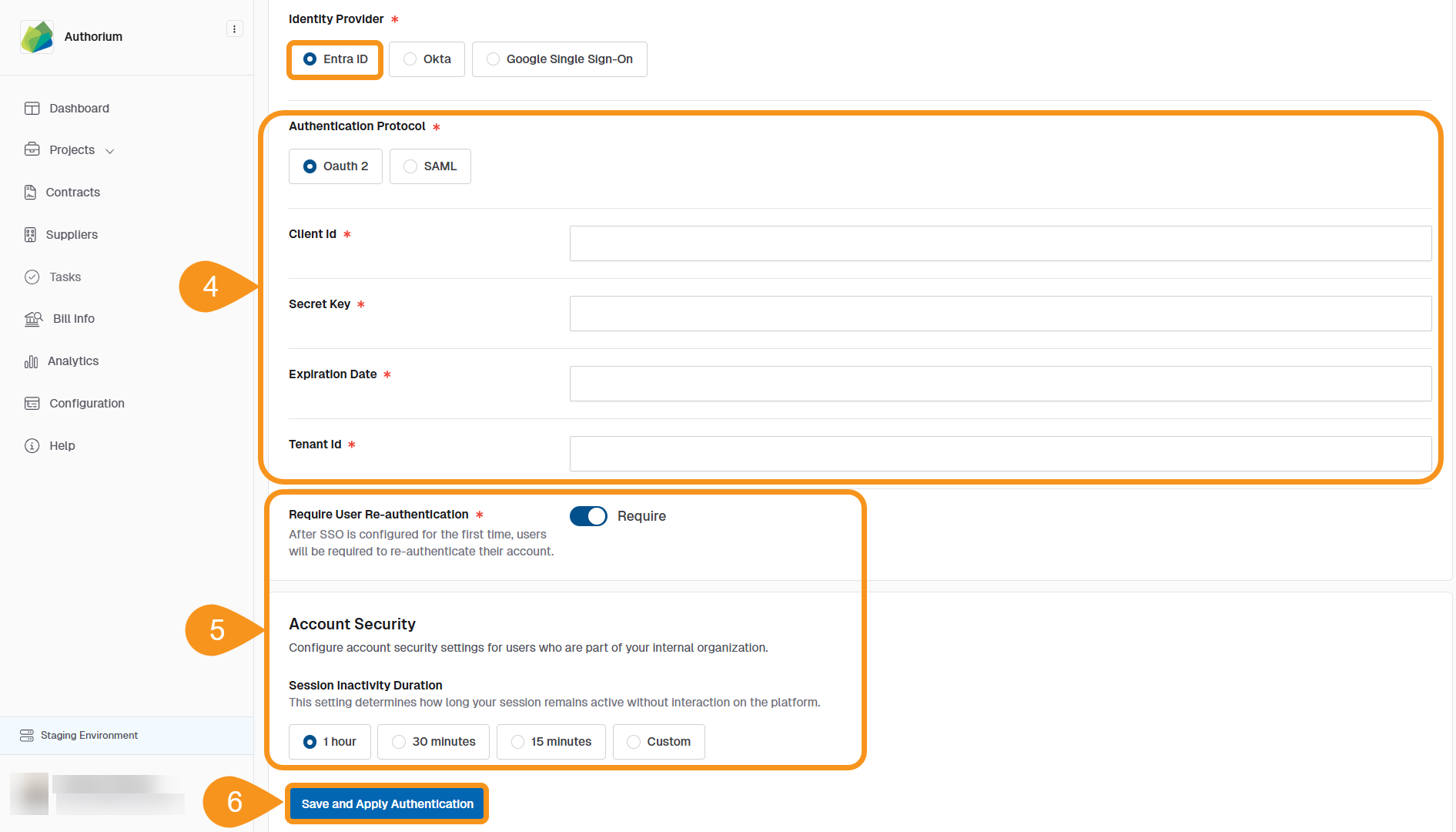
- Enter the Entra configuration values:
- Identity Provider: Entra ID
- Authentication Protocol: OAuth 2 or SAML
- Client ID
- Secret Key
- Expiration Date
- Tenant ID
- Optionally adjust:
- Require User Re-authentication
- Session Inactivity Duration
- Click Save and Apply Authentication.
See Also
To complement your knowledge of this process, check the following page: