Add Signature Blocks to a Document
Signature blocks let you collect digital signatures directly within Authorium, linking signer name and date to project variables.
When to Add Signature Blocks
You should add a signature block when:
- A contract document requires a digital signature.
- You want to track signer name and date as project variables.
- You're preparing a document in the Contract Distribution & Execution stage.
Where Can You Use Signature Blocks
Signature blocks can be added to collaborative documents or PDF forms, and only during an active CD&E stage.
To Add a Signature Block
- Open the document in Authorium.
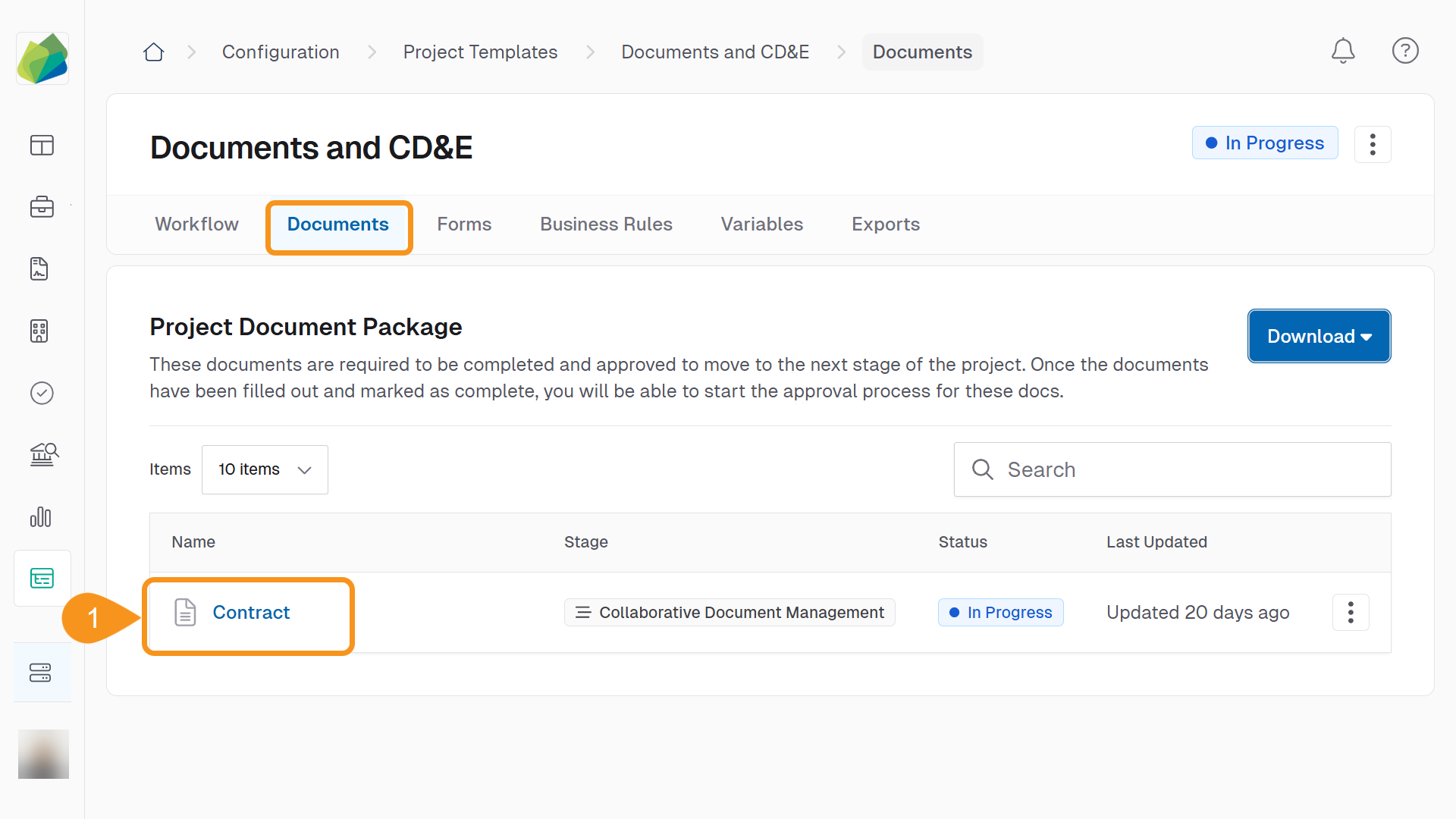
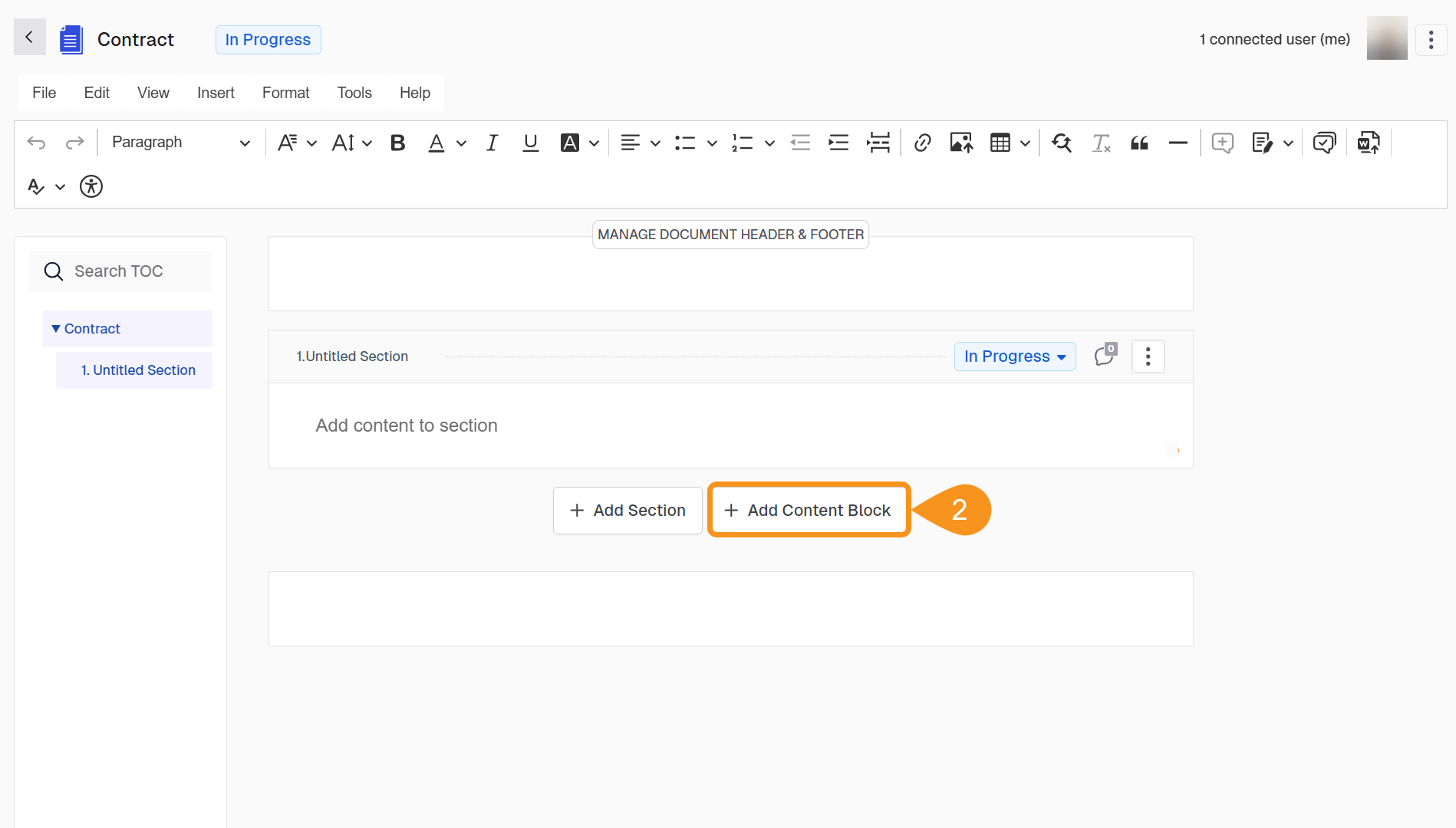
- Click Add Content Block under the section where the signature is required.
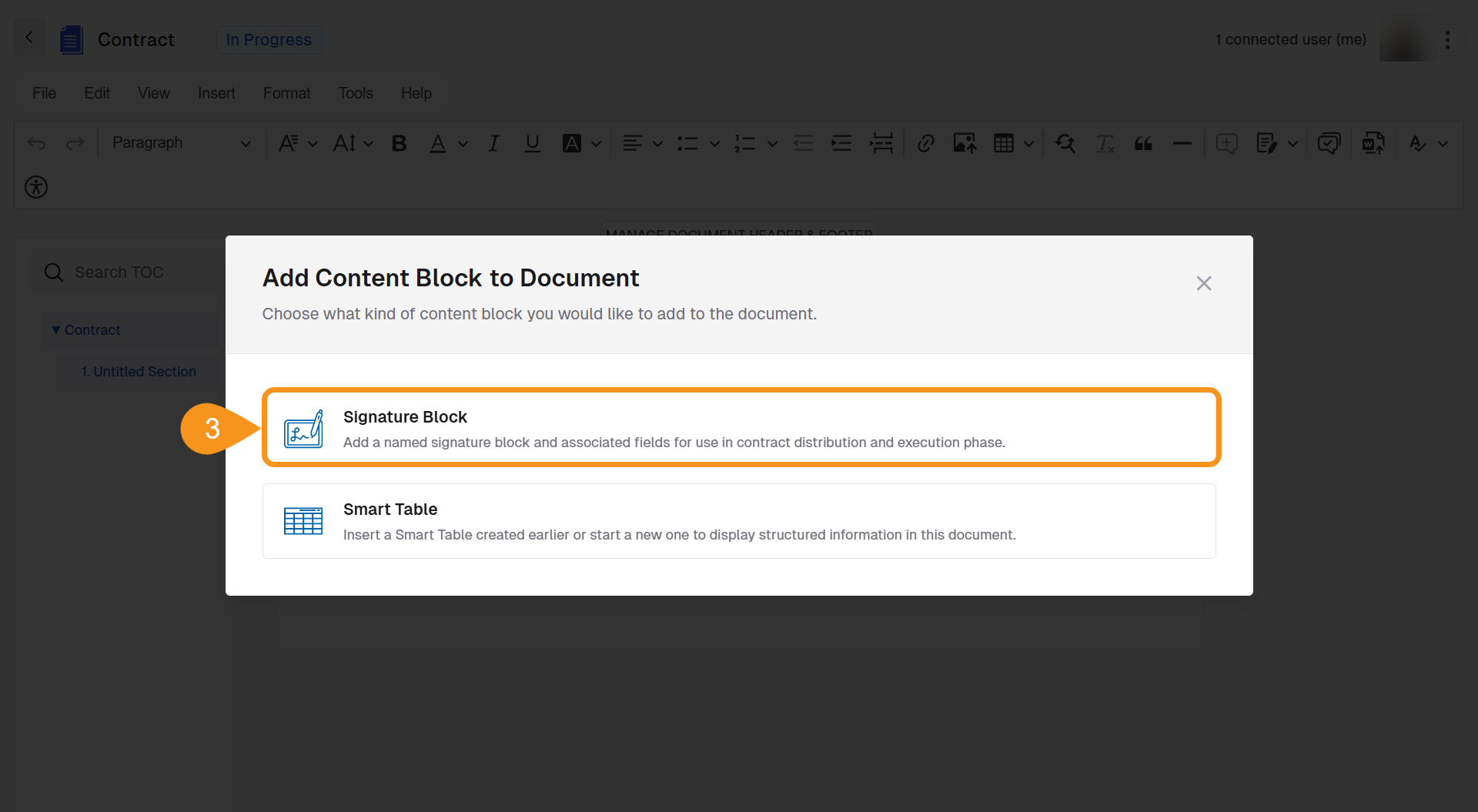
- Select Signature Block.
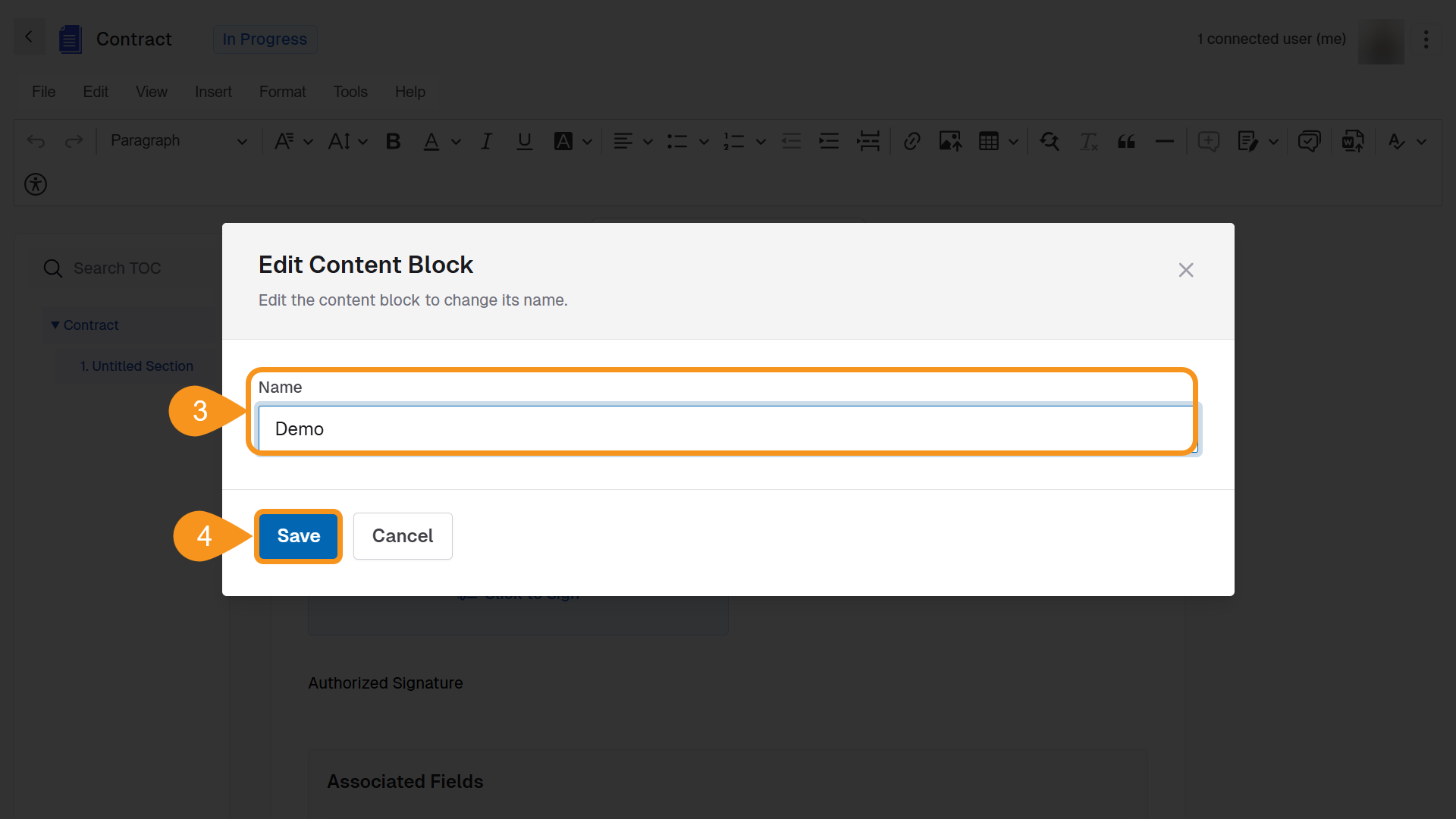
To Rename a Signature Block:
- Click the three-dot menu on the block.
- Select Edit Signature Block Name.
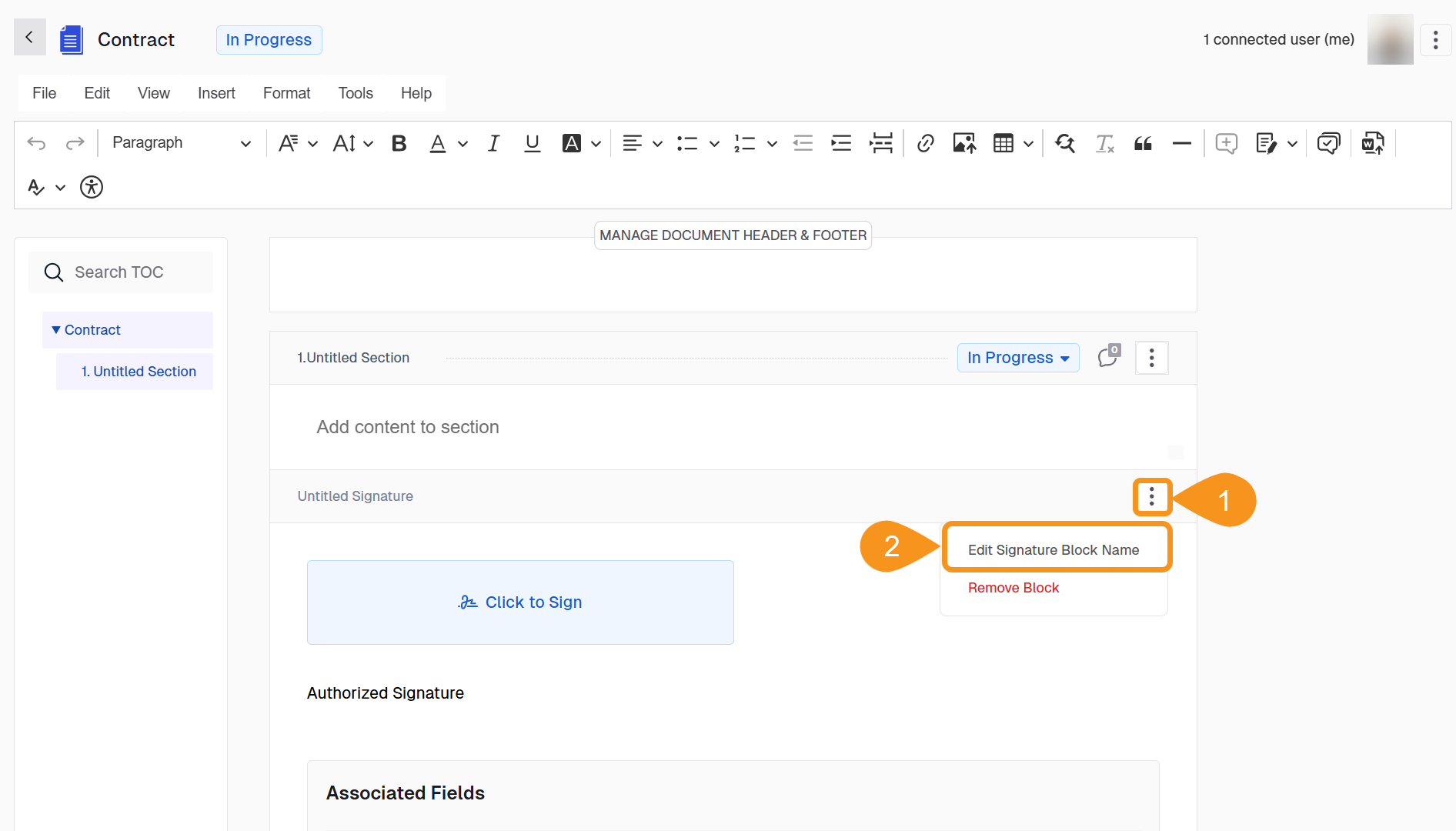
- Enter a new name.
- Click Save.
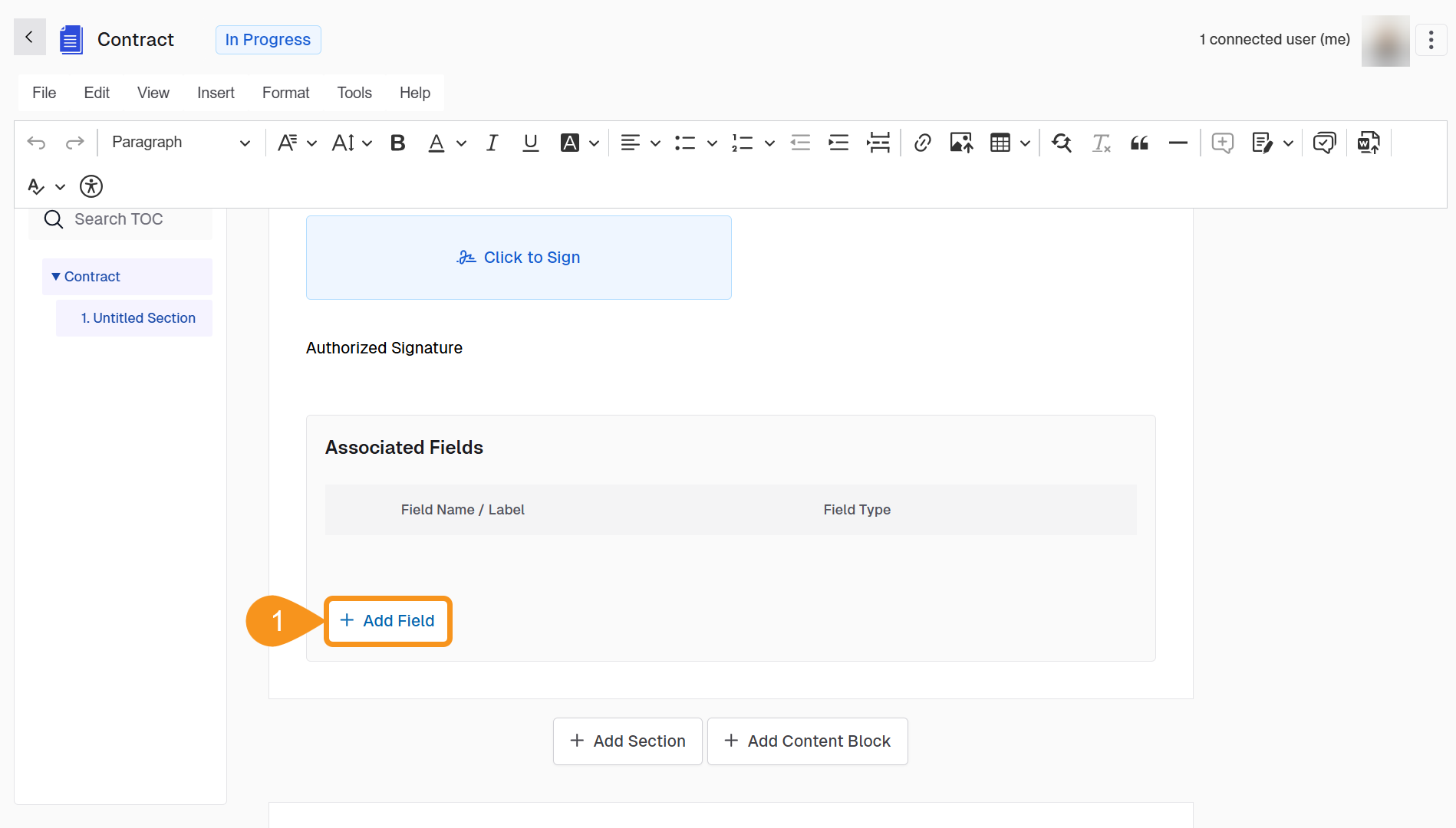
To Add an Associated Field:
- Click Add Field.
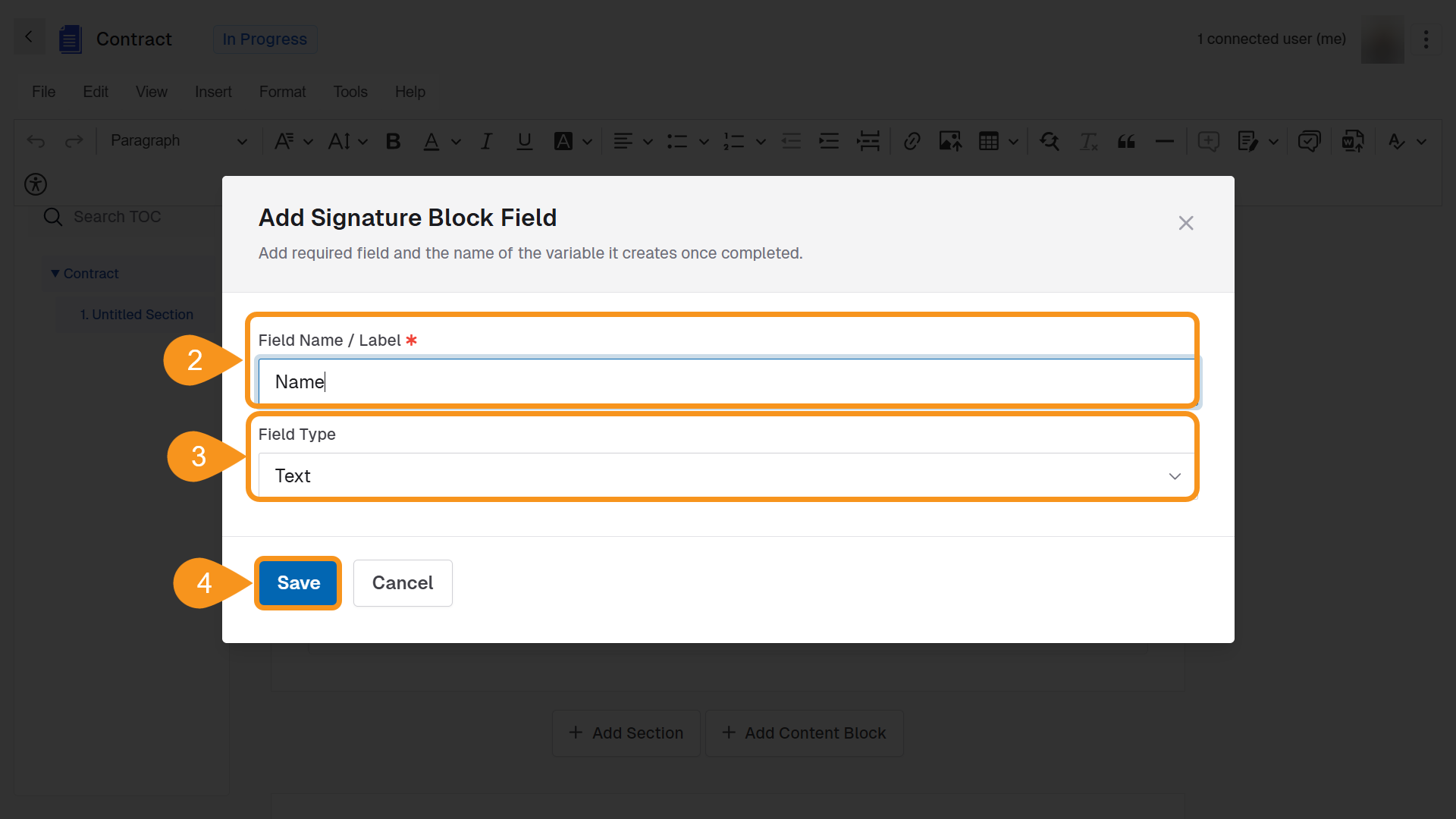
- Enter a Field Name / Label.
- Choose the Field Type: Text or Date.
- Click Save.
Tip
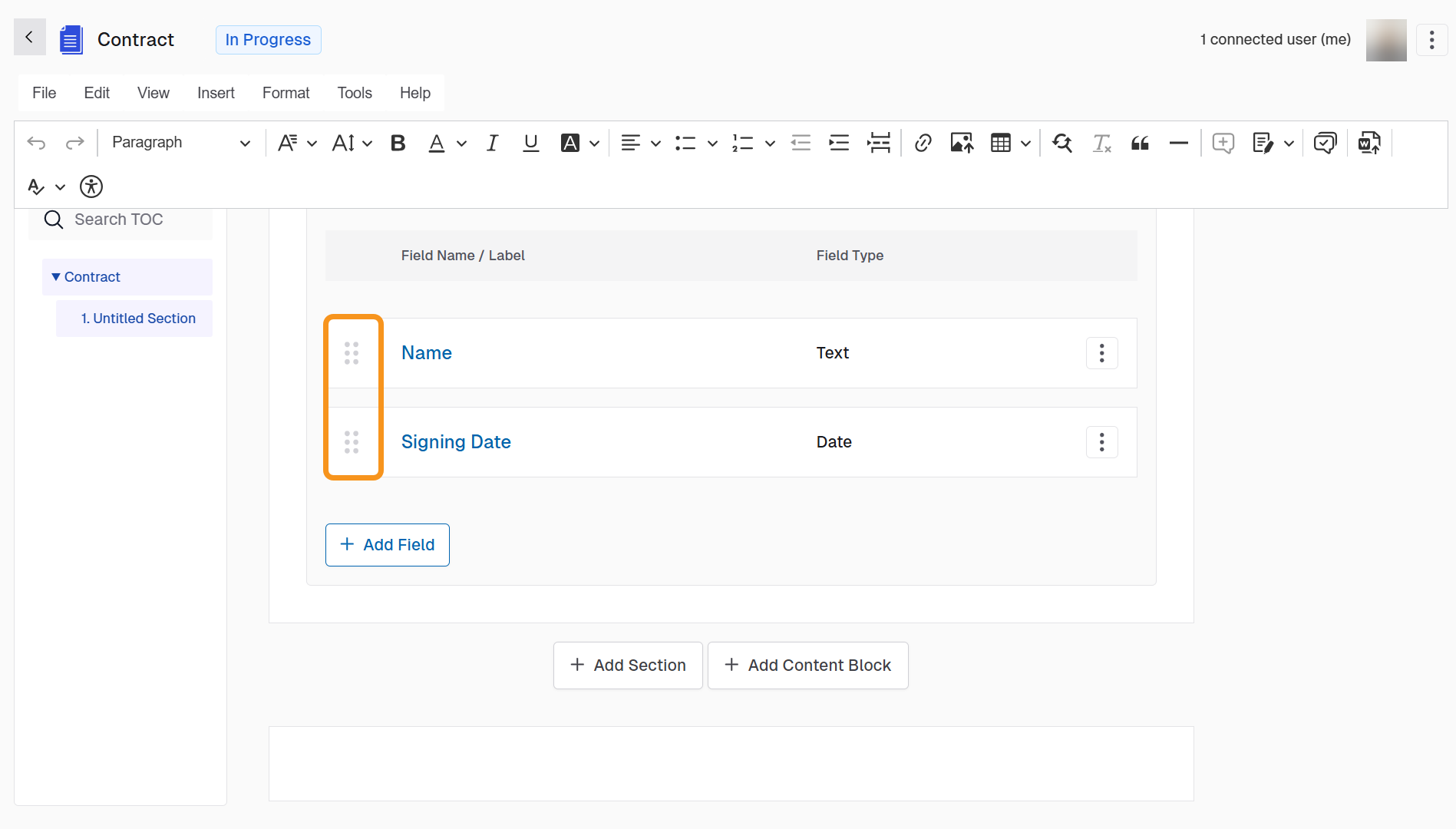
It’s recommended to add two associated fields: one for the signee’s name and one for the signing date.
To Reorder Associated Fields:
You can rearrange the order of associated fields to control how they appear in the document.
To reorder the fields, simply drag and drop them into the desired position.
Note
Remember to save your changes after adding or editing signature blocks.
See Also
To complement your knowledge of this process, check the following pages: