Edit JSON User Components
This how-to guide explains how to use the Edit JSON option in a User Component to fine-tune its schema directly. Editing JSON allows advanced users to add properties not exposed in the standard UI, such as custom validation, calculated values, or conditional logic.
When to Edit a User Component’s JSON
You should use the JSON editor when you need to:
- Add configuration not available in the visual editor (e.g.,
calculateValue,customConditional). - Bulk update several properties quickly.
- Copy–paste a schema from another environment.
To Edit JSON in a User Component
-
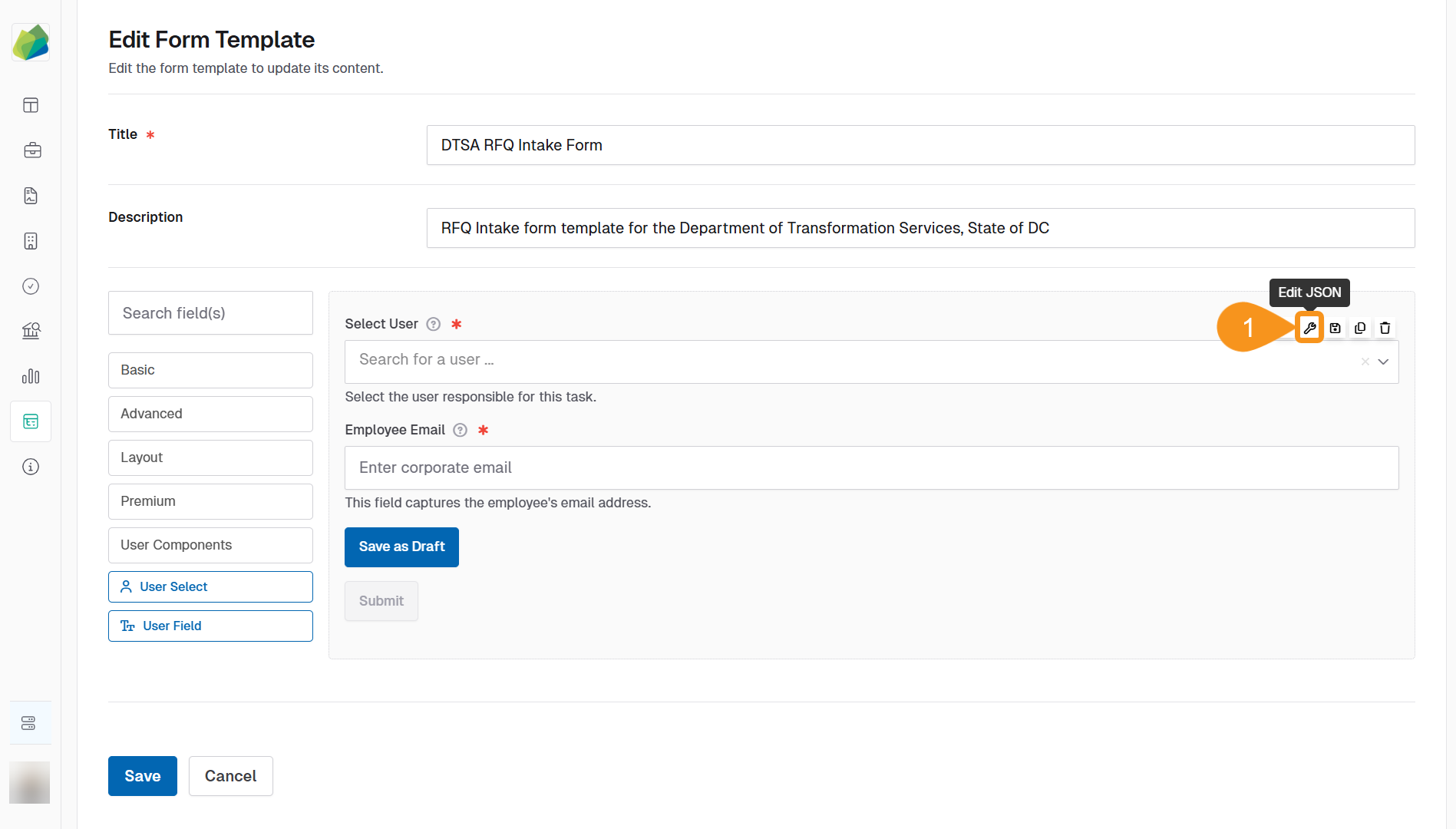
Hover over the User Component (User Select or User Field) and click the Edit JSON icon.
-
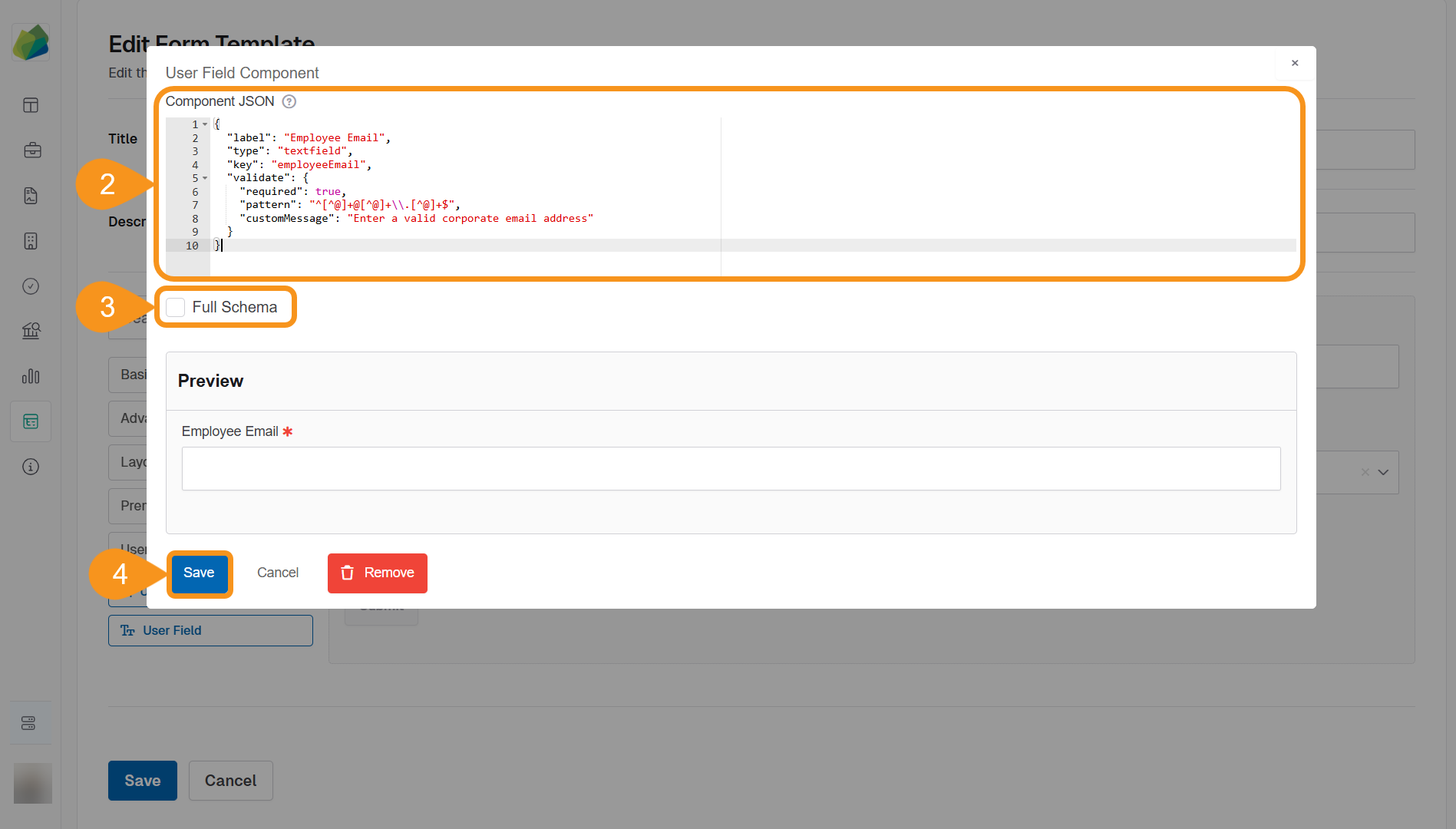
Modify the JSON schema.
Example: enforce email format in a User Field:
{
  "label": "Employee Email",
  "type": "textfield",
  "key": "employeeEmail",
  "validate": {
    "required": true,
    "pattern": "^[^@]+@[^@]+\\.[^@]+$",
    "customMessage": "Enter a valid corporate email address"
  }
} -
(Optional): Check Full Schema to reveal every default property. This is useful for copying the entire object or editing advanced attributes.
-
Click Save to apply the changes and close the modal, Cancel to discard the edits, or Remove to delete the component entirely.
-
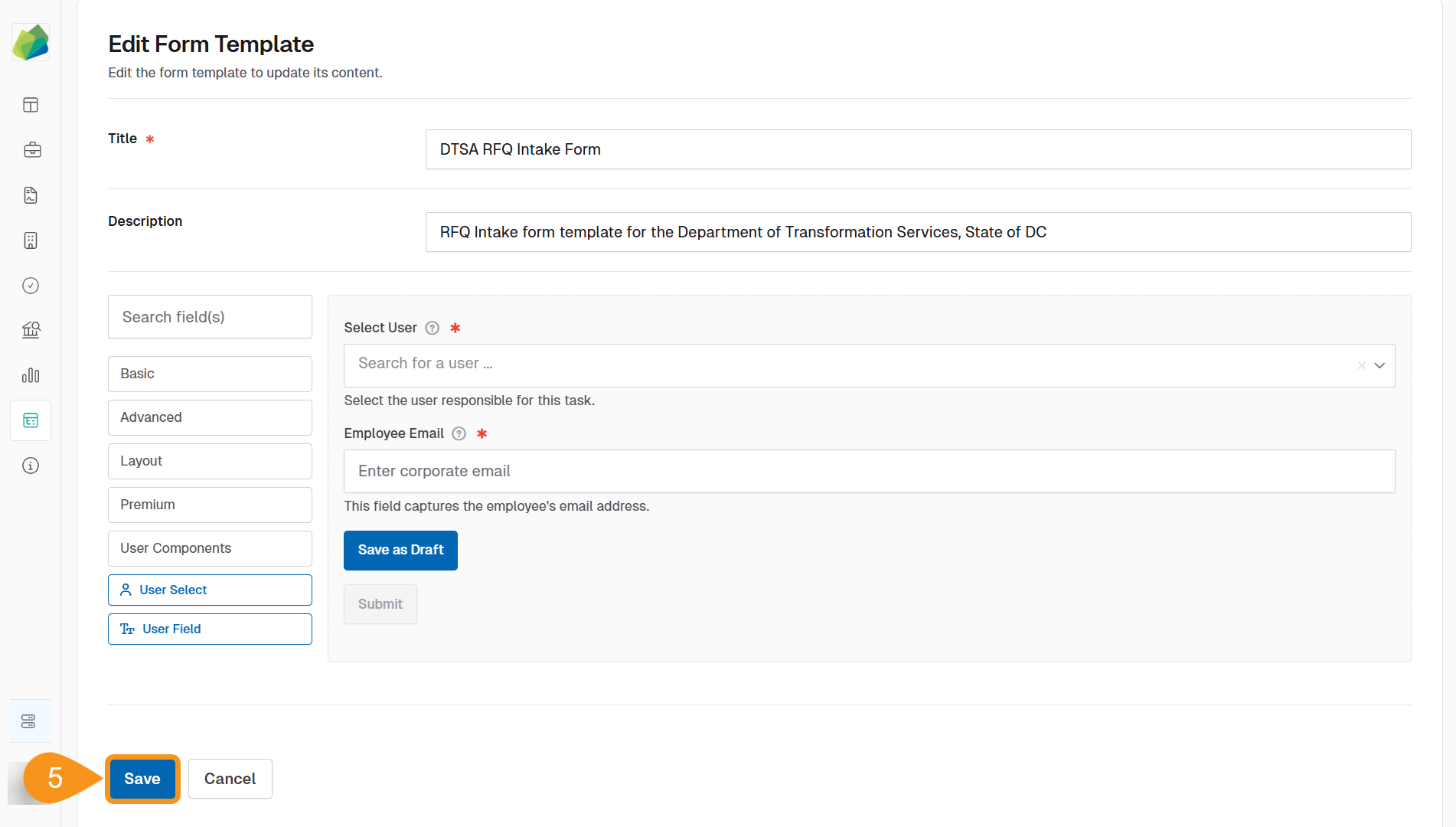
Click Save again in the form template builder to apply the changes to the template.
See Also
To complement your knowledge of this process, check the following pages: