Get User Select Variables to Assign Approvers and Stage Owners
This how-to guide explains how to use variables created with the User Select component to assign workflow roles such as approvers and stage owners. The primary purpose of User Select is to capture user input in a way that can later drive workflow assignments.
When to Use User Select Variables
You should use User Select variables when you need to:
- Assign a form submitter’s chosen user as an approver.
- Define a stage owner dynamically, based on a user selected in the form.
- Ensure workflow tasks and approvals are routed to the right project collaborators.
To Assign an Approver Using User Select
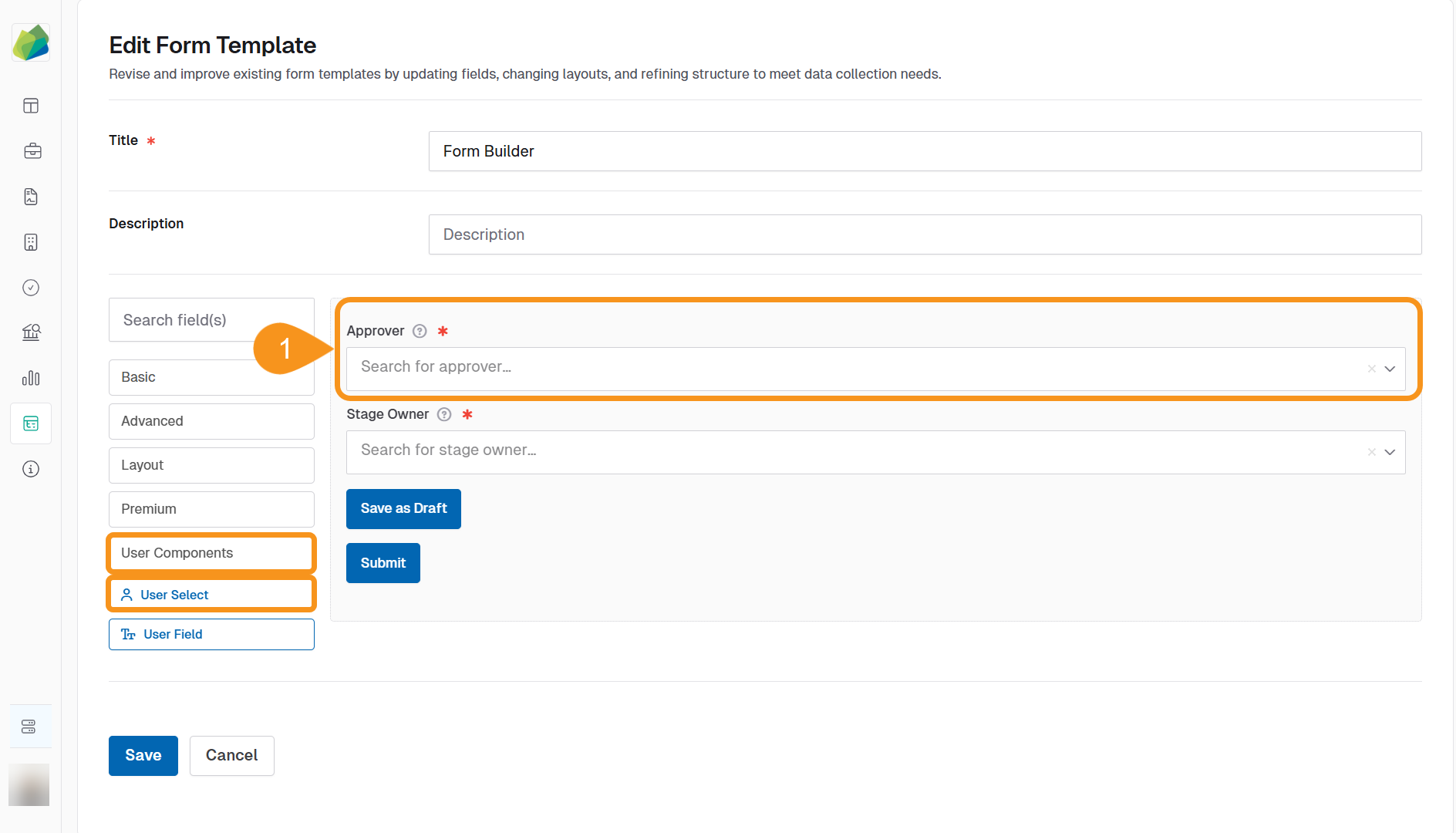
- Add a User Select component to your form template.
- Example: Label it Approver and set Value Property to User ID.
- In the component settings (JSON), update the Key to something meaningful, like
approverUser. - The Key defines the variable name that will be available in the workflow.
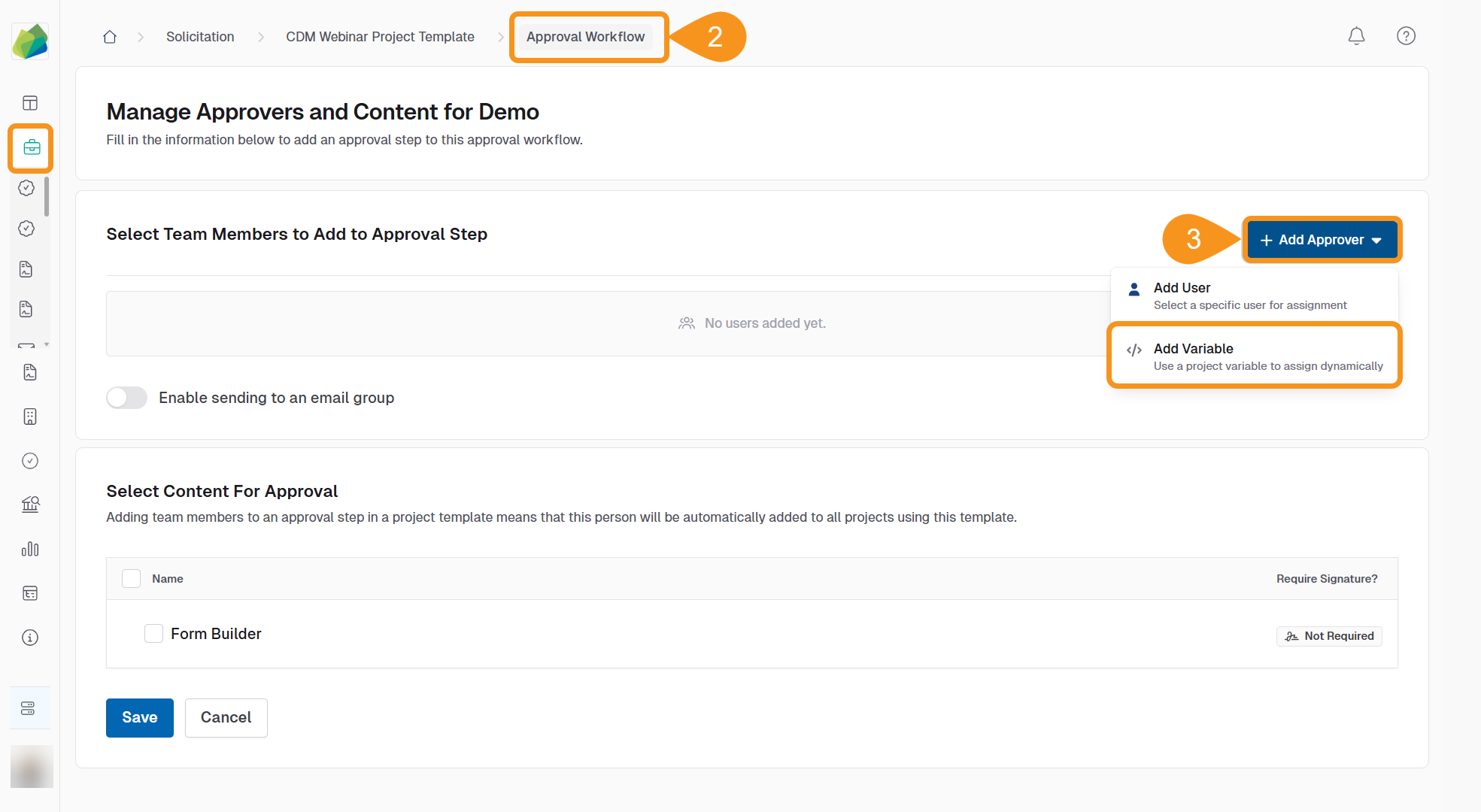
- In your workflow, go to the approval step configuration.
- Click + Add Approver and select Add Variable from the dropdown.
- From the list, select the variable that matches the User Select Key (e.g.,
approverUser). - Click Add Assignment to save your changes.
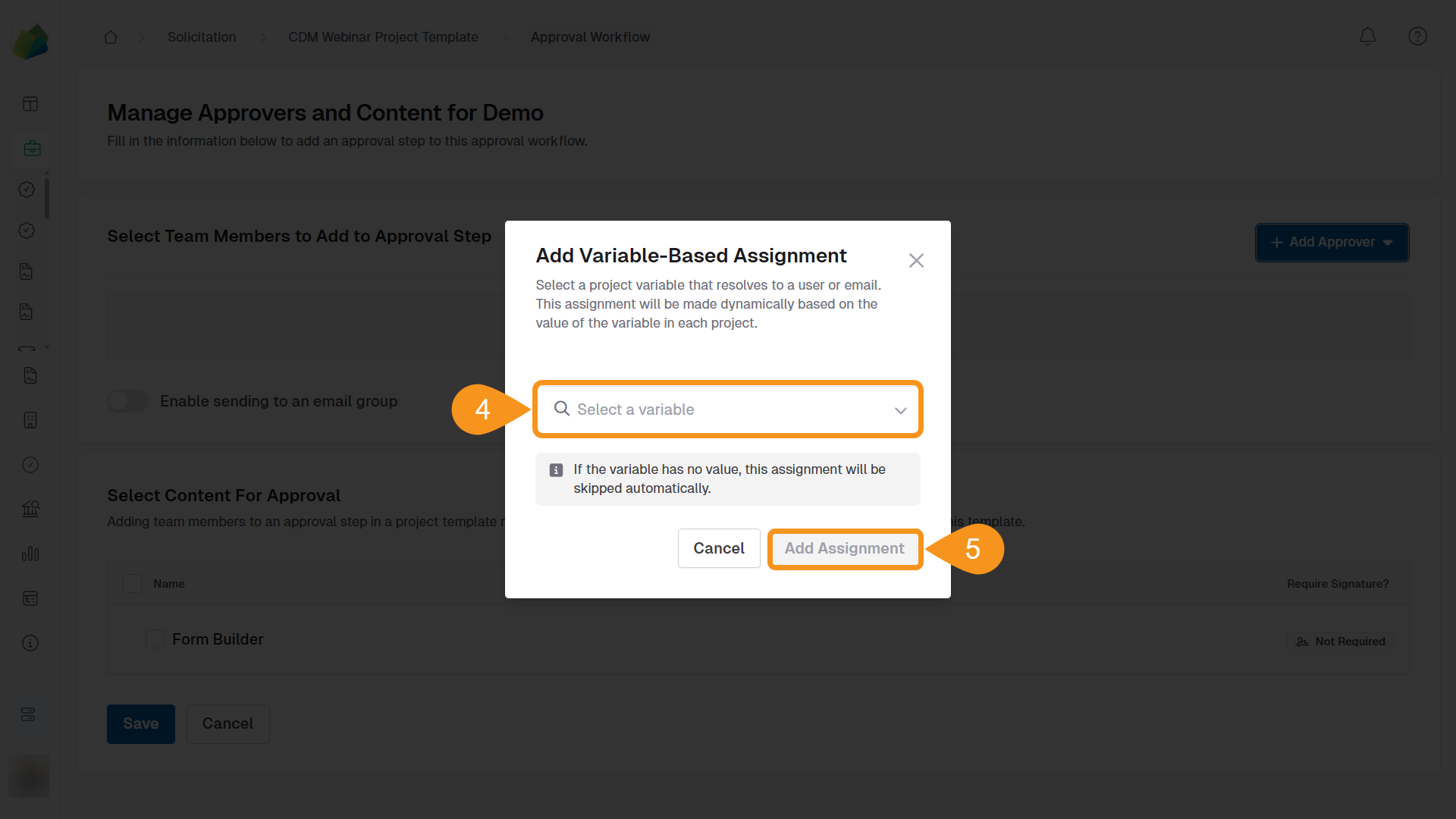
The workflow task will now automatically be assigned to the user selected in the form.
To Assign a Stage Owner Using User Select
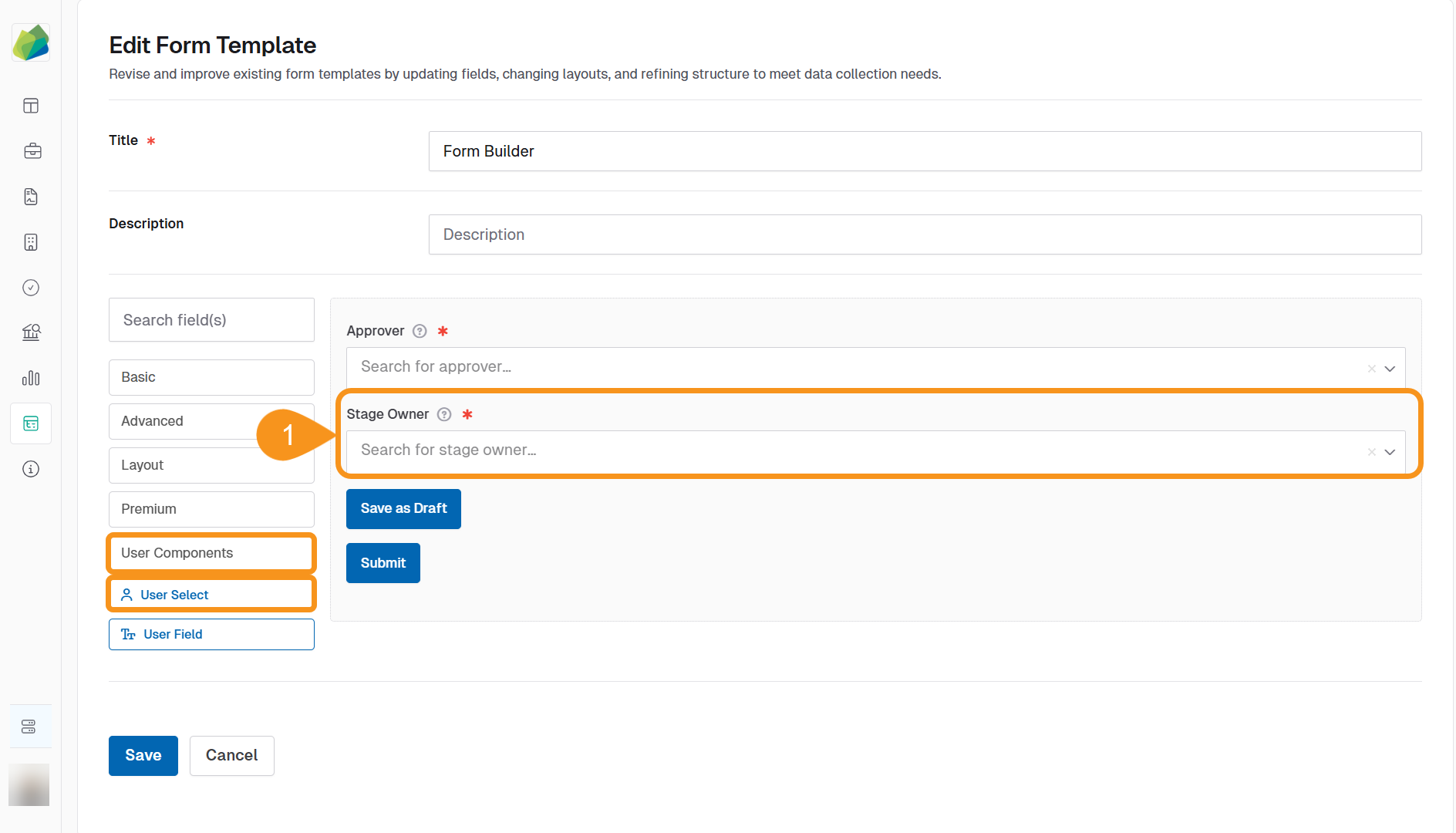
- Add a User Select component to your form template.
- Example: Label it Stage Owner and set Value Property to User ID.
- In the component settings (JSON), update the Key to something meaningful, like
stageOwnerUser. - The Key defines the variable name that will be available in the workflow.
- In the workflow designer, select the stage where you want dynamic ownership.
- Click + Add Owner and select Add Variable from the dropdown.
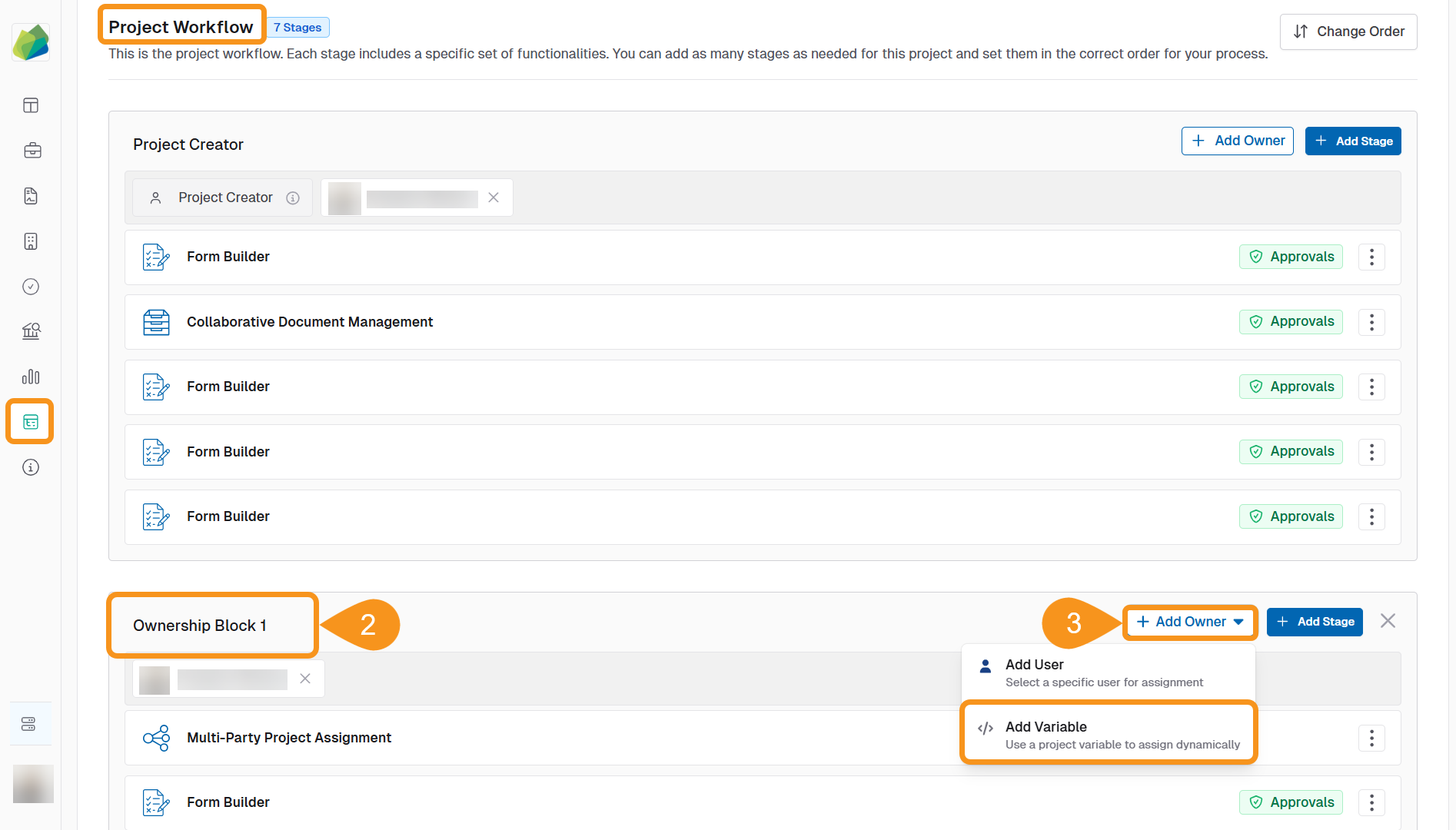
- Select the variable that matches the User Select Key (e.g.,
stageOwnerUser). - Click Add Assignment to save your changes.
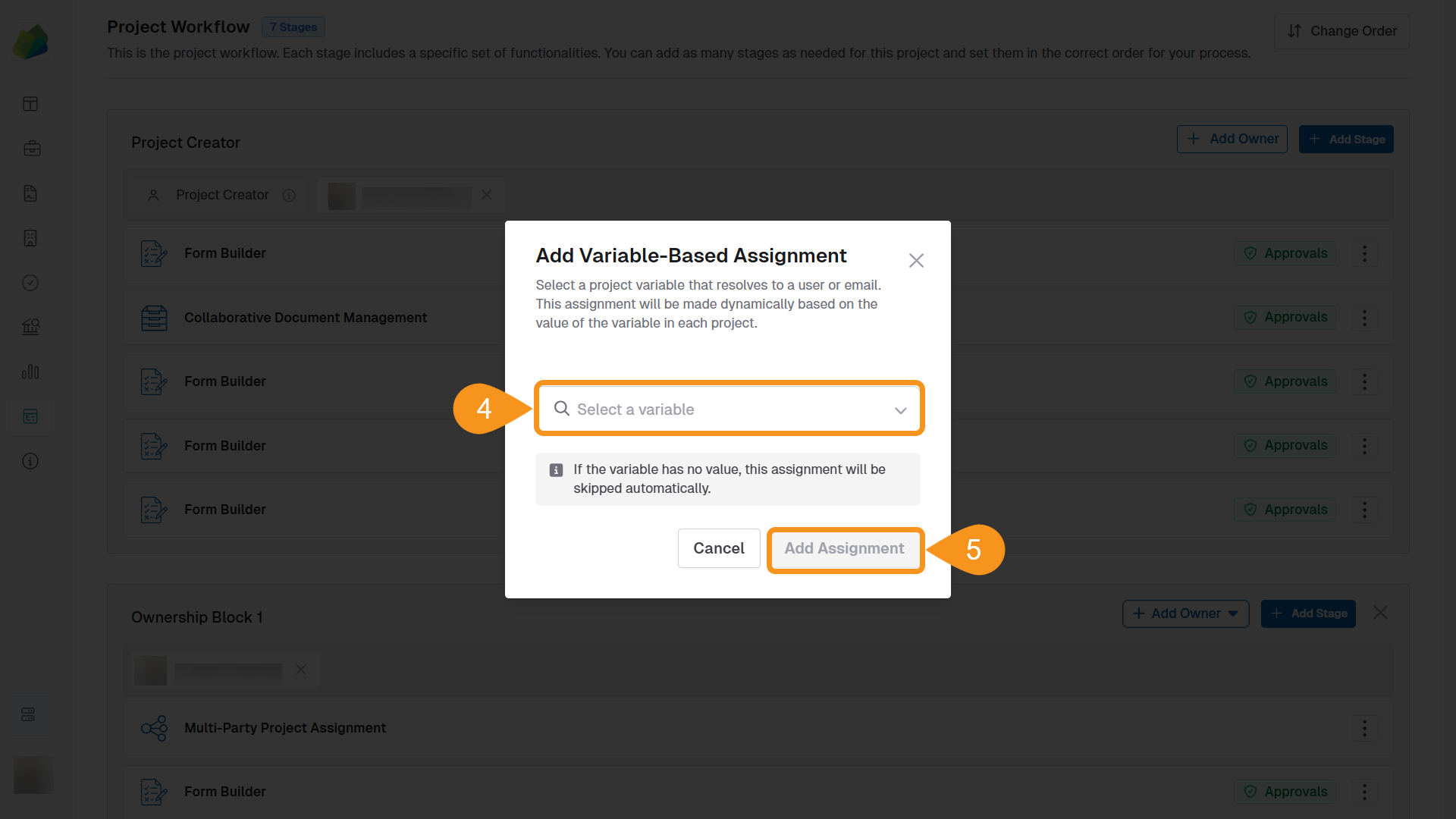
The stage will now be owned by the user chosen during form submission.
Note
- Always use User ID as the stored value for workflow assignments.
- The Key field of the User Select component defines the variable name (e.g.,
approverUser,stageOwnerUser). - Variables from User Select are available in the Global Project Information section under Data Mapping.
See Also
To complement your knowledge of this process, check the following pages: