Add Items to a Worksheet
This guide explains how to add items to an Evaluation Worksheet. Items are the specific fields suppliers may need to complete, such as uploading licenses, entering costs, or confirming eligibility. Adding items lets you define the criteria or questions that evaluators will use when reviewing submissions.
When to Add Items
You should add items when you need to:
- Define the evaluation criteria for suppliers or submissions.
- Capture structured feedback using scores, comments, or both.
- Ensure all evaluators review based on the same standards.
To Add Worksheet Items
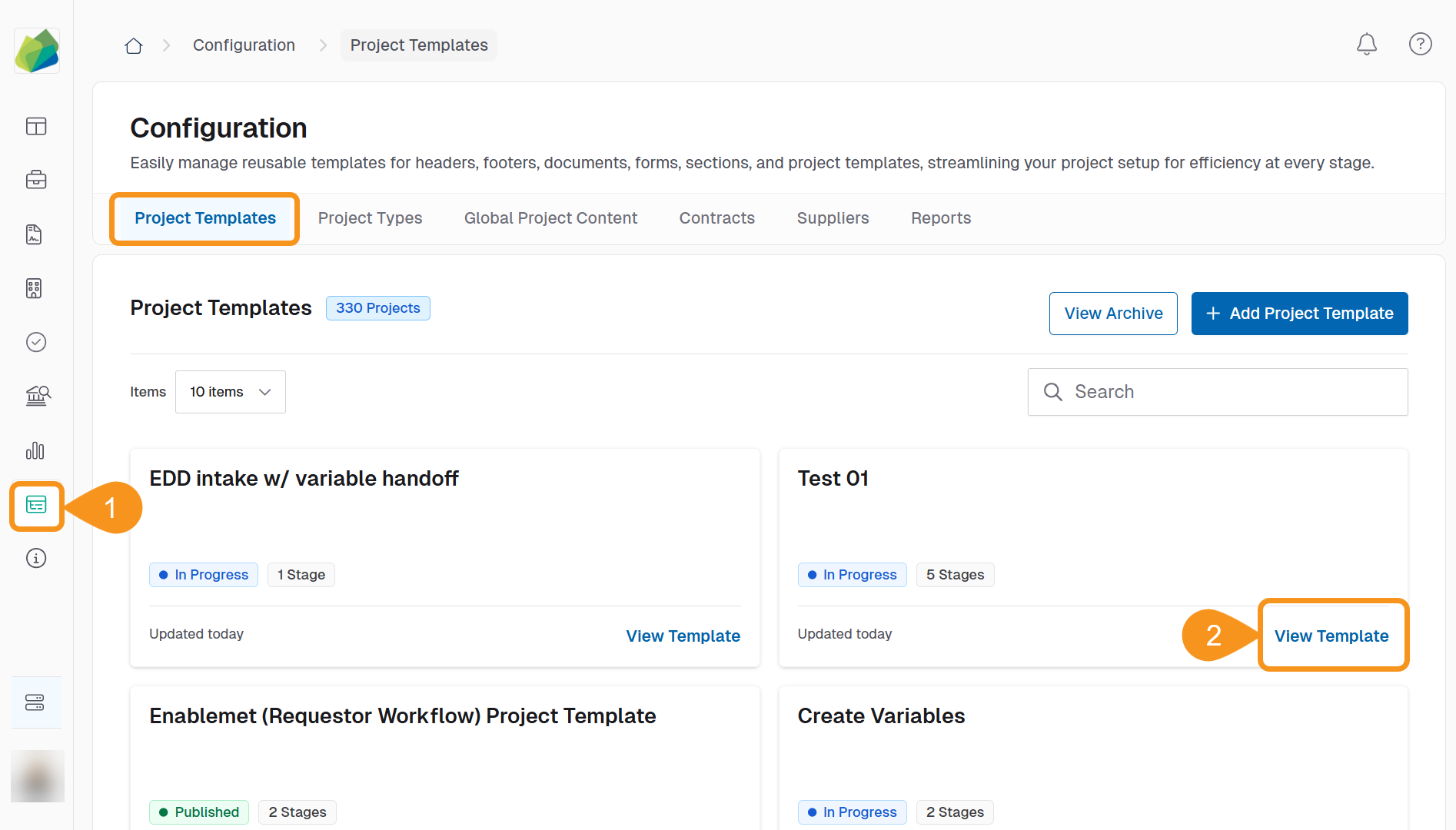
- Go to the Configuration section from the sidebar.
- In the Project Template tab, click View Template for the template you want to edit.
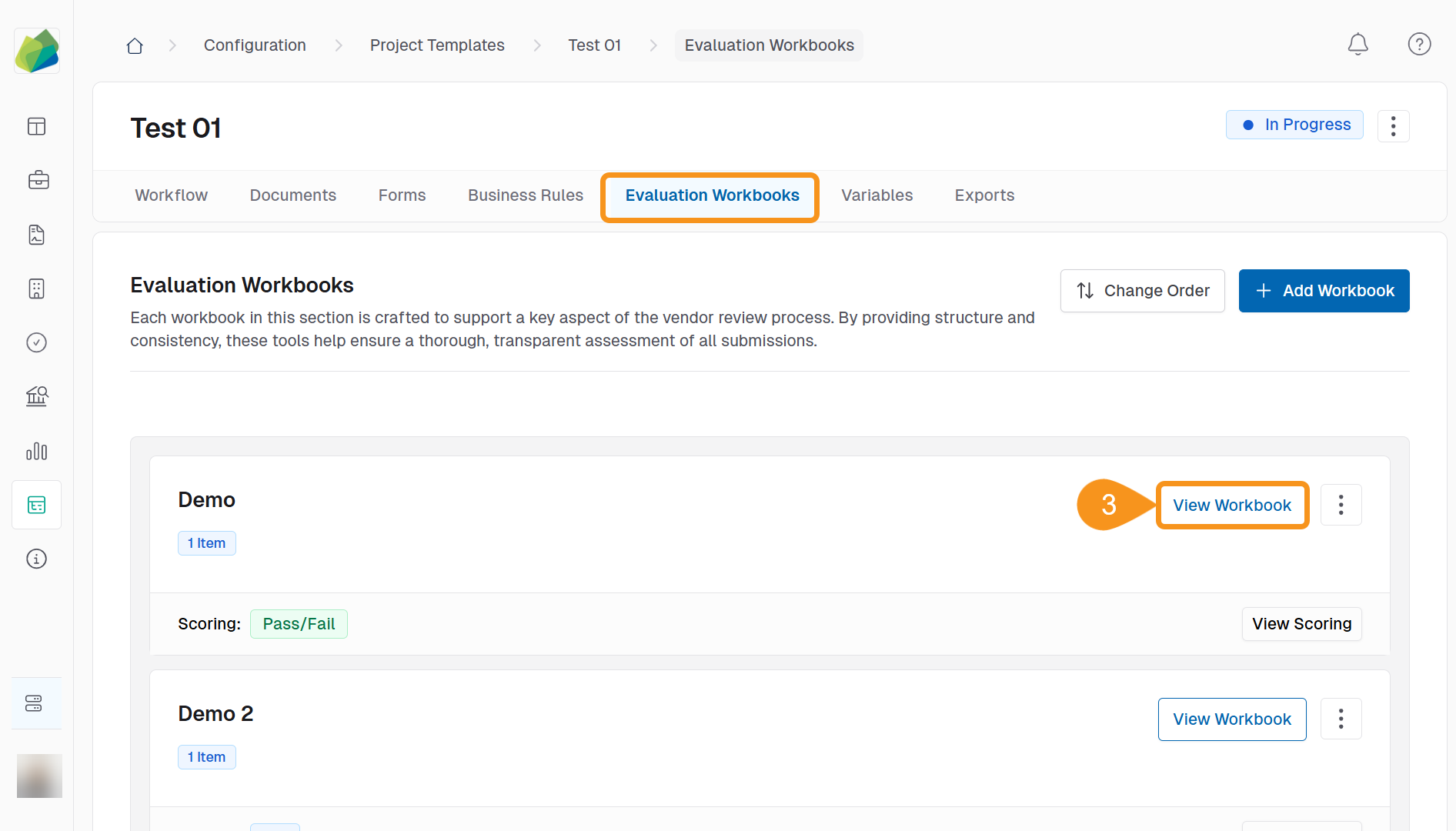
- In the Evaluation Workbooks tab, click View Workbook.
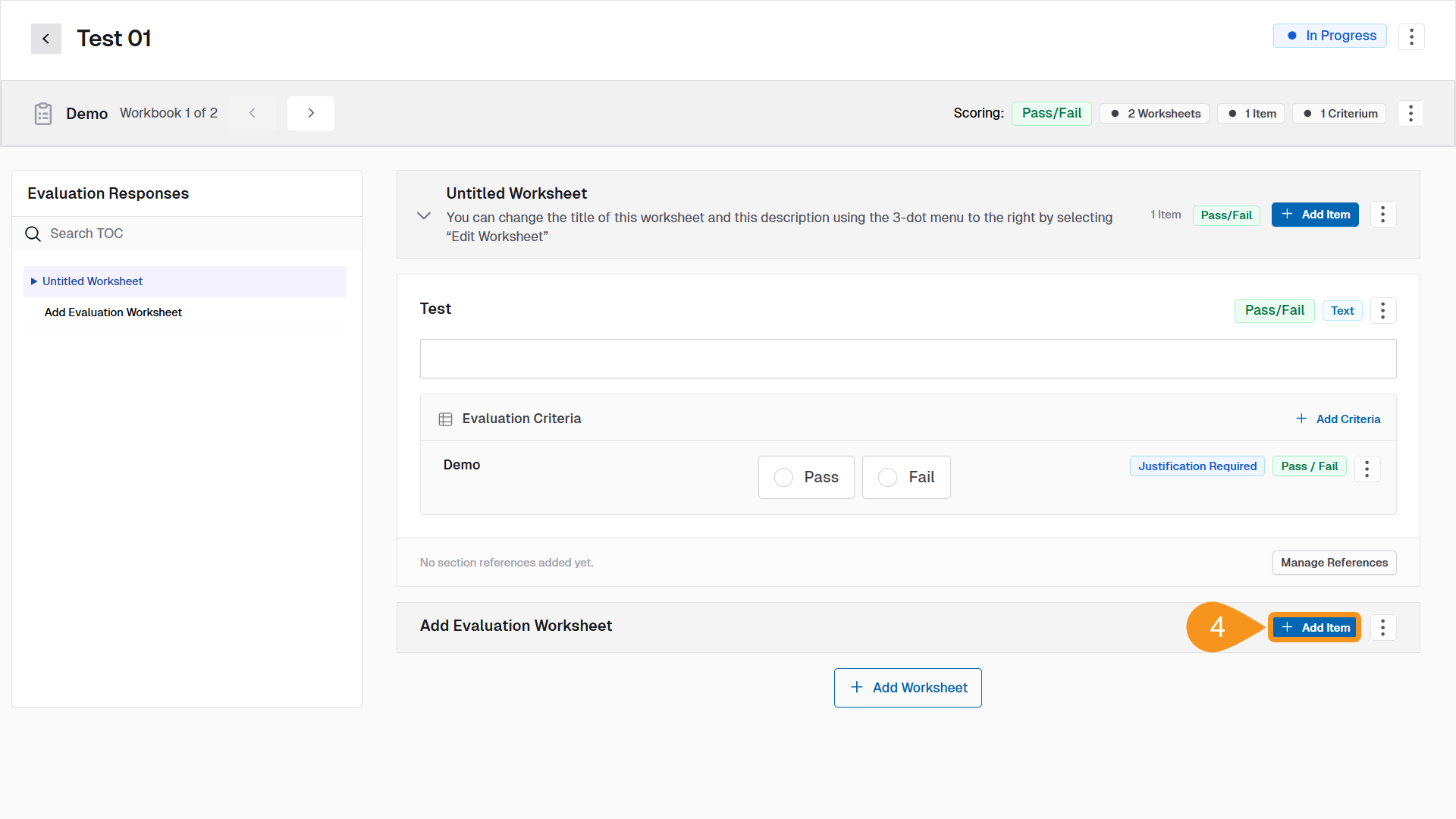
- Select the worksheet where you want to add items and click the + Add Items button.
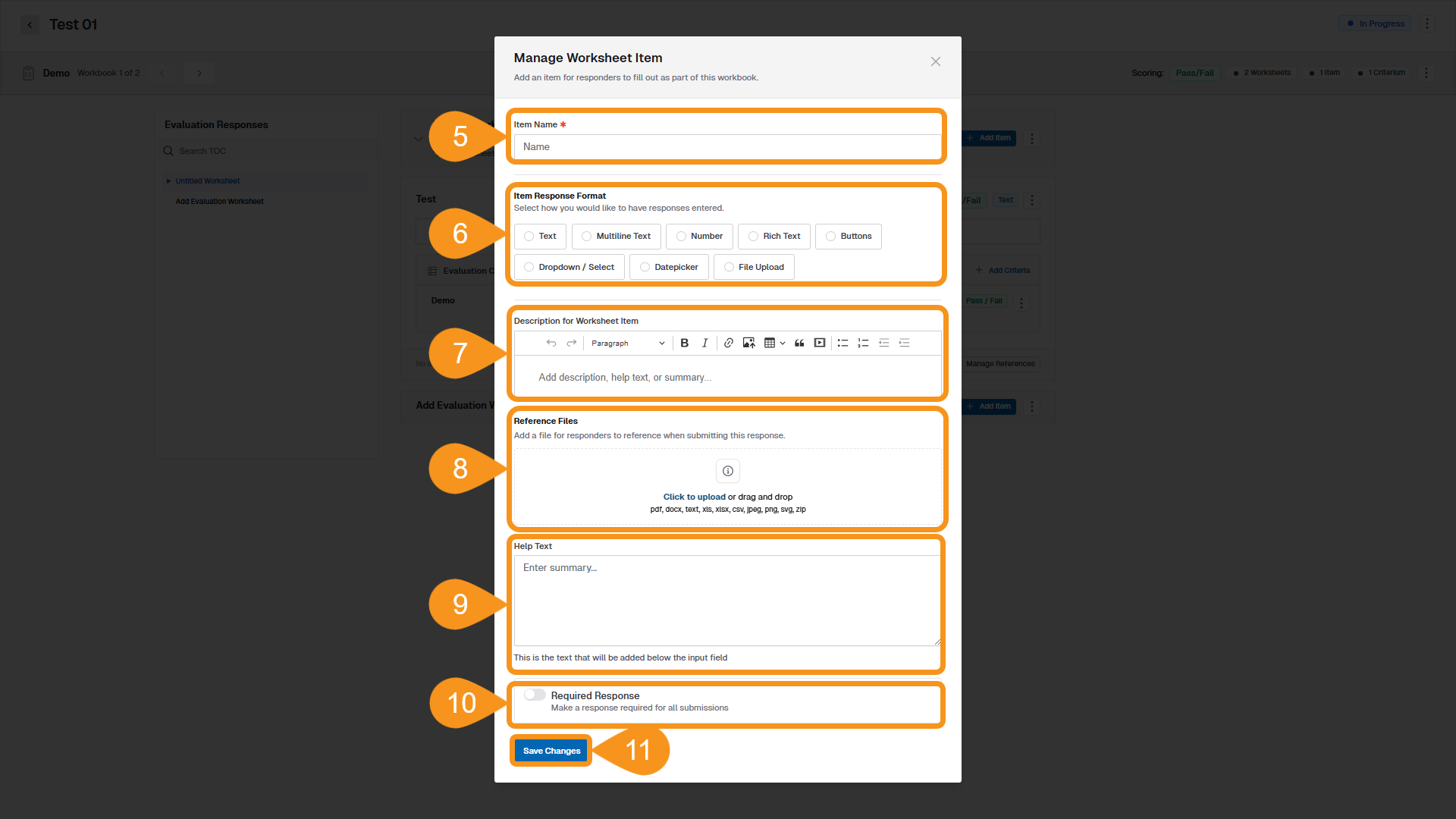
- Enter an Item Name.
- Under Item Response Format, choose how suppliers should respond:
- Text: Single-line plain text
- Multiline Text: Multi-line plain text input
- Number: Numeric input only
- Rich Text: Formatted text input with basic styling
- Buttons: Selectable options presented as buttons
- Dropdown / Select: A dropdown menu with predefined options
- Datepicker: Calendar date selection
- File Upload: Supplier must attach one or more files
- (Optional): Enter a Description for Worksheet Item to clarify the purpose or context of the question.
- (Optional): Upload Reference Files that suppliers can use to support their responses.
- (Optional): Add Help Text to guide suppliers as they complete the item — this will appear beneath the response field.
- Toggle Required Response if this worksheet item must be completed before submission.
- Click Save Changes to add the worksheet item.
- Click the back arrow next to the Project name to return to the Evaluation Workbook page.
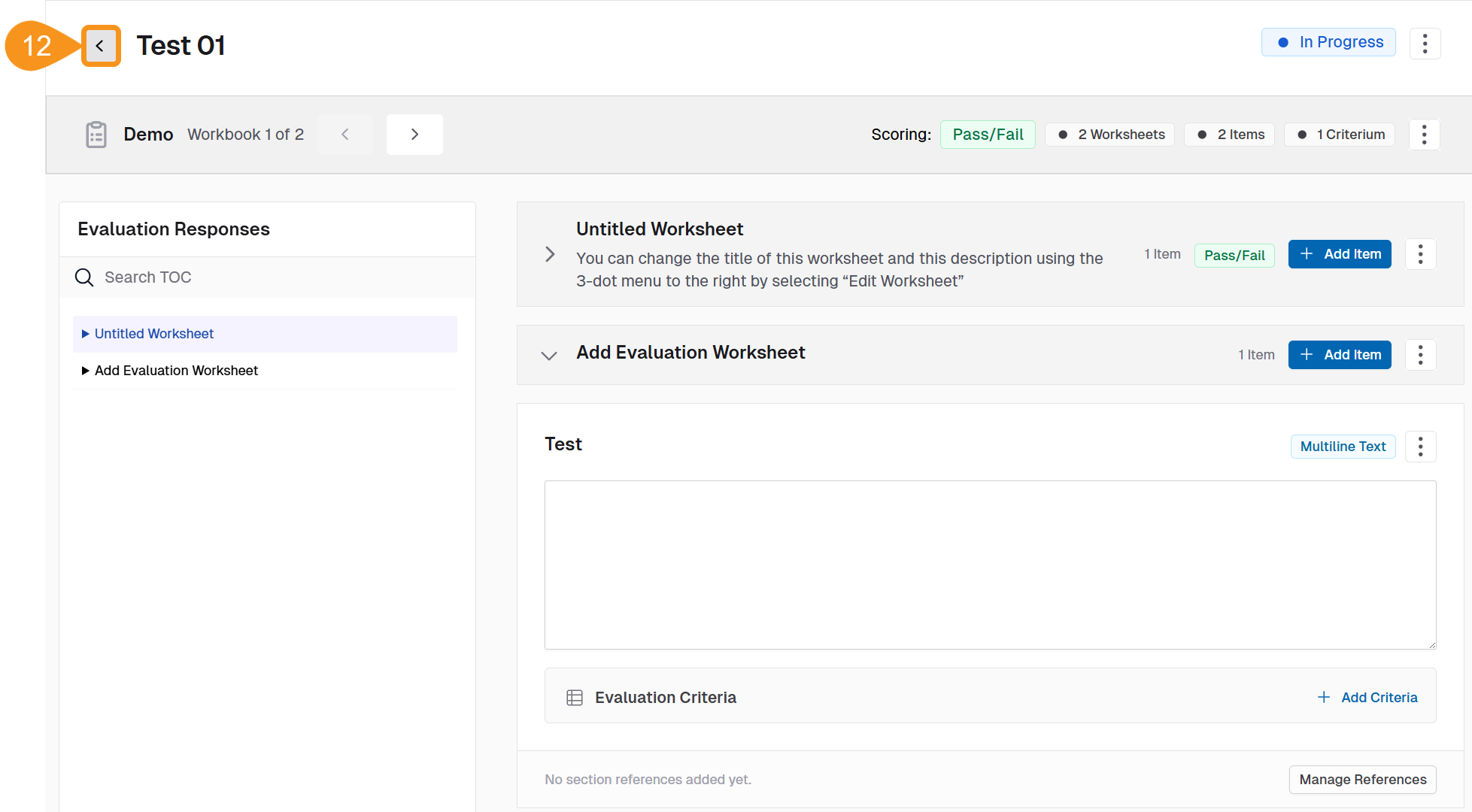
Once saved, the item will appear in the workbook's worksheet. You may edit or reorder items as needed.
See Also
To complement your knowledge of this process, check the following pages: