Begin the Online Submissions Process
This how-to guide explains how to launch the Online Submissions process after configuring submission settings, inviting suppliers, and selecting solicitation documents.
Once published, the project will notify suppliers and allow them to submit their responses.
When to Start the Submissions Process
You should begin the process when you need to:
- Finalize all Submission Details, Supplier Invitations, and Solicitation Documents.
- Publish the project and start accepting supplier responses.
To Begin the Online Submissions Process
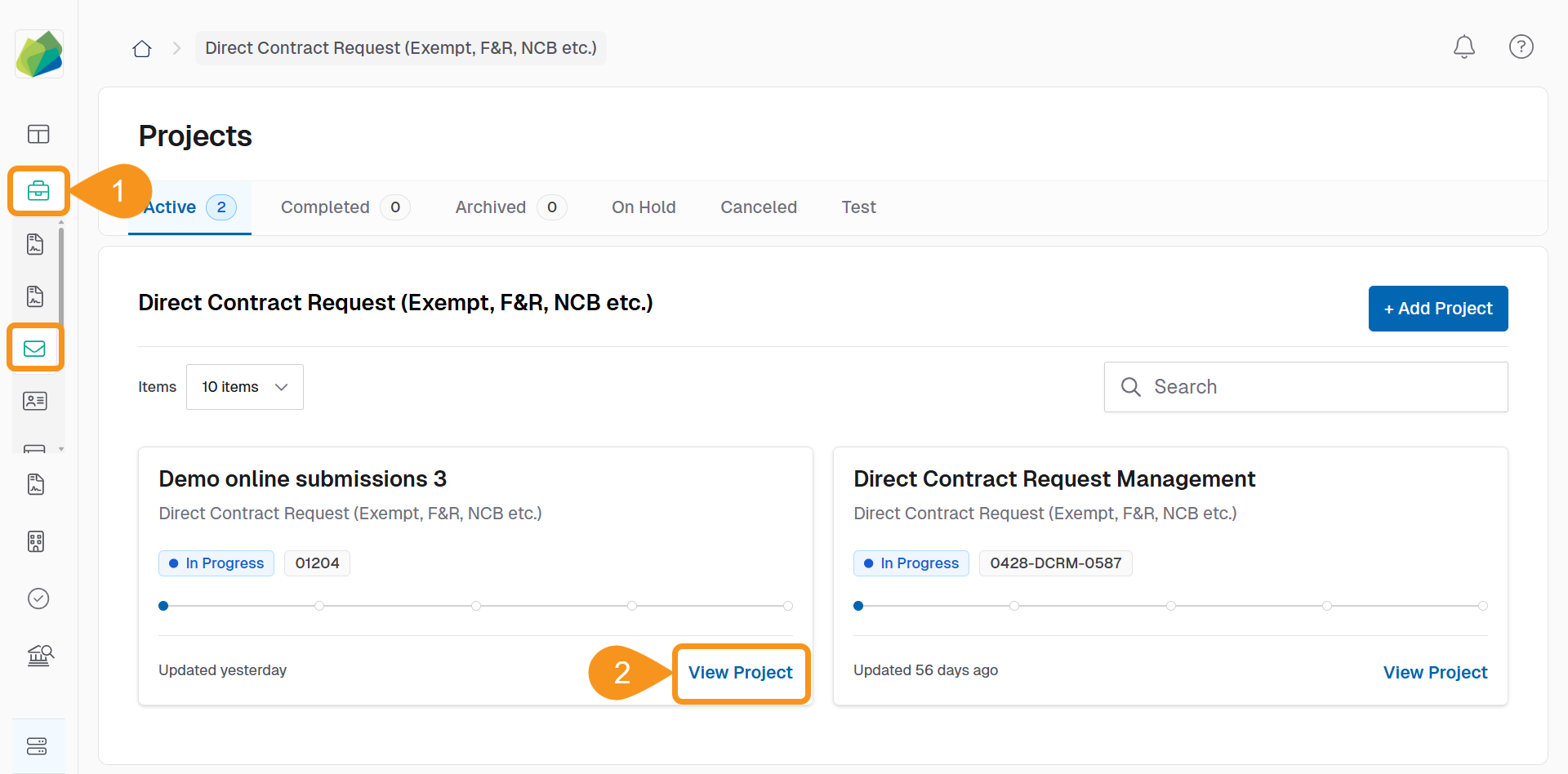
- From the Dashboard, go to the project you want to begin the Online Submissions process for.
- Click View Project.
 Before You Publish
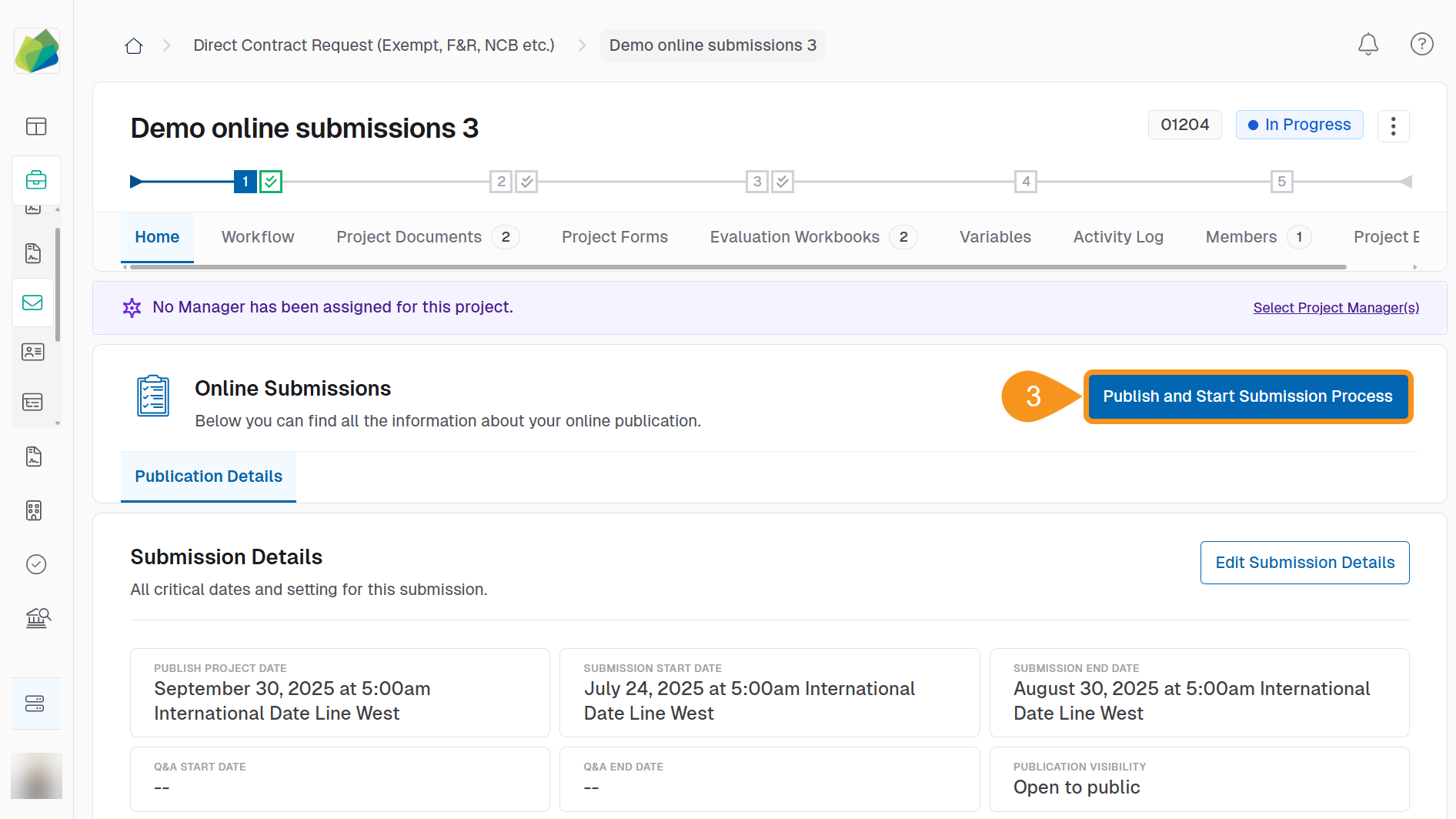
Confirm that the Submission Details, Supplier Invitations, and Solicitation Documents are correct before publishing the project and notifying suppliers.
- Click Publish and Start Submission Process.
- Click Confirm and Send Invitations to notify invited suppliers.
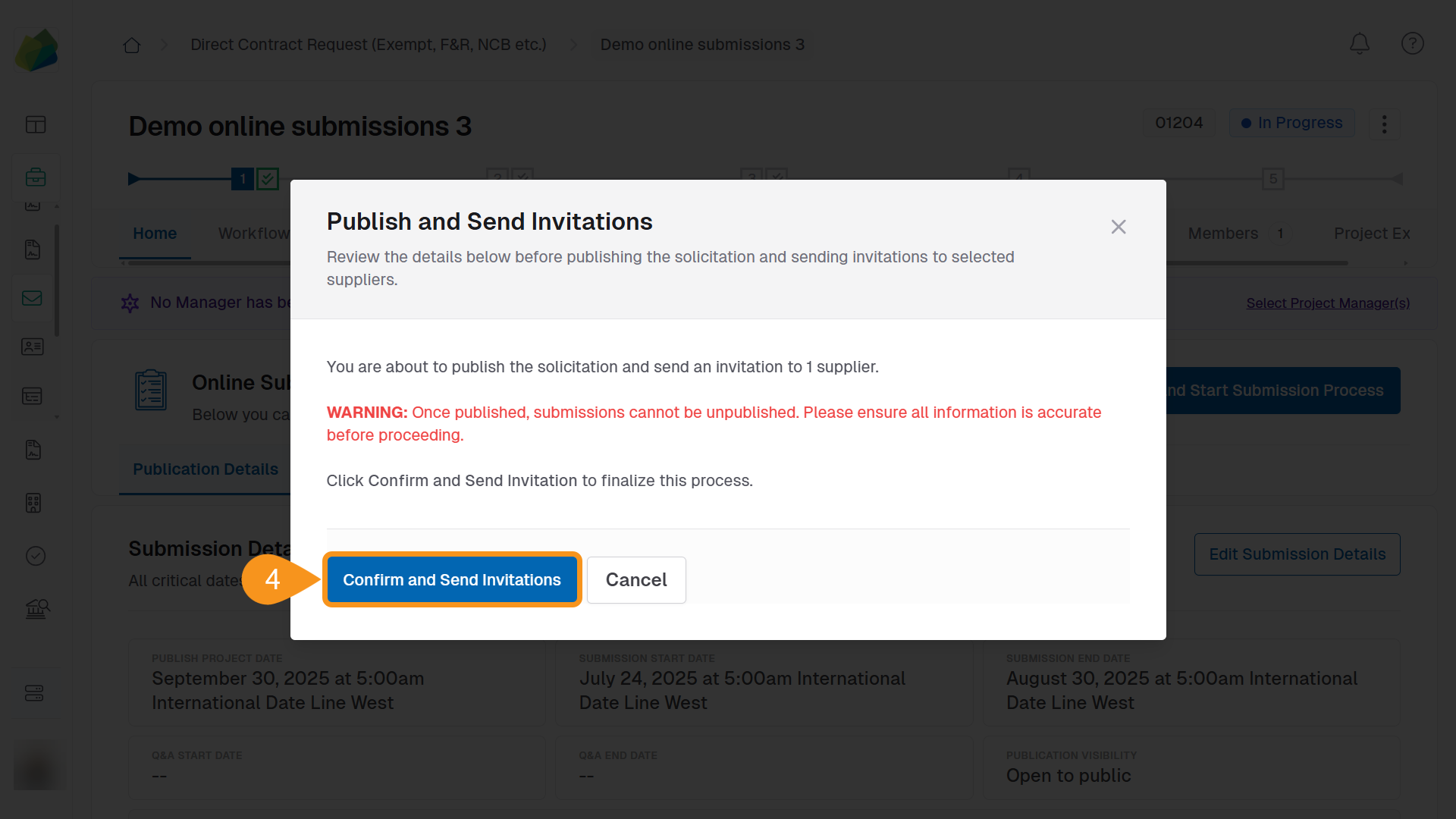
To make changes after publishing, click Unpublish and Edit on the main project screen. This will retract the project and allow you to update submission details or other settings. Don’t forget to publish it again afterward.
See Also
To complement your knowledge of this process, check the following pages: