Create Projects from Templates
This guide explains how to start a new project in Authorium using an existing Project Template. Creating projects from templates ensures a consistent workflow and speeds up project initiation. Projects inherit documents, workflows, and structure from their parent template.
When to Create a Project from a Template
You should create a new project from a template when you need to:
- Ensure consistency across projects by using a predefined workflow and structure.
- Save time by reusing standard documents and configurations.
- Launch projects that follow the same business rules and approval processes.
To Create a Project from a Template
- From the Dashboard, go to the Projects drop-down from the sidebar.
- Select the Project Type.
Current project types include:Note
The project type you select determines which document templates will be available in later stages.
– Bill Analysis
– Direct Contact Request
– Solicitation
– Solicitation Request - Click Add Project.
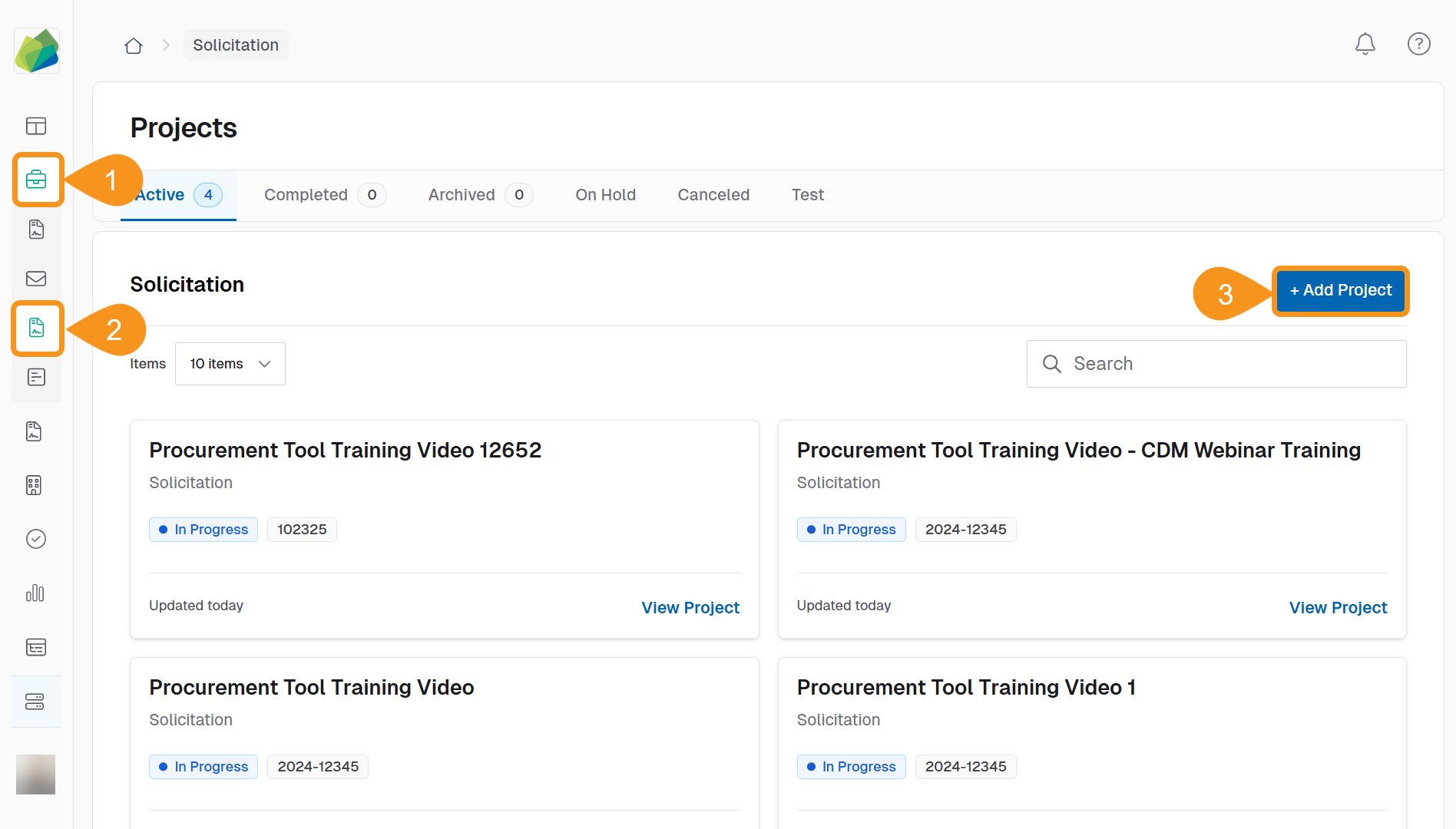
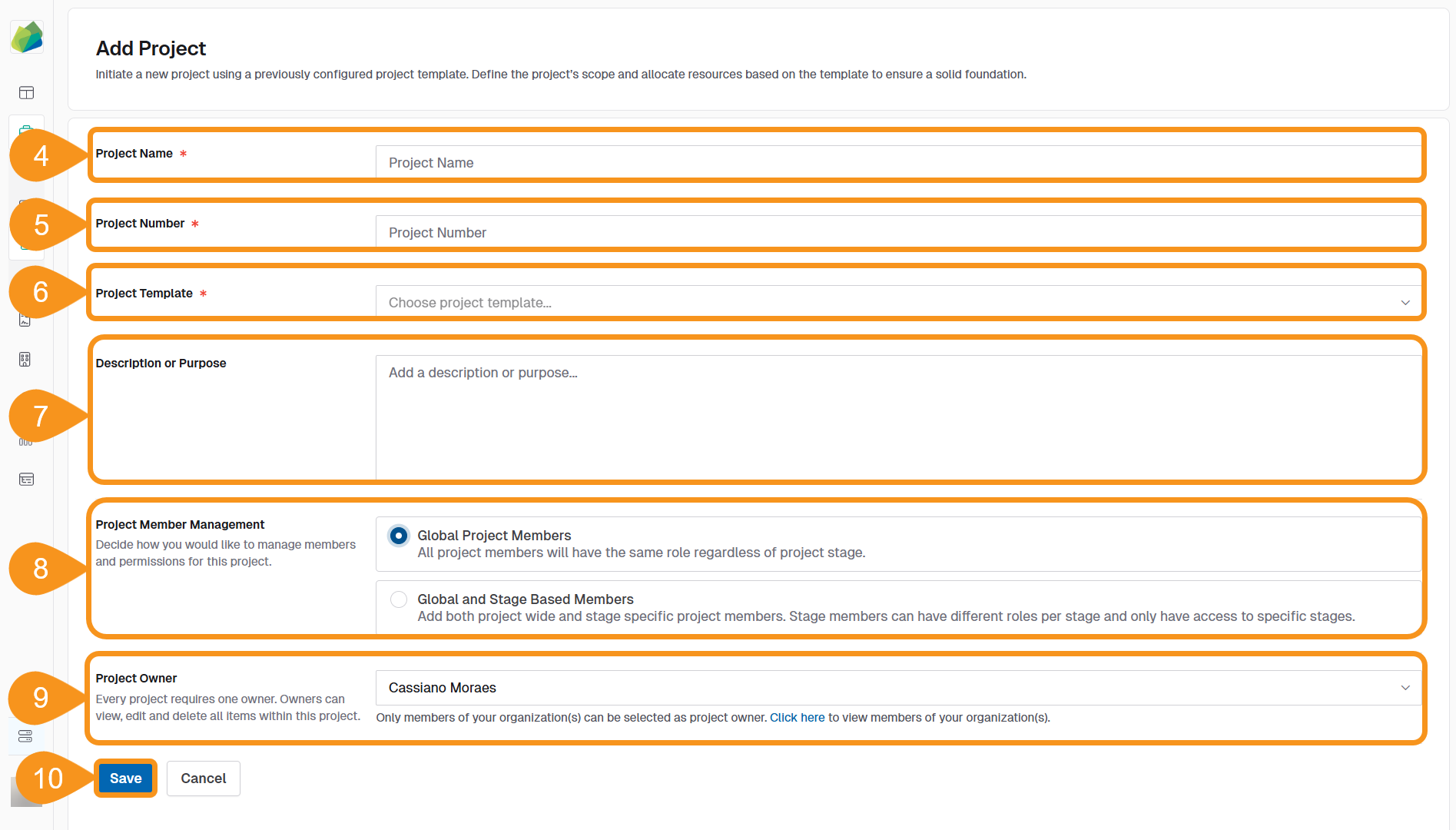
- Enter the Project Name.
NoteGive your project the specific name using the nomenclature determined by your organization. For example, Non-IT RFO CMAS: Training Materials
- Assign a Project Number according to your internal numbering system.
- From the drop-down, select the Project Template you want to use.
Note
If you do not see your template, it may still need to be published, or it could belong to a different project type.
- Add a Description or Purpose to help team members identify the project quickly.
- Optionally, assign a Project Owner (defaults to the user creating the project).
- Choose whether you need stage-specific controls on project member permissions.
- For details, see Manage Project Members.
- Click Save to create your project.
See Also
To complement your knowledge of this process, check the following pages: