Edit Project Permissions
This guide explains how to edit permissions for Project Roles in Authorium. Permissions determine what users assigned to each role can view or manage within a project, including documents, members, and forms. Proper configuration ensures security, efficiency, and appropriate access for all team members.
When to Edit Project Permissions
You should edit Project Permissions when you need to:
- Customize what each role can access or manage within a project.
- Limit or expand permissions for specific roles (e.g., restrict who can edit documents).
- Implement new roles that require tailored permissions.
To Edit Project Permissions
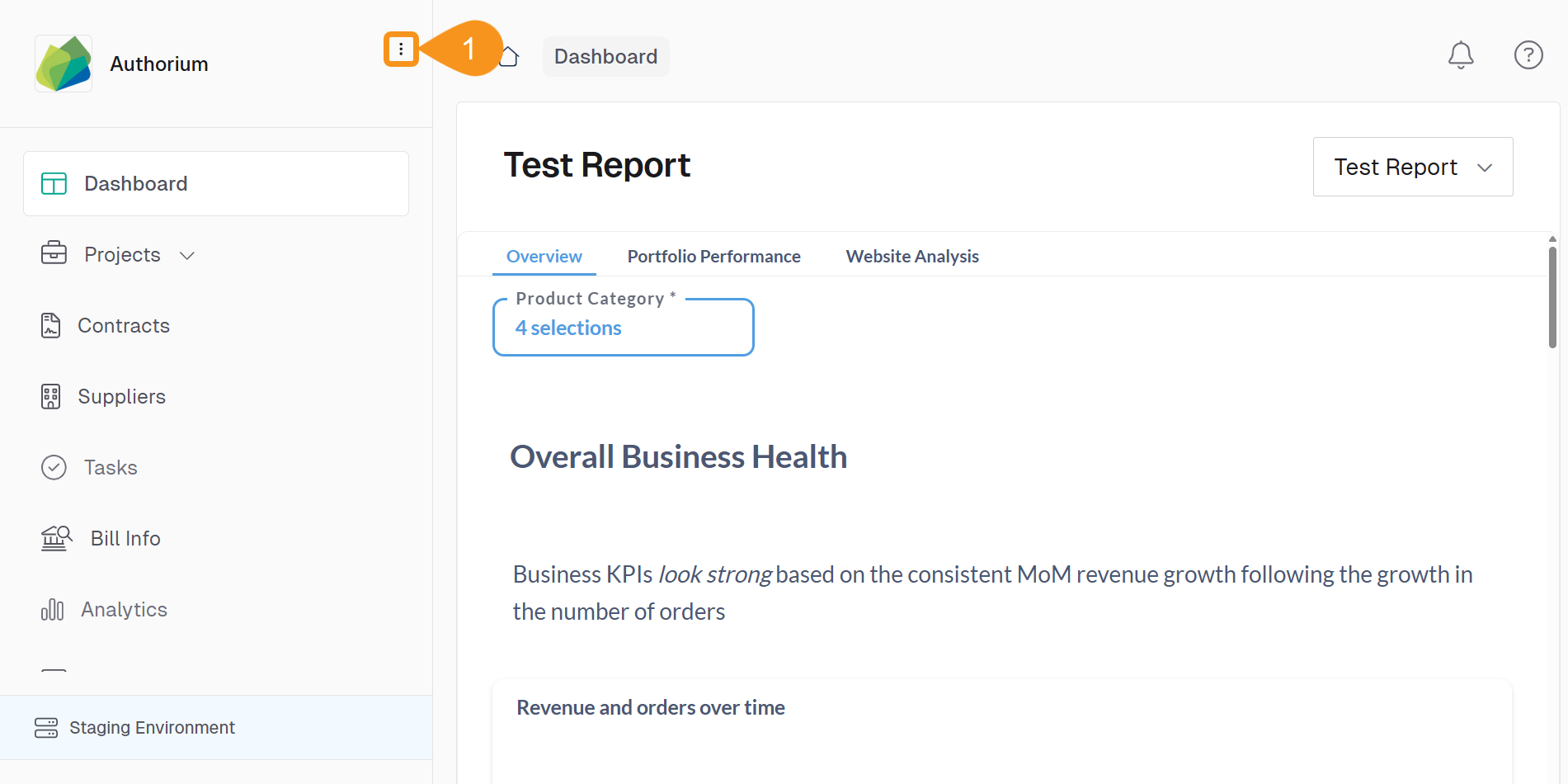
- From the Dashboard, go to the three-dots menu in the main navigation bar next to the logo.
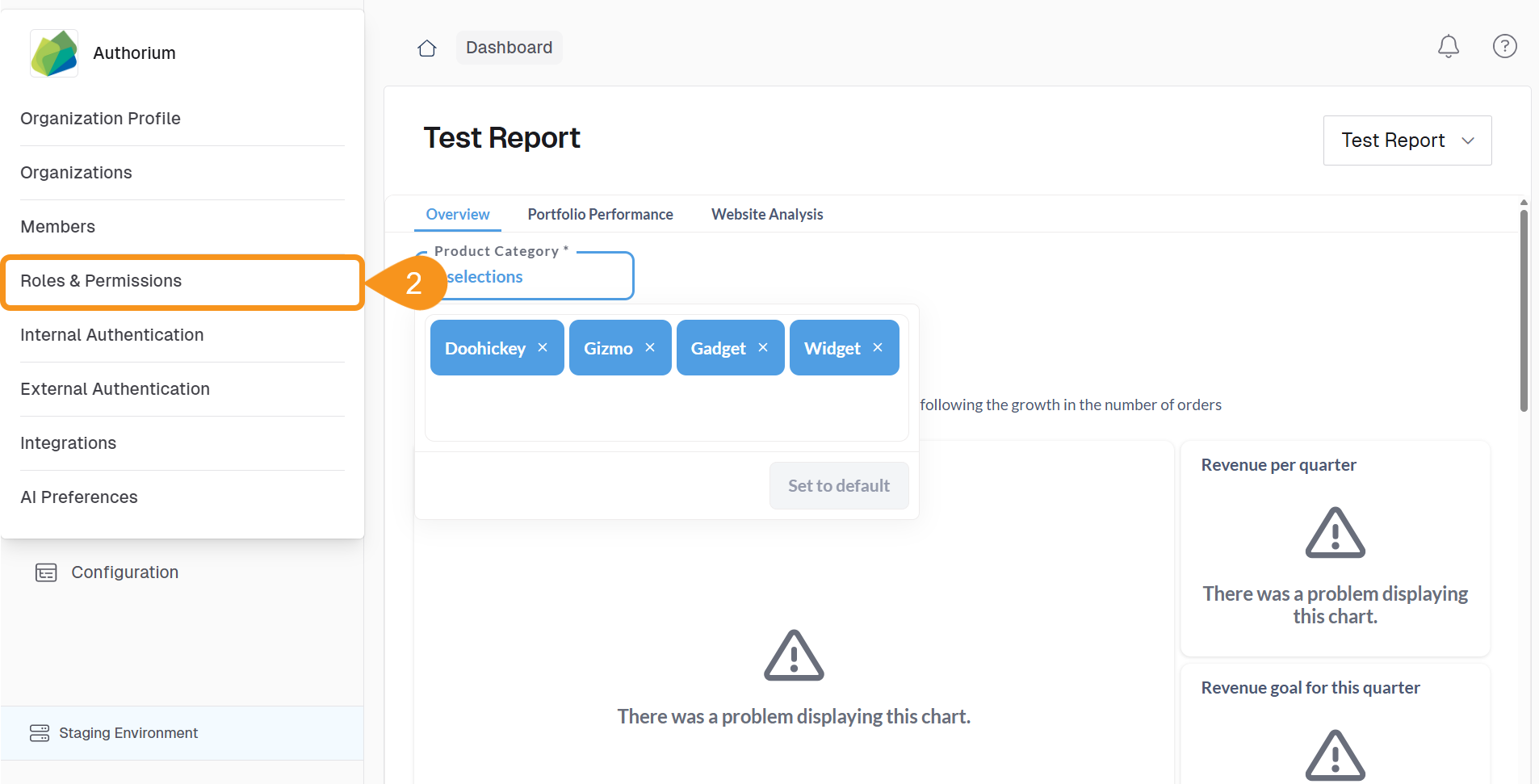
- Select Roles & Permissions.
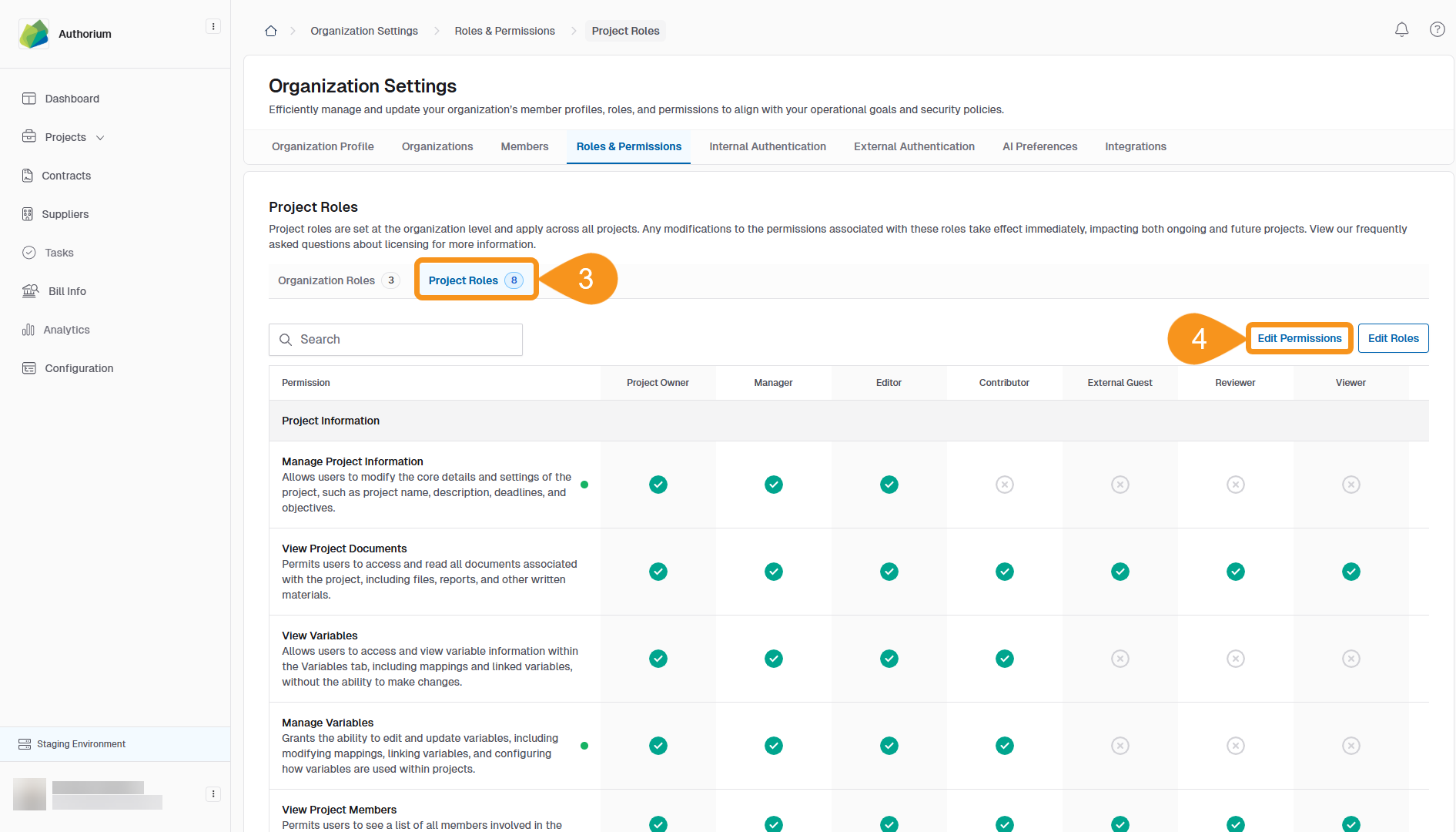
- Go to the Project Roles tab.
- Click Edit Permissions to activate the Project Roles table.
- Column headers represent roles.
- Rows display the available permissions.
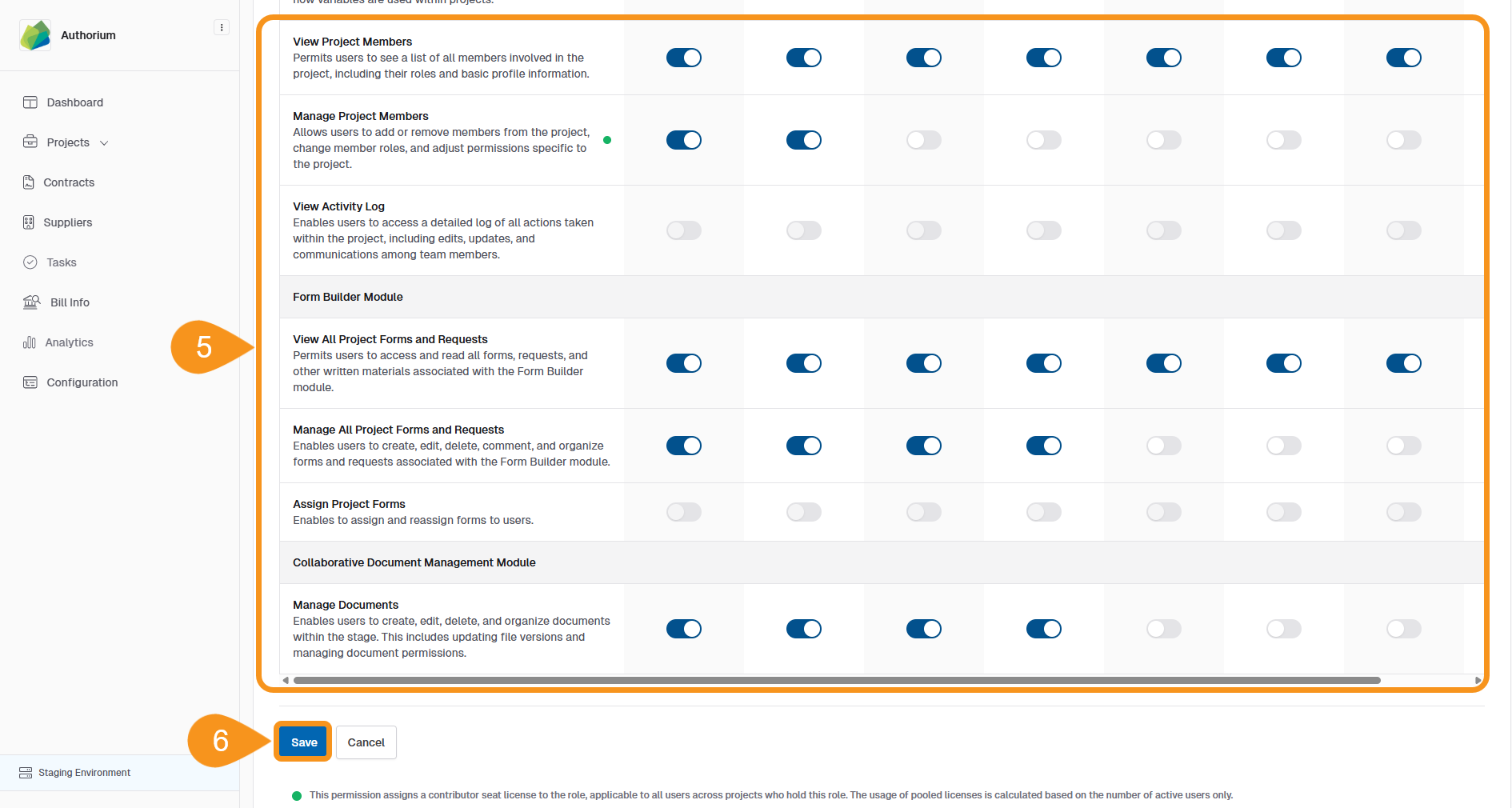
- Use the toggles to activate or deactivate each permission for the selected roles.
- Click Save to apply your changes.
Note
Some default roles include non-editable permissions, which appear grayed out in the table.
See Also
To complement your knowledge of this process, check the following pages: