Publish and Update Project Templates
This how-to guide explains how to publish and update Project Templates in Authorium. Publishing a template makes it available for users to start new projects based on its structure and configuration. Updating requires first unpublishing, making changes, and then republishing the template.
When to Publish a Project Template
You should publish a Project Template when:
- All required configurations, documents, and forms are completed.
- All Business Rules and Variables are properly assigned or linked to the project.
- You want to standardize project creation across your organization.
- You are ready to lock in the structure for consistent use across teams.
Permissions Required
Only Org Owners or Org Admins can publish a Project Template.
To Publish a Project Template
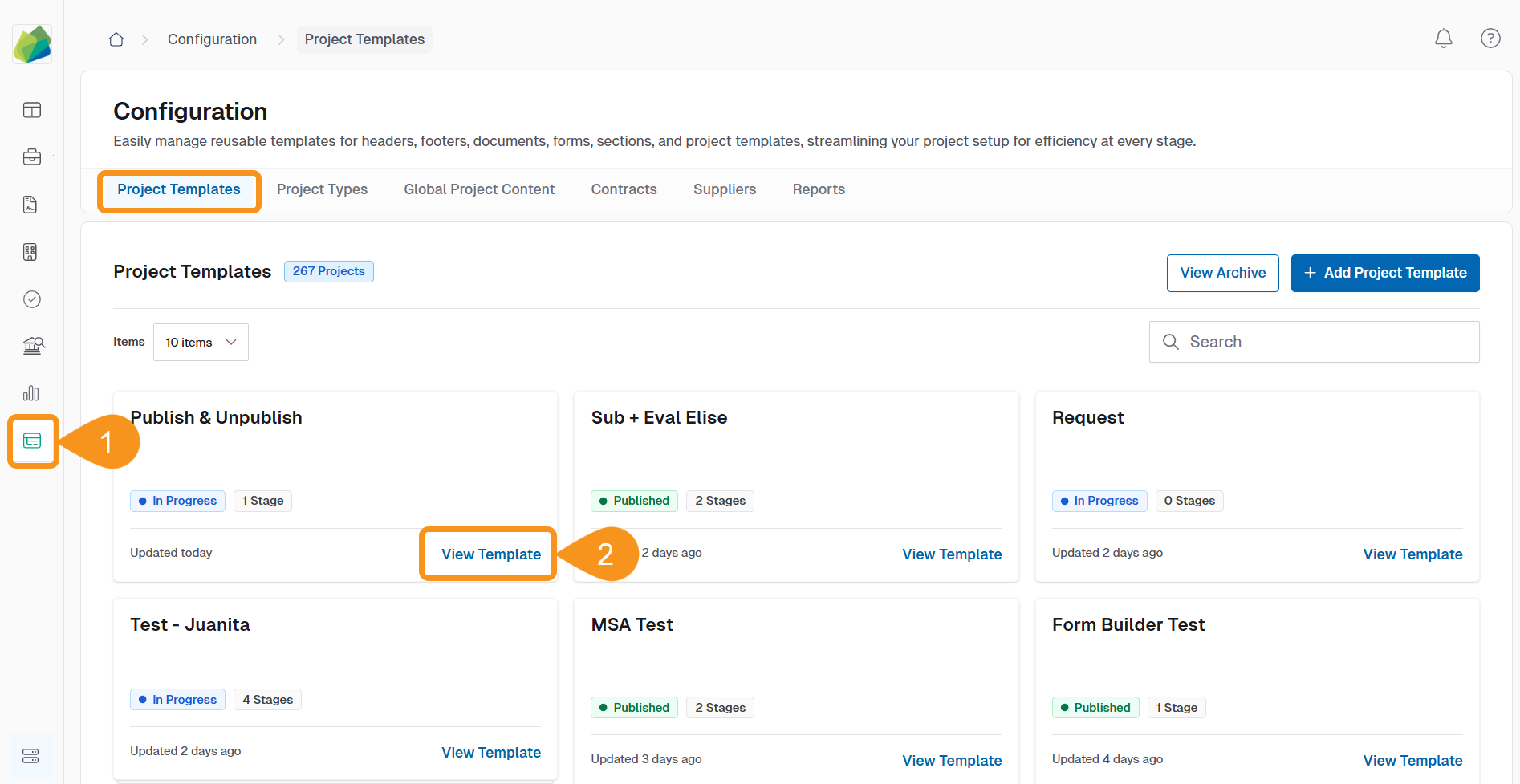
- Go to Configuration > Project Templates.
- Locate the template you want to publish and click View Template.
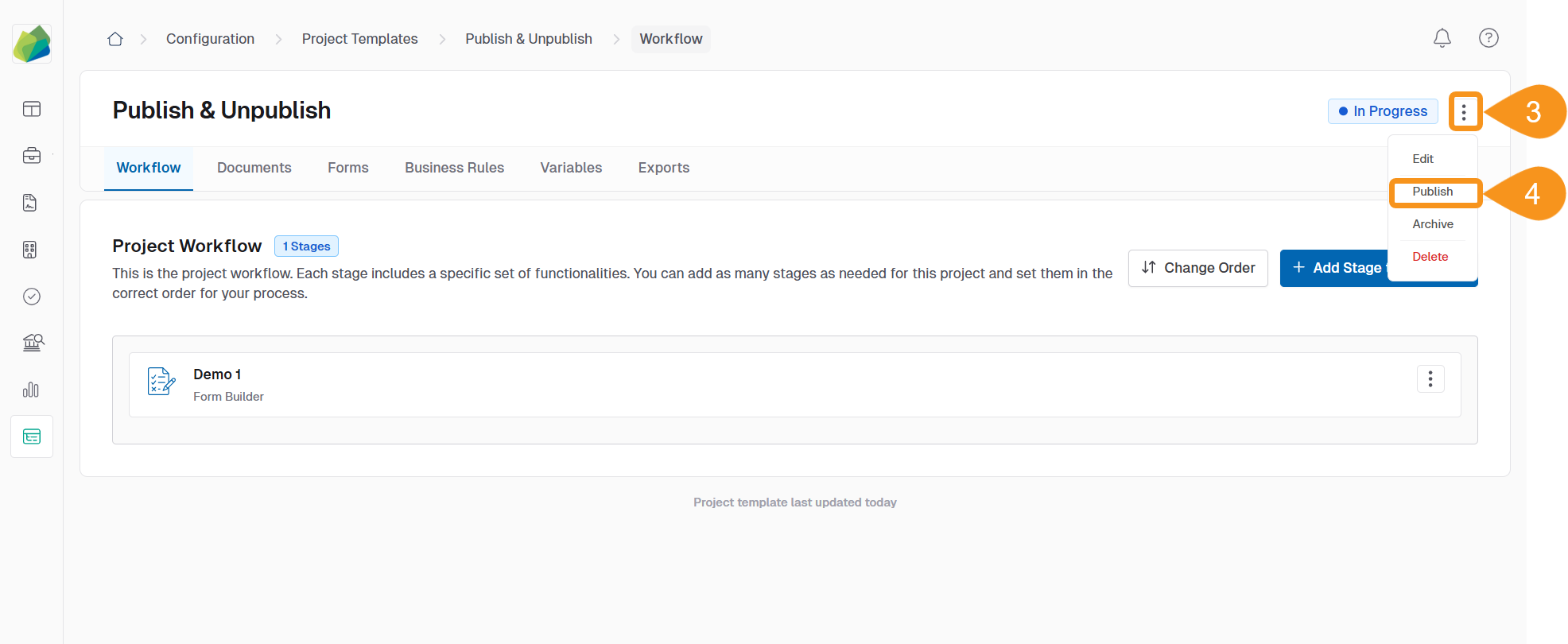
- Click the three-dot menu next to the template status.
- Select Publish from the dropdown menu.
- Click Publish in the confirmation dialog.
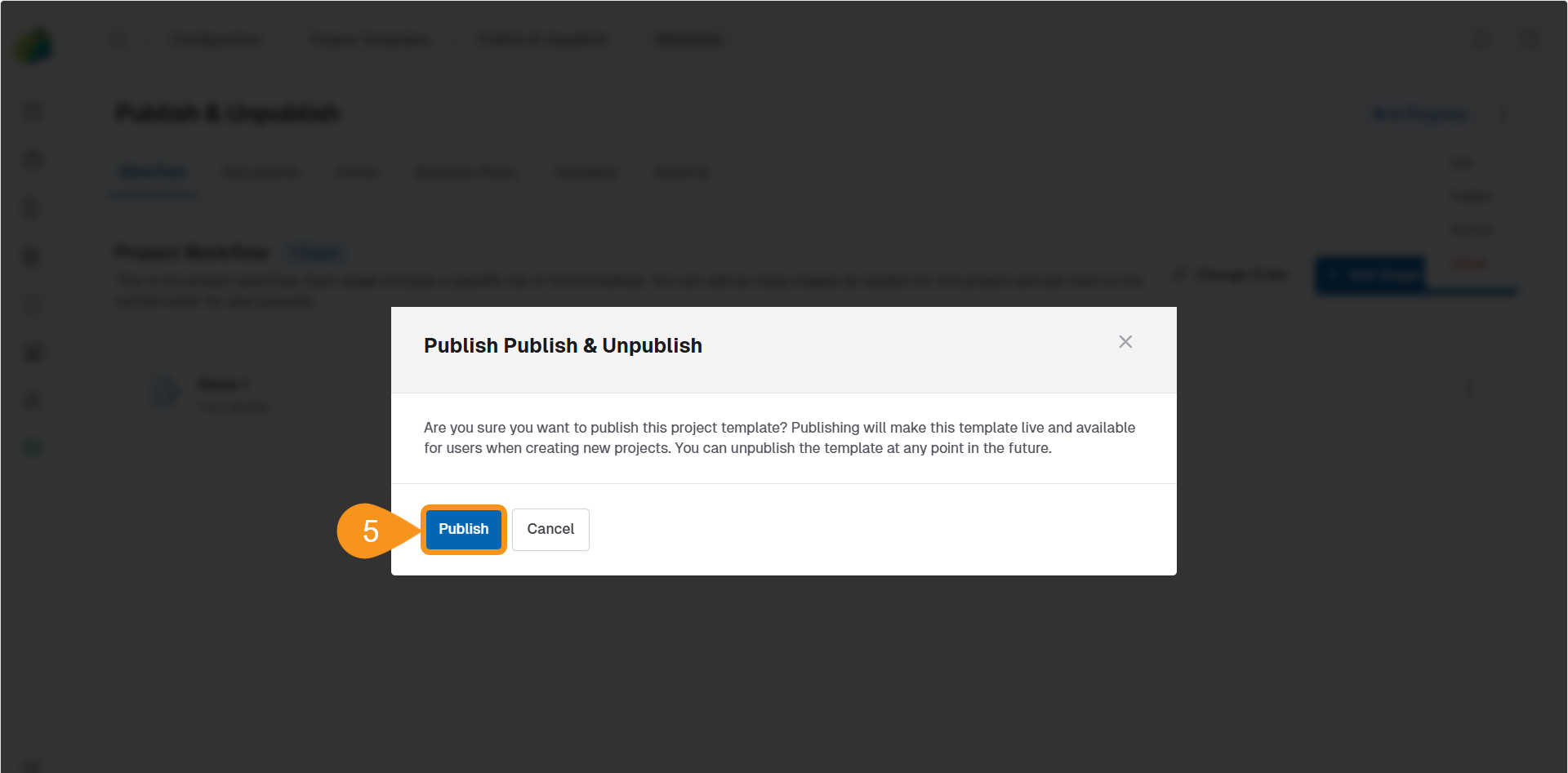
Once published:
- The template becomes available for creating new projects.
- It cannot be edited unless it is first unpublished.
Note
There is currently no audit trail that records when a template is published or by whom.
To Update a Project Template
To make changes to a published template:
- Unpublish the template to make it editable again.
- Apply the necessary updates to workflow stages, documents, or configurations.
- Republish the template to make the new version available for project creation.
Impact of Unpublishing
While a template is unpublished, it is unavailable for creating new projects. Existing projects created from it are not affected.
See Also
To complement your knowledge of this process, check the following pages: