Modify Organization Role Permissions
This guide explains how to edit permissions for organization roles in Authorium.
Modifying organization role permissions ensures that users have the appropriate access to organization-level settings, helping maintain security and control across the entire organization.
This guide is intended for Account Owners and Admins who need to configure organization role permissions. You will learn how to:
- Edit permissions safely to match your organization’s needs.
- Apply best practices when granting high-level access.
- Understand the potential impact of changes at the organization level.
When to Modify Organization Role Permissions
You should modify organization role permissions when:
- You need to grant or restrict access to organization-level settings.
- You want to adjust the capabilities of an existing role.
- Your organization’s policies or team structure have changed.
Before You Begin
Permission Required
- You must be an Account Owner or Admin to modify organization role permissions.
Permission Notes
- Account Owner permissions cannot be changed — they are always enabled.
- Other roles can have permissions toggled on or off as needed.
To Modify Organization Role Permissions
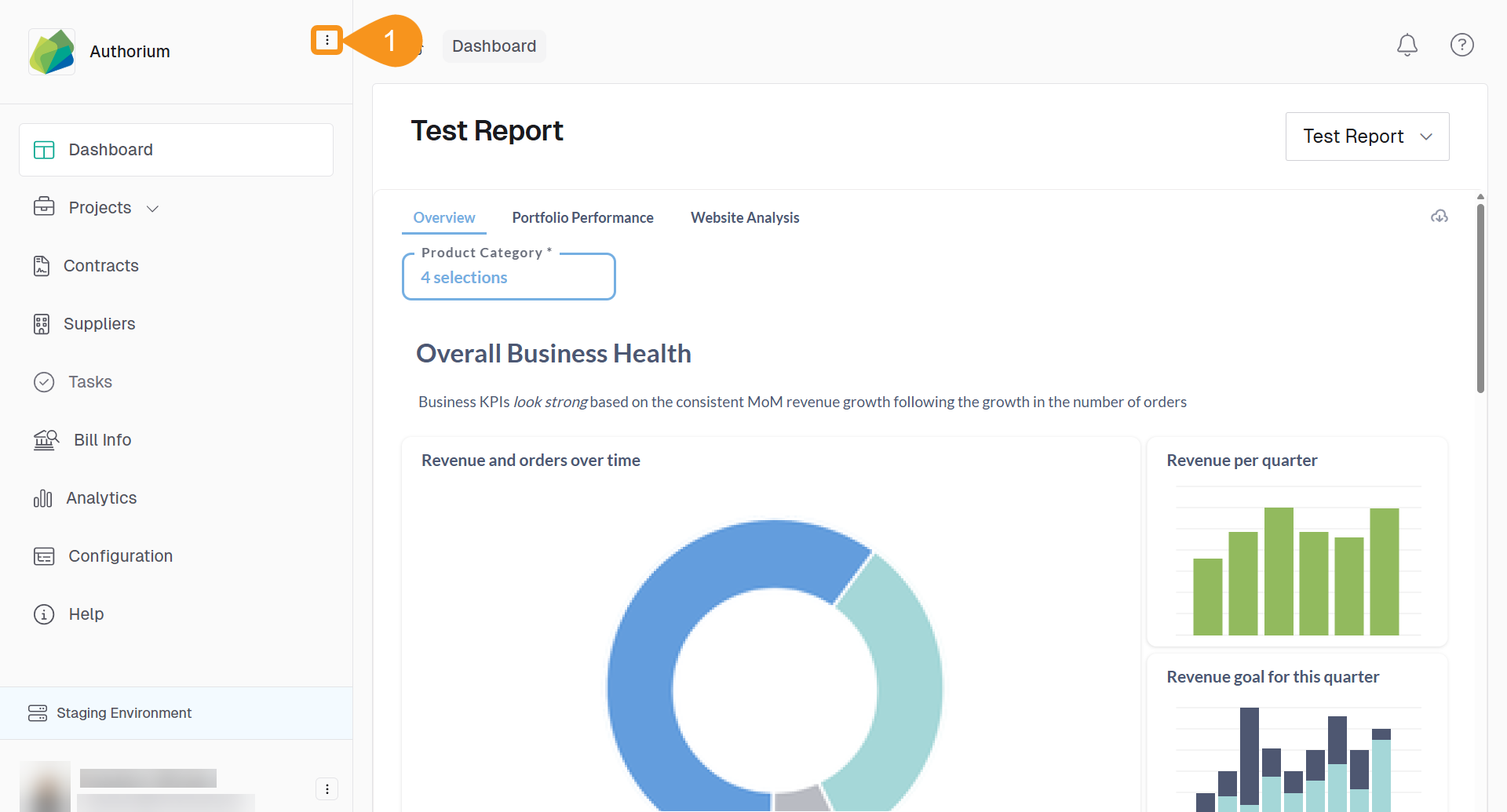
- From the Dashboard, go to the three-dots menu in the main navigation bar next to the logo.
- Select Roles & Permissions.
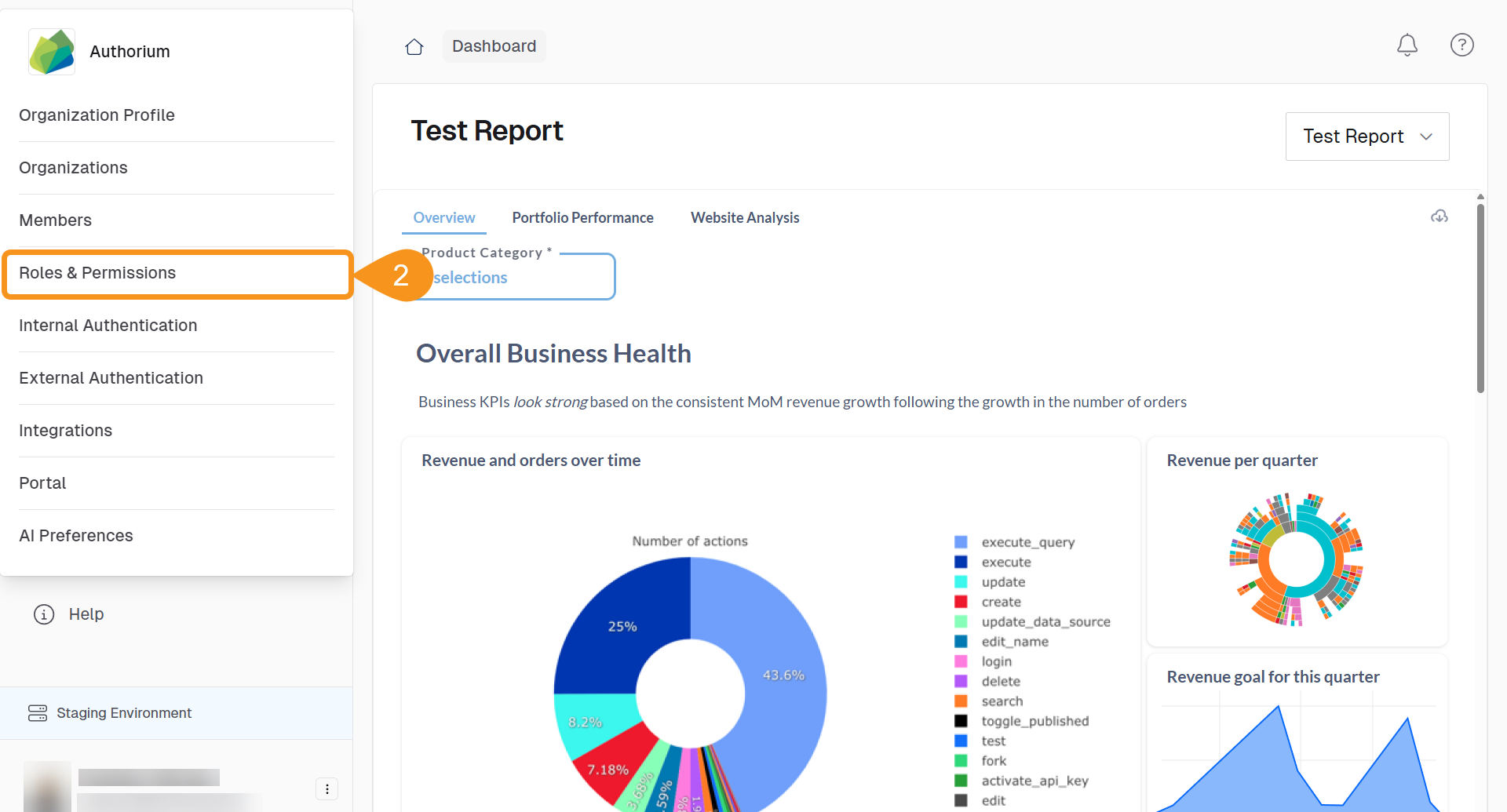
Check the Sub-Tab
The Organization Roles sub-tab is selected by default, but confirm you are on the correct tab before editing permissions.
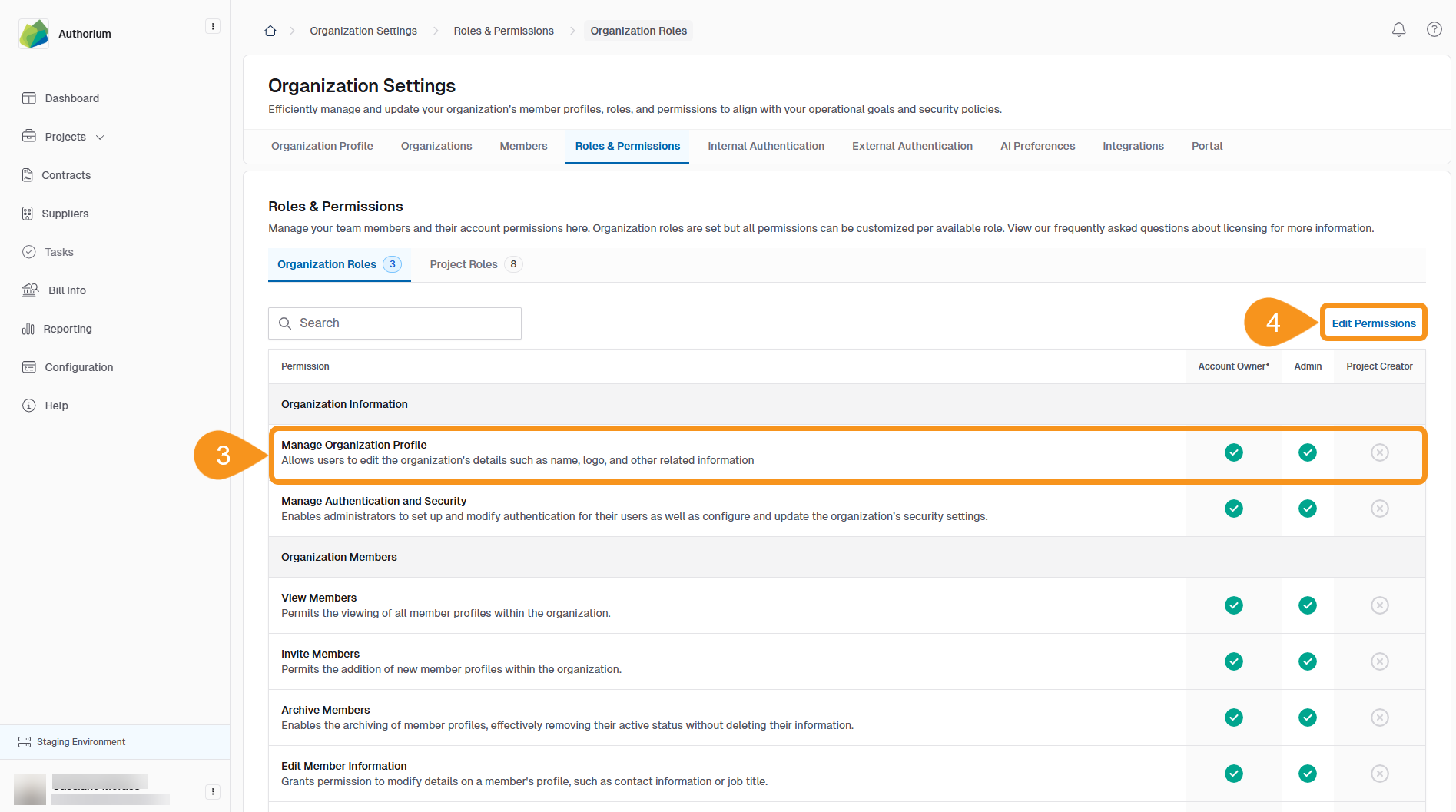
- Locate the role you want to modify in the table.
- Click Edit Permissions on the far right to enter editing mode.
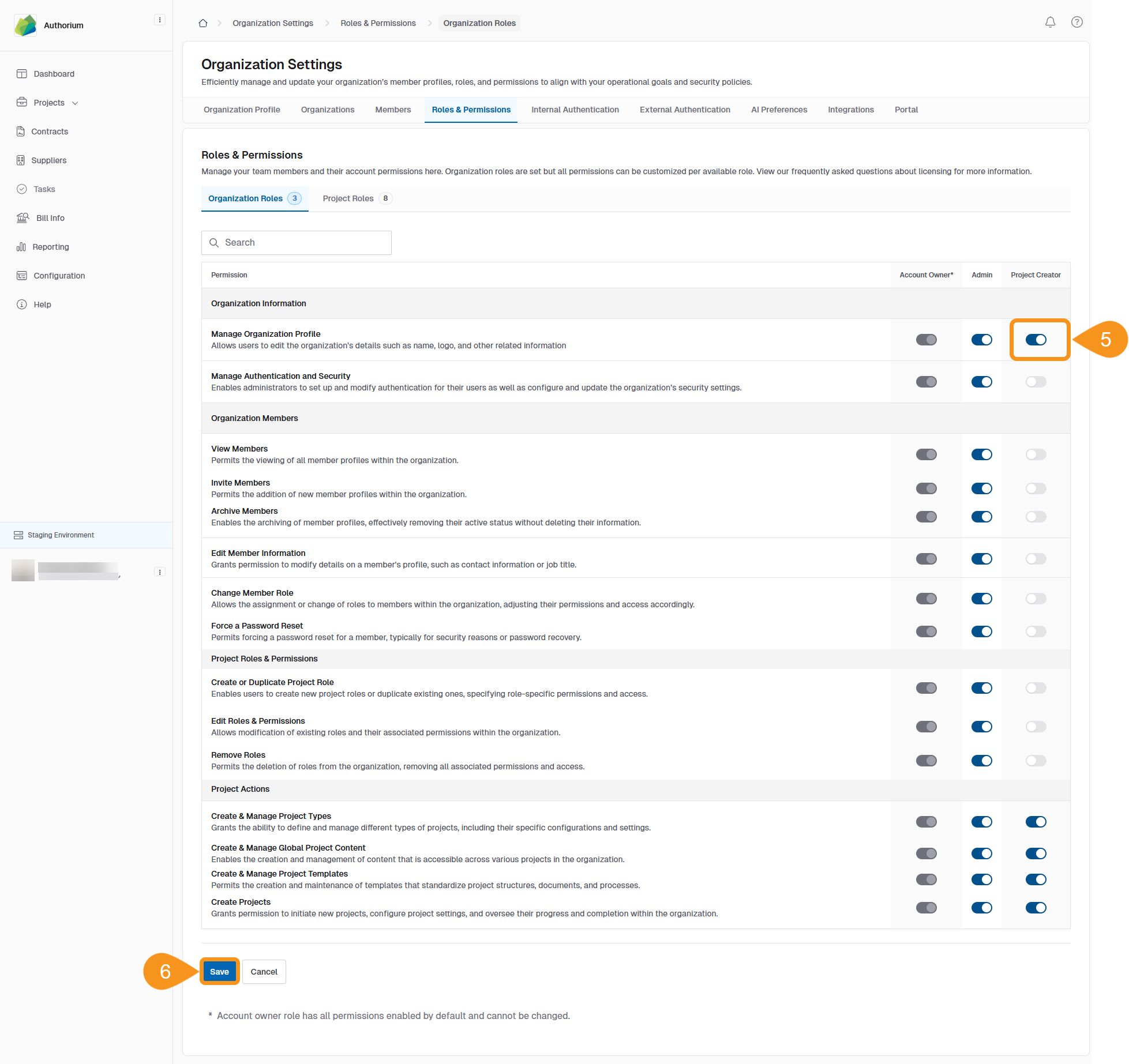
- Toggle the switches (On/Off) to enable or disable permissions.
- Click Save to confirm your changes.
Tips for Managing Permissions
- Review the list of permissions regularly to ensure they match your organization’s needs.
- Be cautious when granting high-level permissions, such as Manage Authentication Method or Manage Security Configuration, as these can impact the entire organization.
- Consider using the Project Creator role for users who only need to work with projects and not organization settings.
See Also
To complement your knowledge of this process, check the following pages: