Create a Global Document
Global documents are reusable templates—typically for legal or standardized content—stored in your organization’s Global Project Content. They help standardize recurring documents across projects.
When to Create a Global Document
You should create a global document when:
- You want to reuse a contract or form across multiple project templates.
- You need to maintain consistency in legal clauses or standard formats.
- You want to predefine document settings for repeatable use.
To Create a Global Document
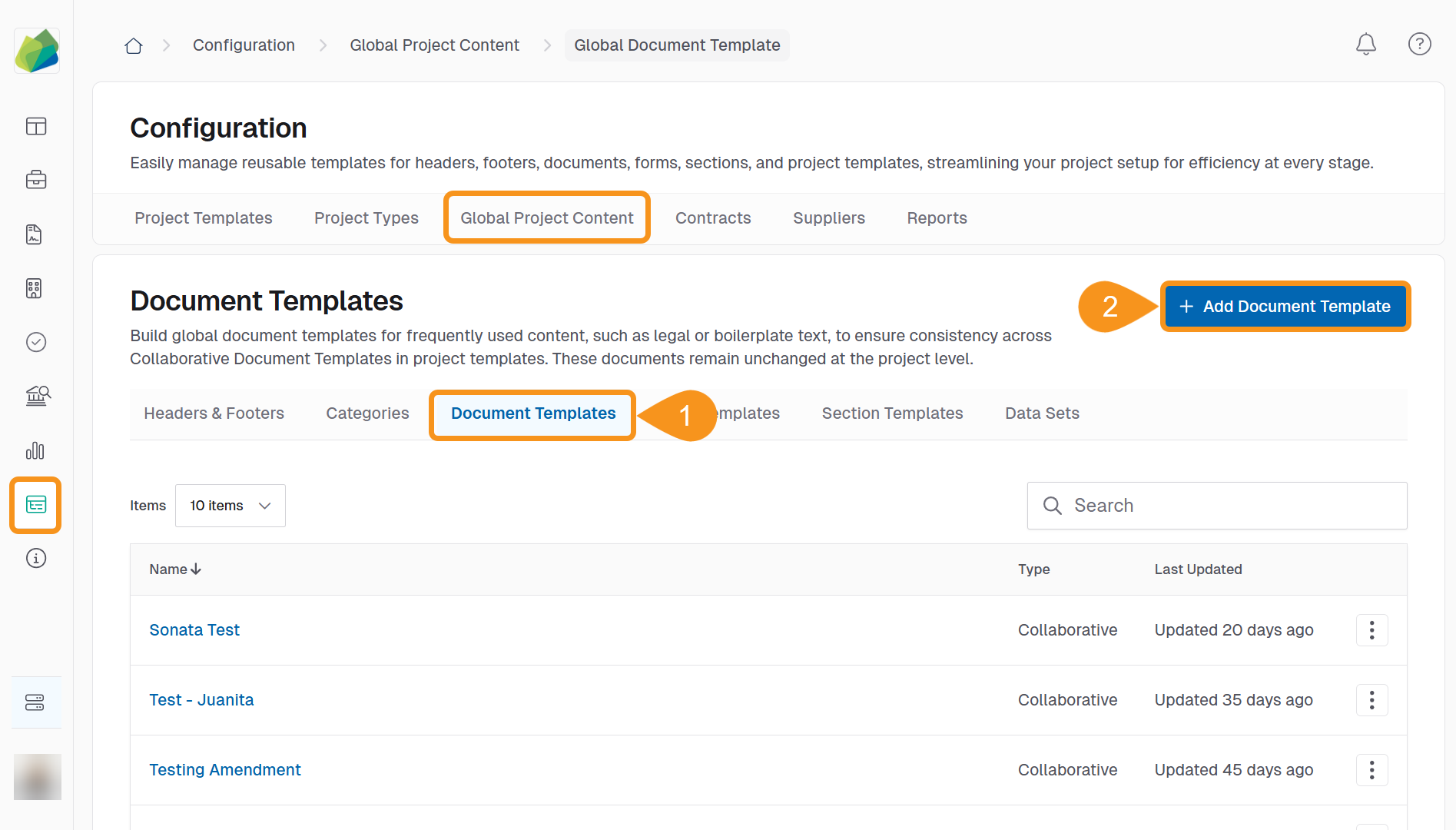
- Go to Configuration > Global Project Content > Document Templates.
- Click + Add Document Template.
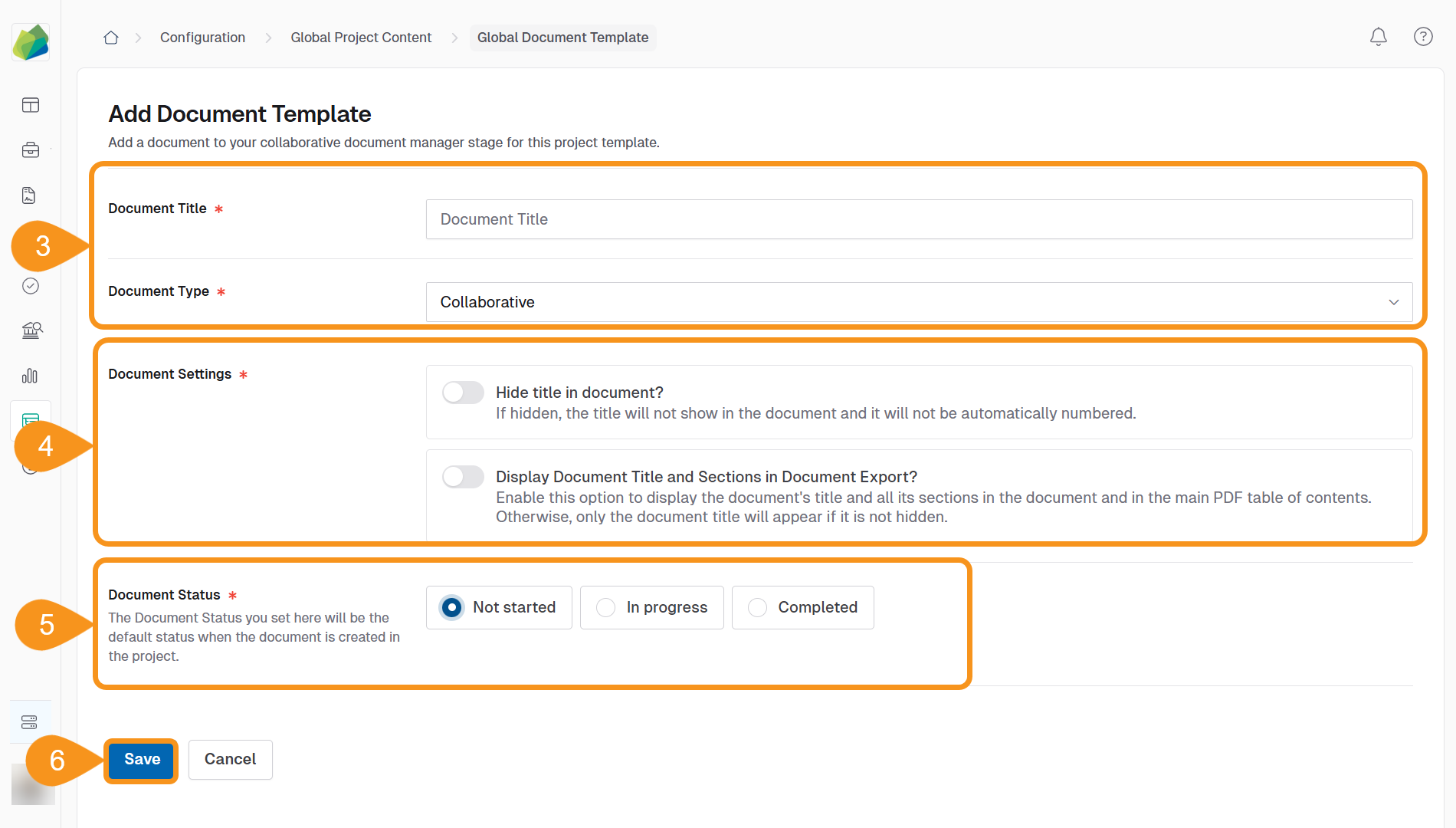
- Fill in the required information:
- Document Title: Enter a clear, descriptive name.
- Document Type: Set to Collaborative (default and only option).
- Adjust the Document Settings:
- Toggle Hide title in document? if you don’t want the title to show in the document export, or be automatically numbered.
- Toggle Display Document Title and Sections in Document Export? to display the document's title and all its sections in the document and in the main PDF table of contents. Otherwise, only the document title will appear if it is not hidden.
- Choose the default Document Status:
- Not started
- In progress
- Completed
- Click Save to create the document.
Using Variables?
After creating the document, you can insert dynamic placeholders like {{projectName}} directly in the editor to personalize content per project.
See Also
To complement your knowledge of this process, check the following pages: