Publish, Version‑Control & Archive Global Forms
This guide explains how to manage versioning for global forms in Authorium. Version control ensures your organization maintains consistency while allowing updates and improvements over time.
When to Use Version Control
You should publish or archive a form version when:
- A form has been edited and you want the new version to be used in future projects.
- A previously published form is outdated or deprecated.
- You want to maintain a record of historical versions for auditing or compliance.
To Publish a Draft Global Form
- Open the draft form you want to publish:
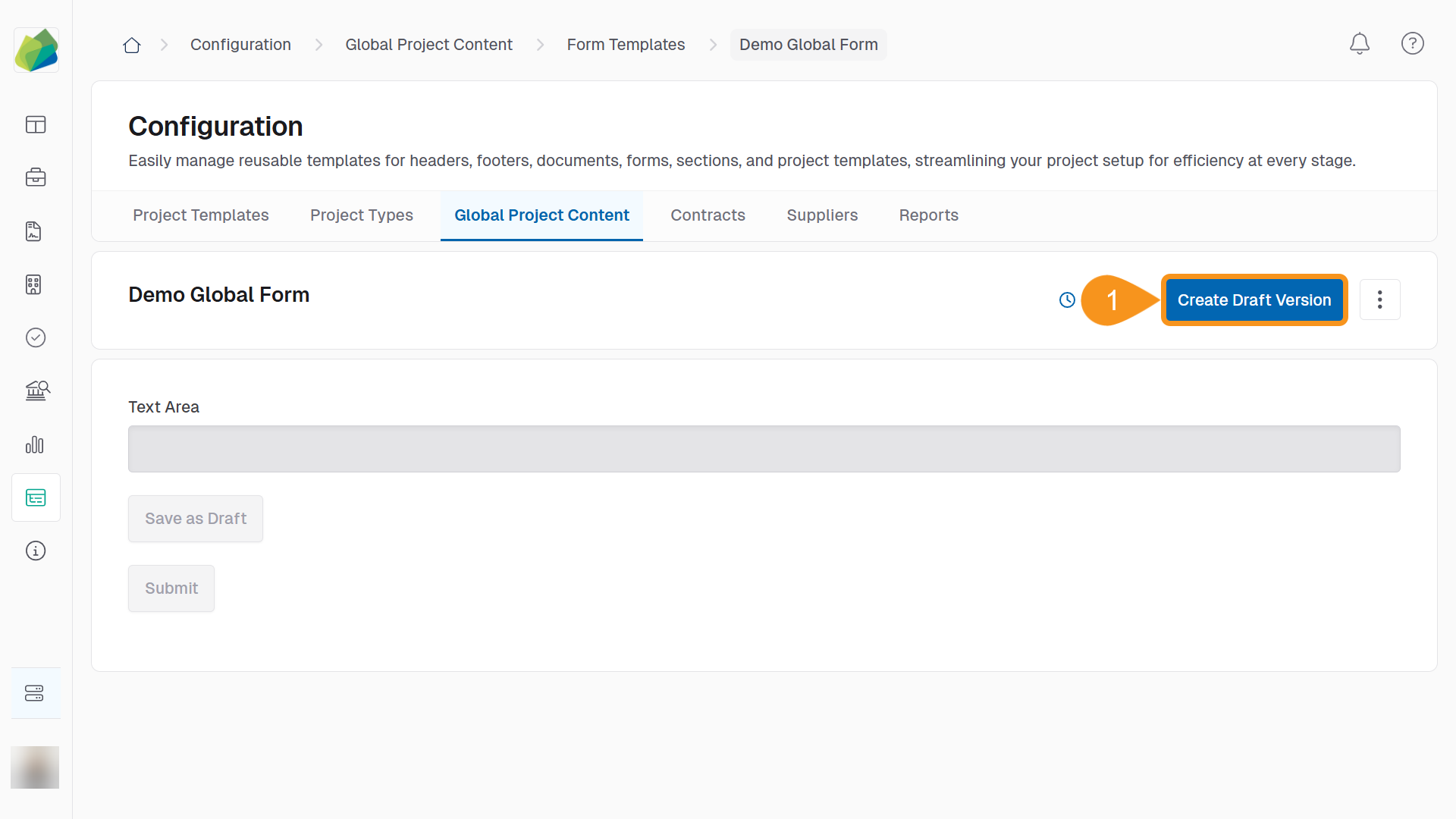
- If you just created the form, ensure you followed the steps in Create a Global Form and clicked Save. Then click Create Draft Version to prepare it for publishing.
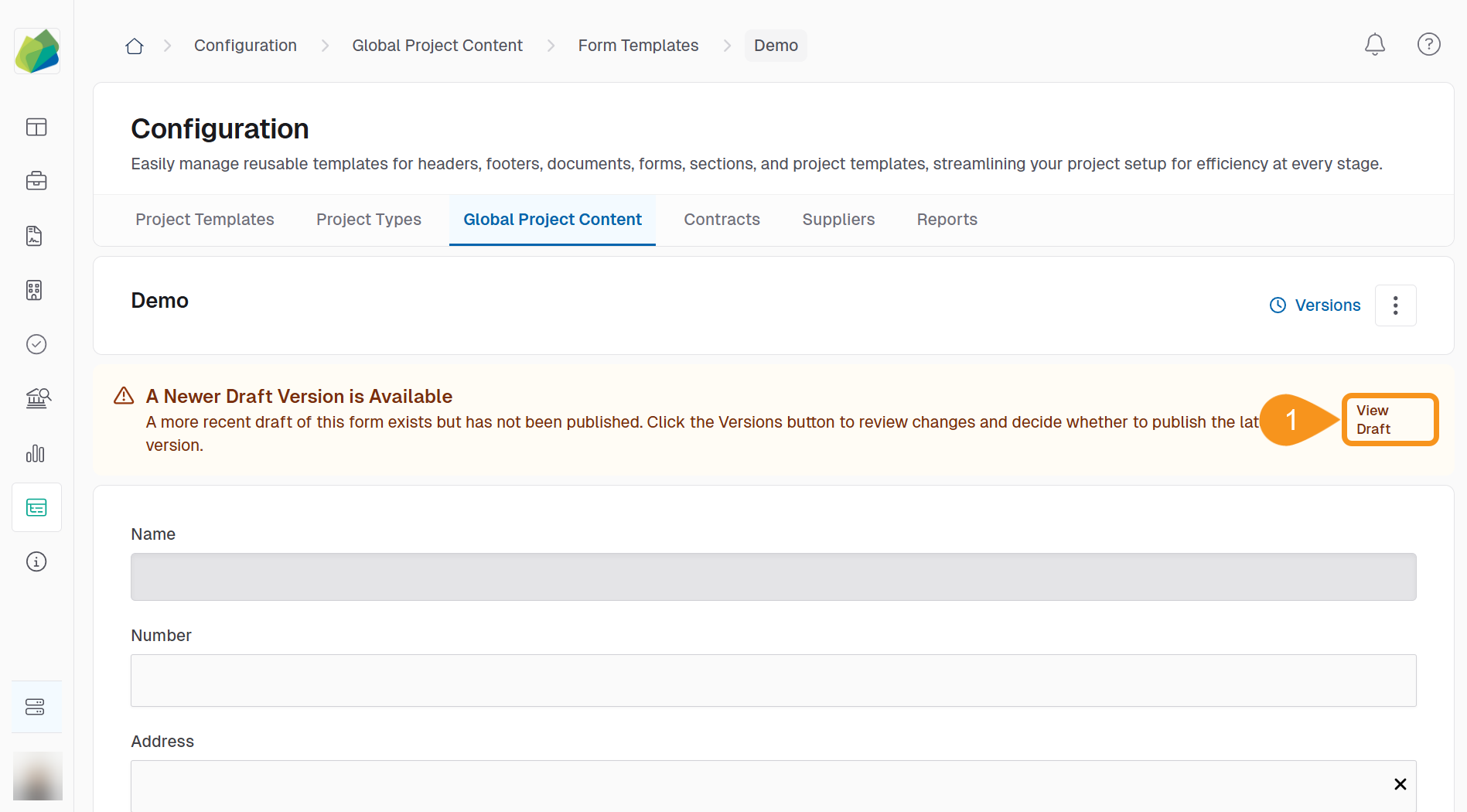
- If you're working with an existing form, find it in the list, select it, and then click View Draft.
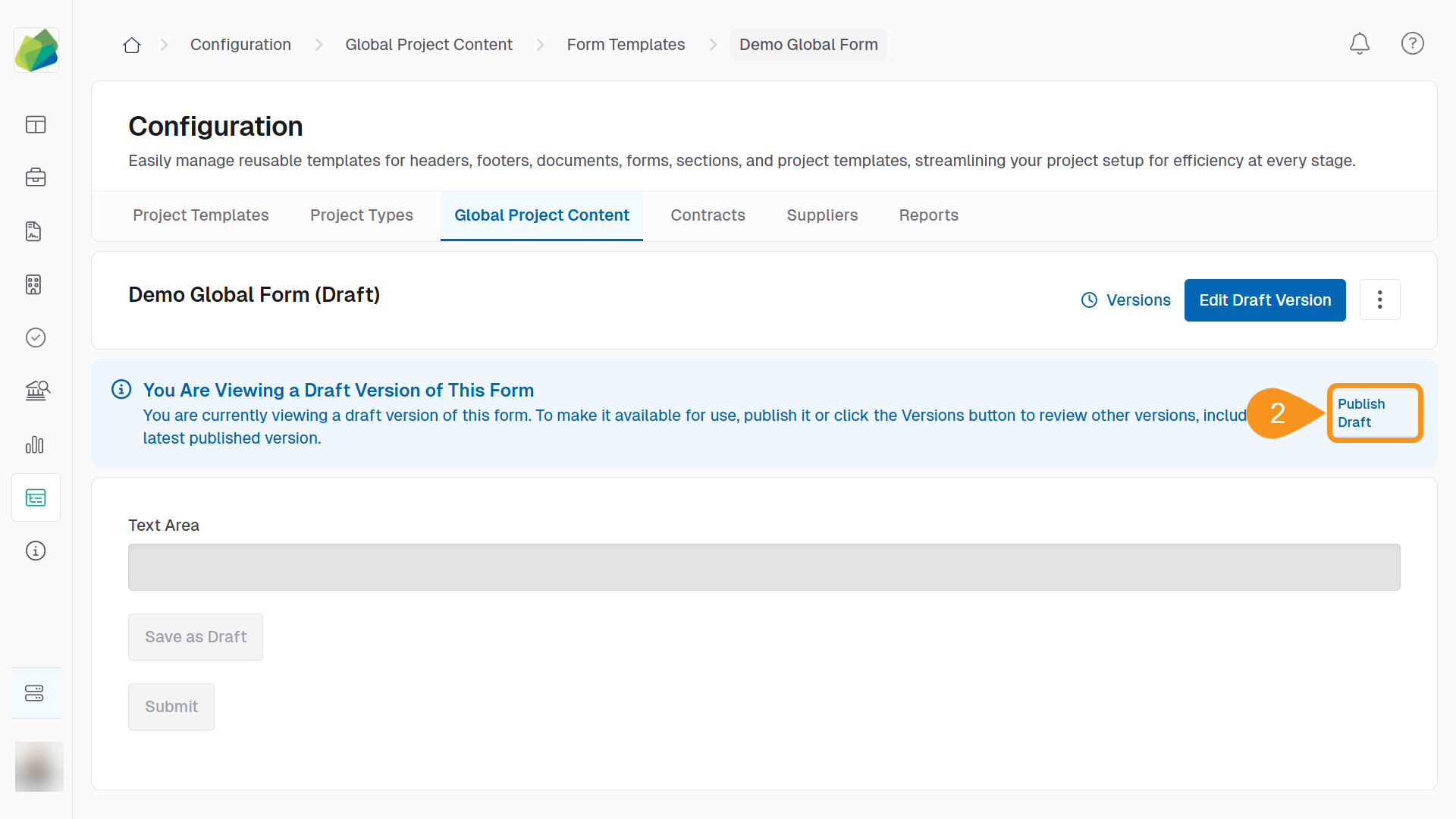
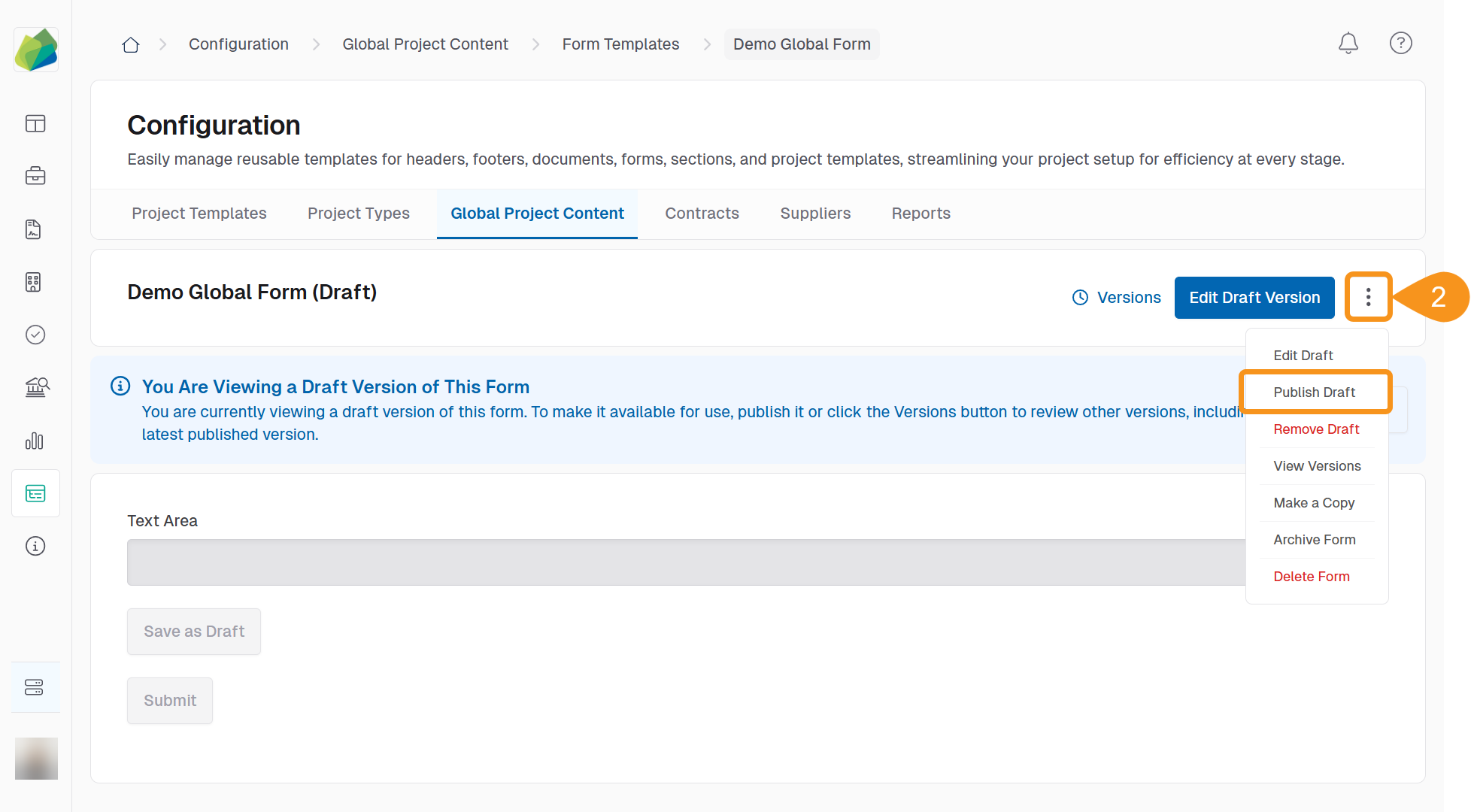
- Publish the draft using either of these options:
- Click the Publish Draft button in the top right corner.
- Or open the three-dot menu (︙) and select Publish Draft.
- Choose a publishing option:
- Publish Live Now: Makes the form immediately available for all new projects.
- Scheduled for Later: Select a future date for the form to go live.
- Click Save to confirm and publish the form.
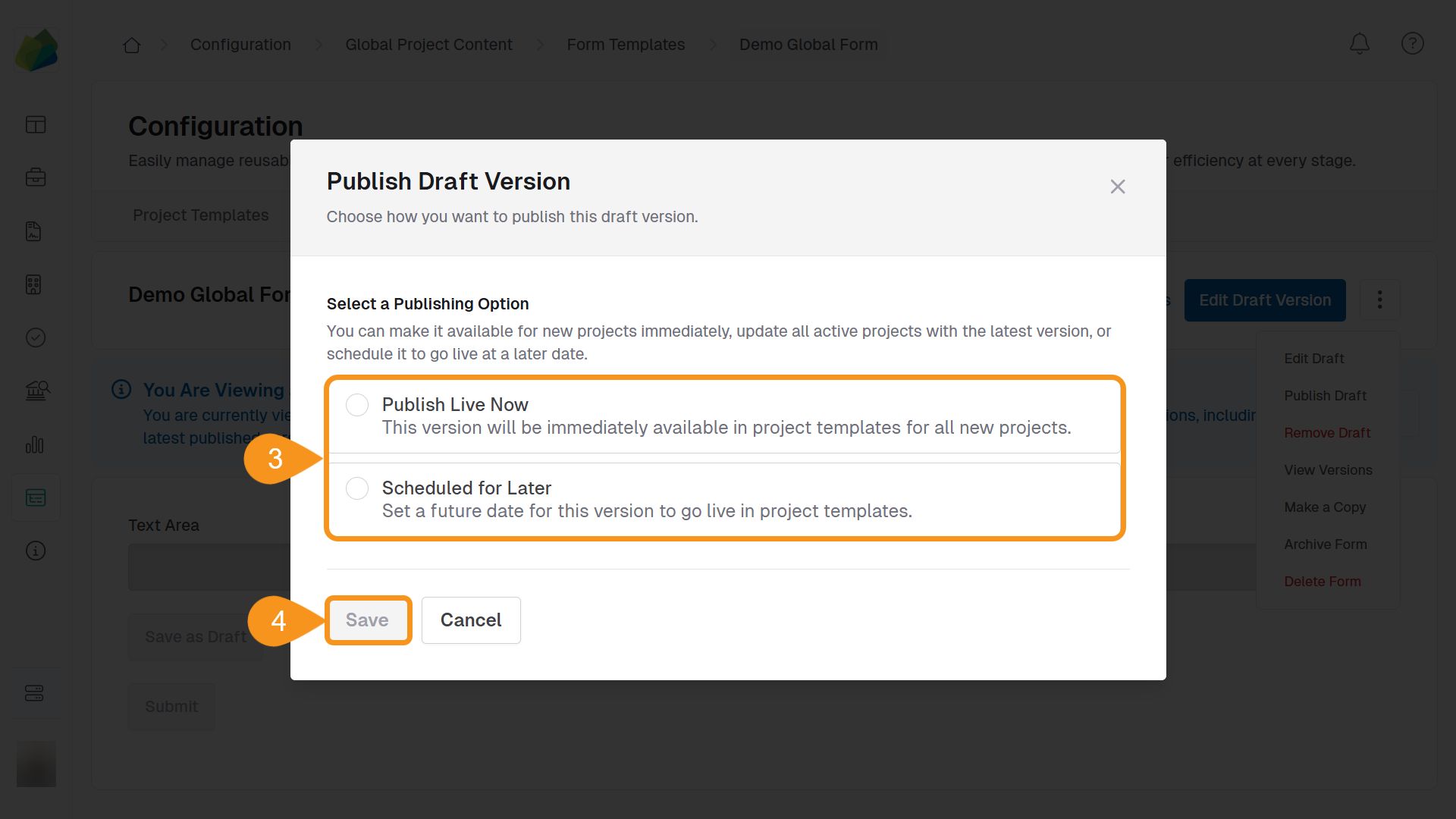
Once published, the new version will be used in future project templates. Existing projects using older versions will not be affected.
To View Form Version History
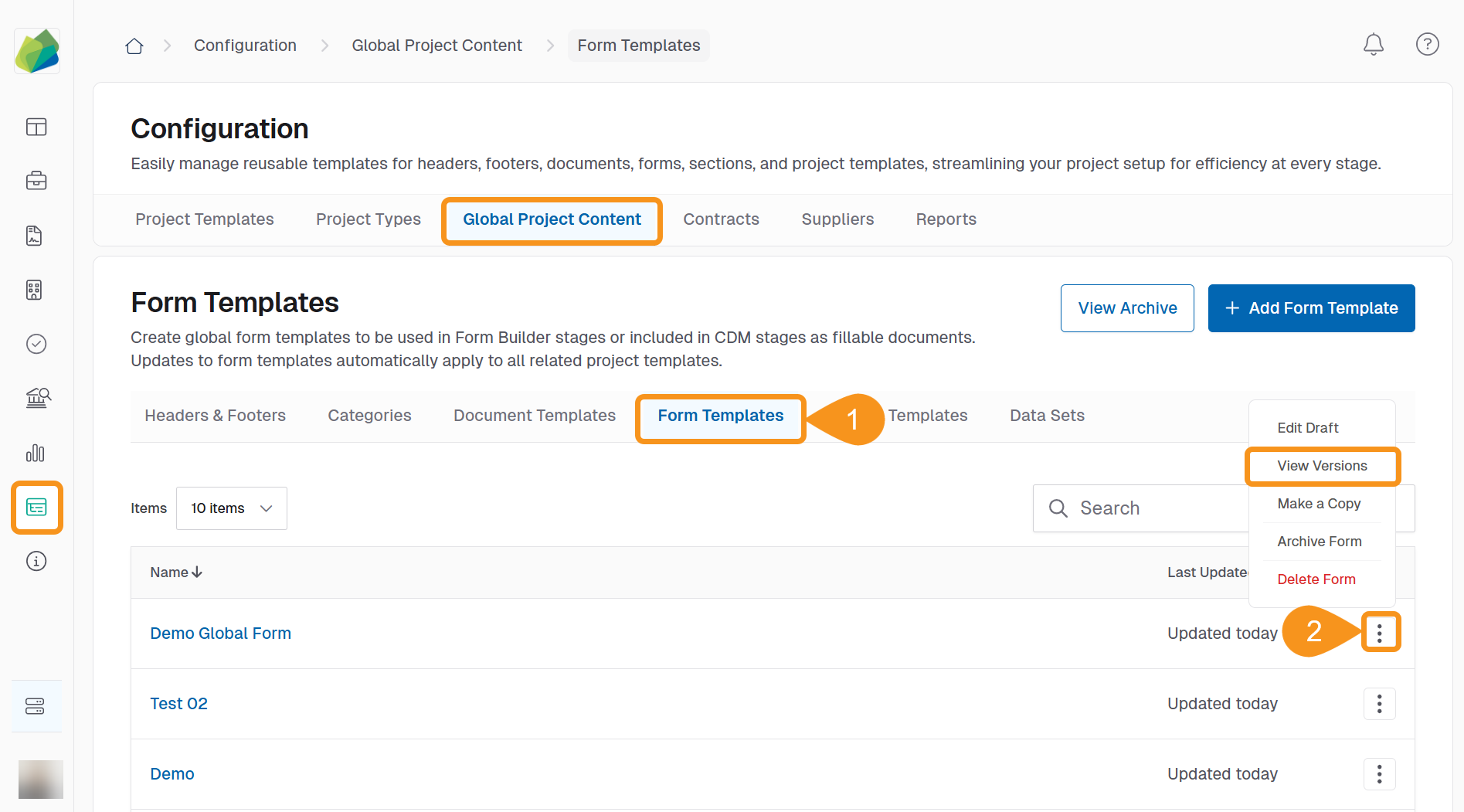
- Go to Configuration > Global Project Content > Form Templates.
- Click the three-dot menu (︙) next to the form you want to inspect, and select View Versions.
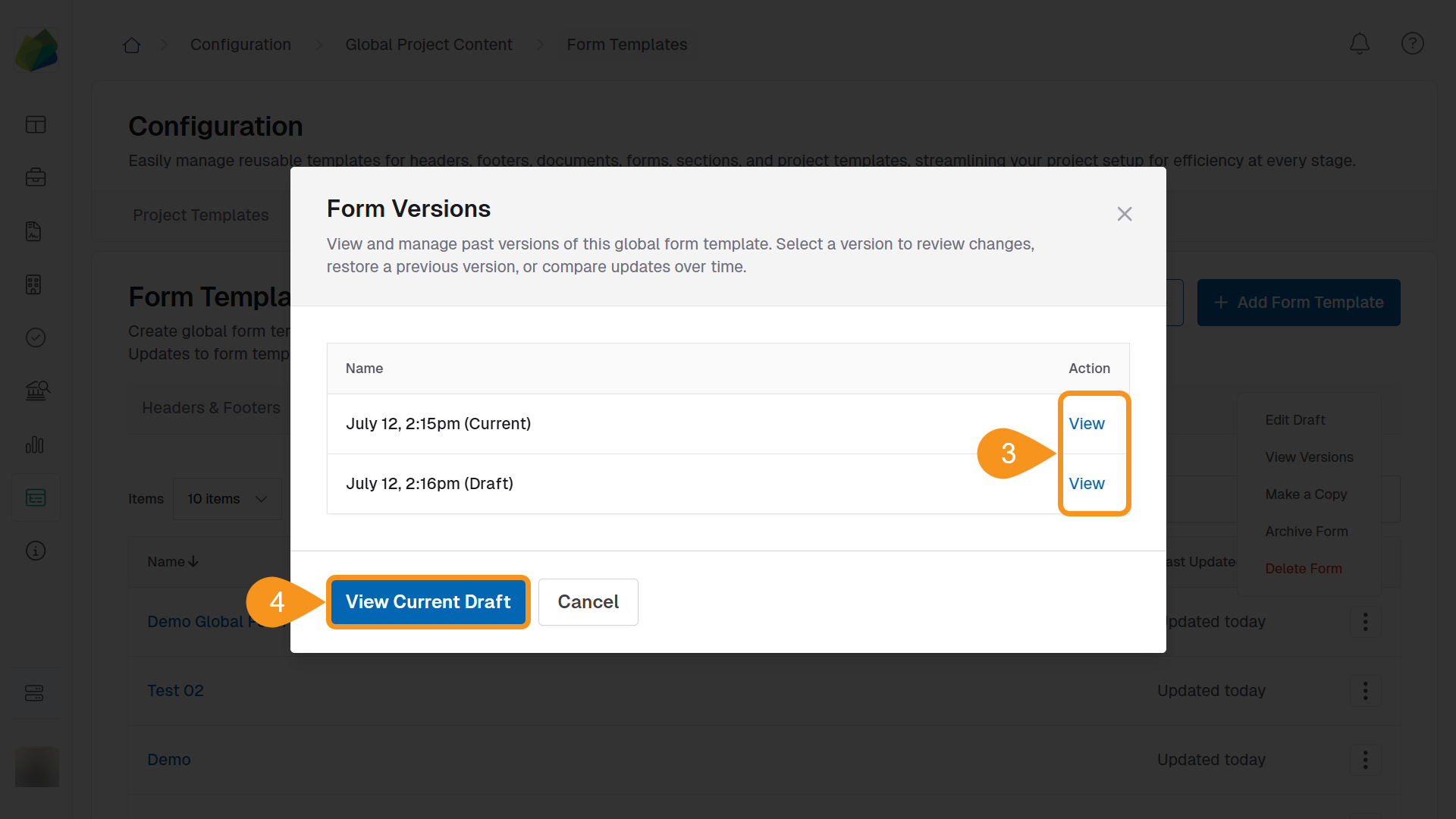
- In the Form Versions dialog, review the list of published and draft versions by timestamp and click View next to any version to preview its content.
- To edit or publish the current draft, click View Current Draft.
Note
You can see who made each change and when. Use this view to track updates and manage which version is live.
To Archive a Form Version
- Go to Configuration > Global Project Content > Form Templates.
- Locate the form you want to archive and click the three-dot menu (︙) next to the form name.
- Select Archive Form from the dropdown menu.
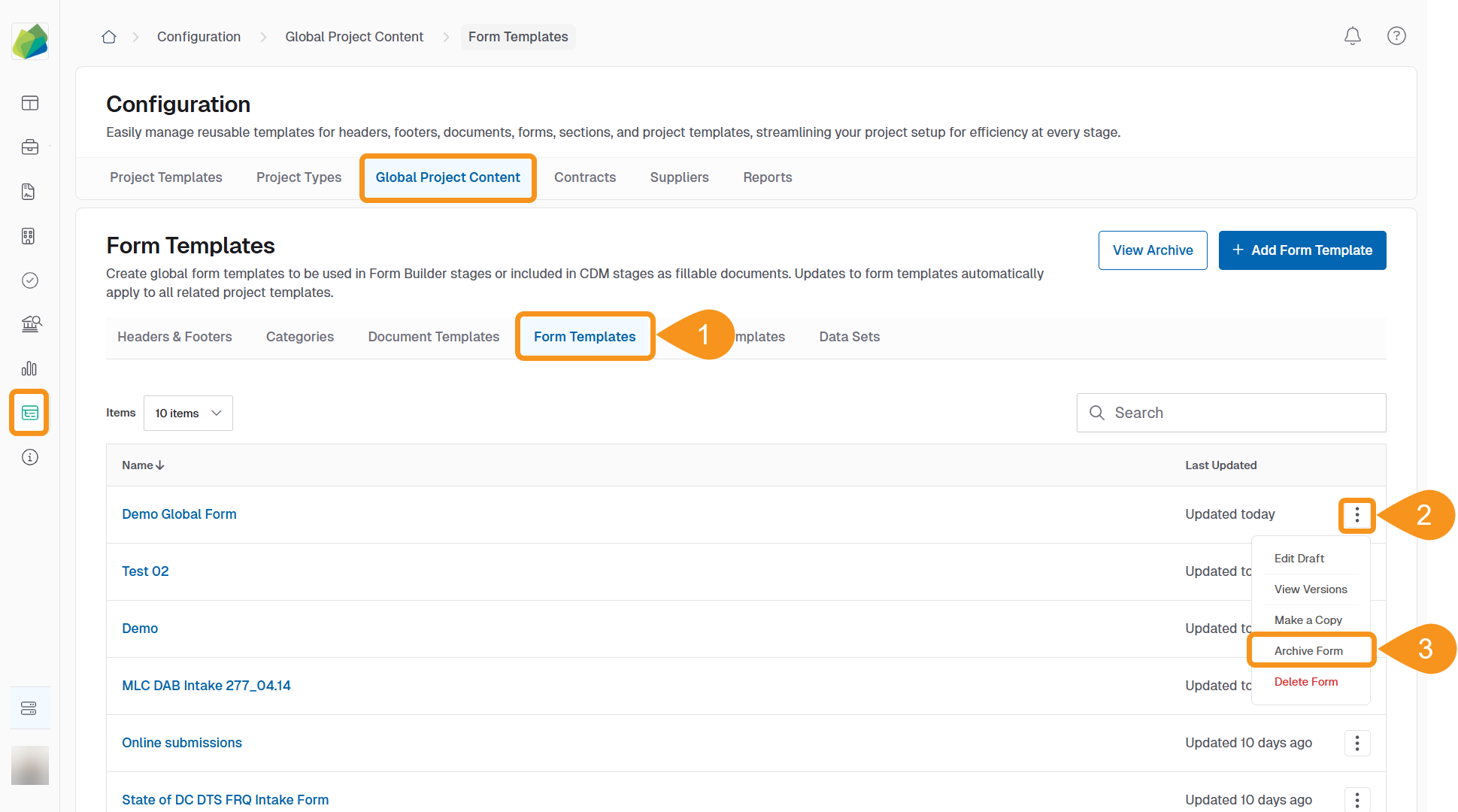
- In the confirmation modal, click Archive Form Template to complete the action.
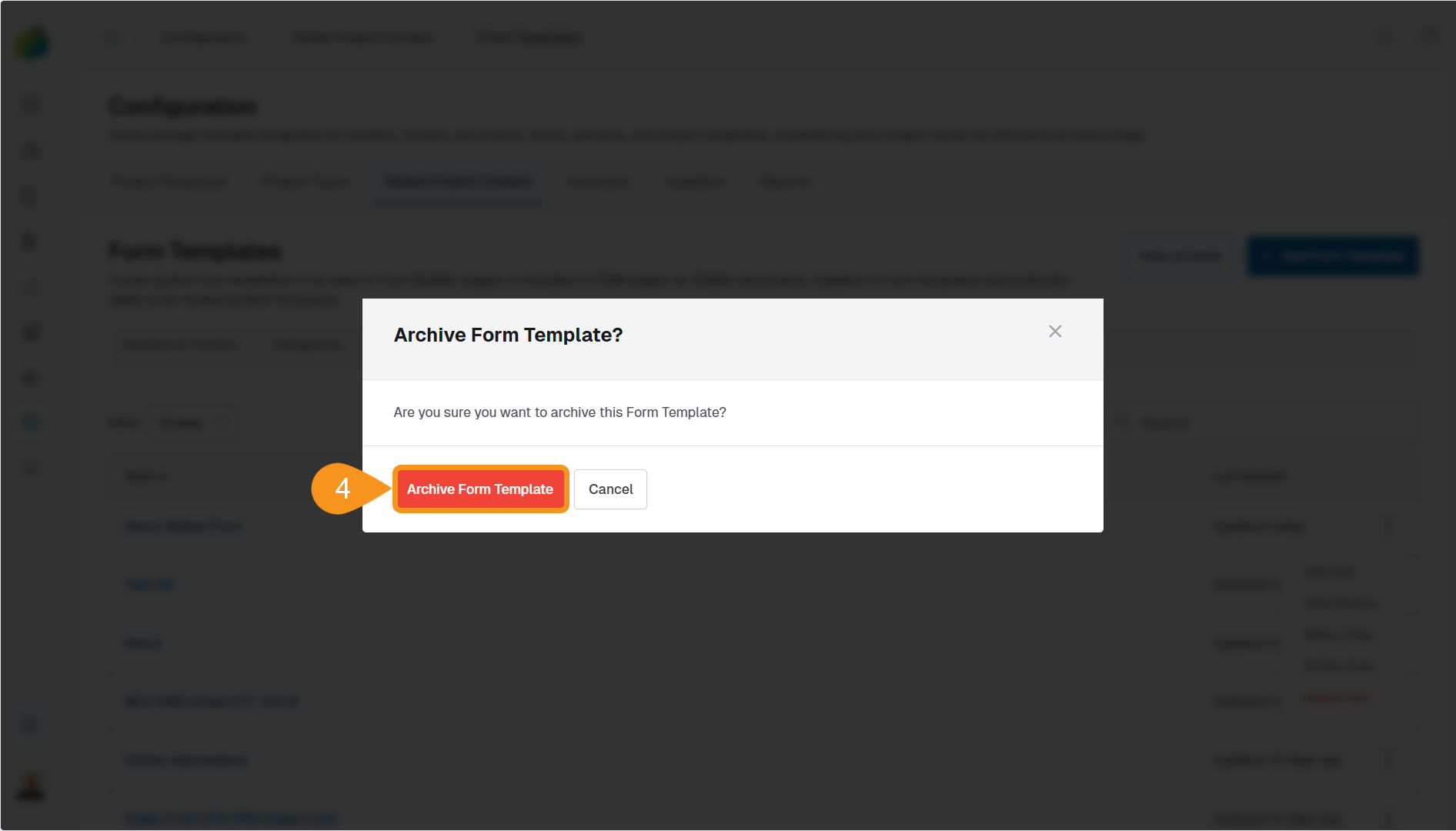
Archiving Forms
Archived forms will no longer be available for use in new project templates. However, existing projects using that form will remain unaffected.
See Also
To complement your knowledge of this process, check the following pages: