Version Control for Global Documents
Version Control for Global Documents This guide explains how version control works for Global Document Templates in Authorium. Unlike other components, global documents do not support formal drafts or publishing workflows.
Do Global Documents Support Draft Versions?
No. Global document templates in Authorium do not support traditional drafts or version publishing.
- All changes are saved automatically as soon as edits are made.
- There is no “Publish” button or draft state.
- The Track Changes feature shows edits and collaborators, but does not create separate versions.
Important
There is no version history or rollback option. Be cautious when editing active templates.
Impact of Changes on Projects
Changes to global documents behave as follows:
- New projects using the template will reflect the latest version automatically.
- Existing projects will keep the version that was assigned at the time of project creation or configuration.
- If you need updated content in an active project, you must manually reassign or relink the template if allowed.
How to Retire or Replace a Document
If a global document is outdated or no longer applicable, you have two options:
Replace the content
- Edit the existing document template directly.
- All future projects using this template will include the new content.
Archive the template
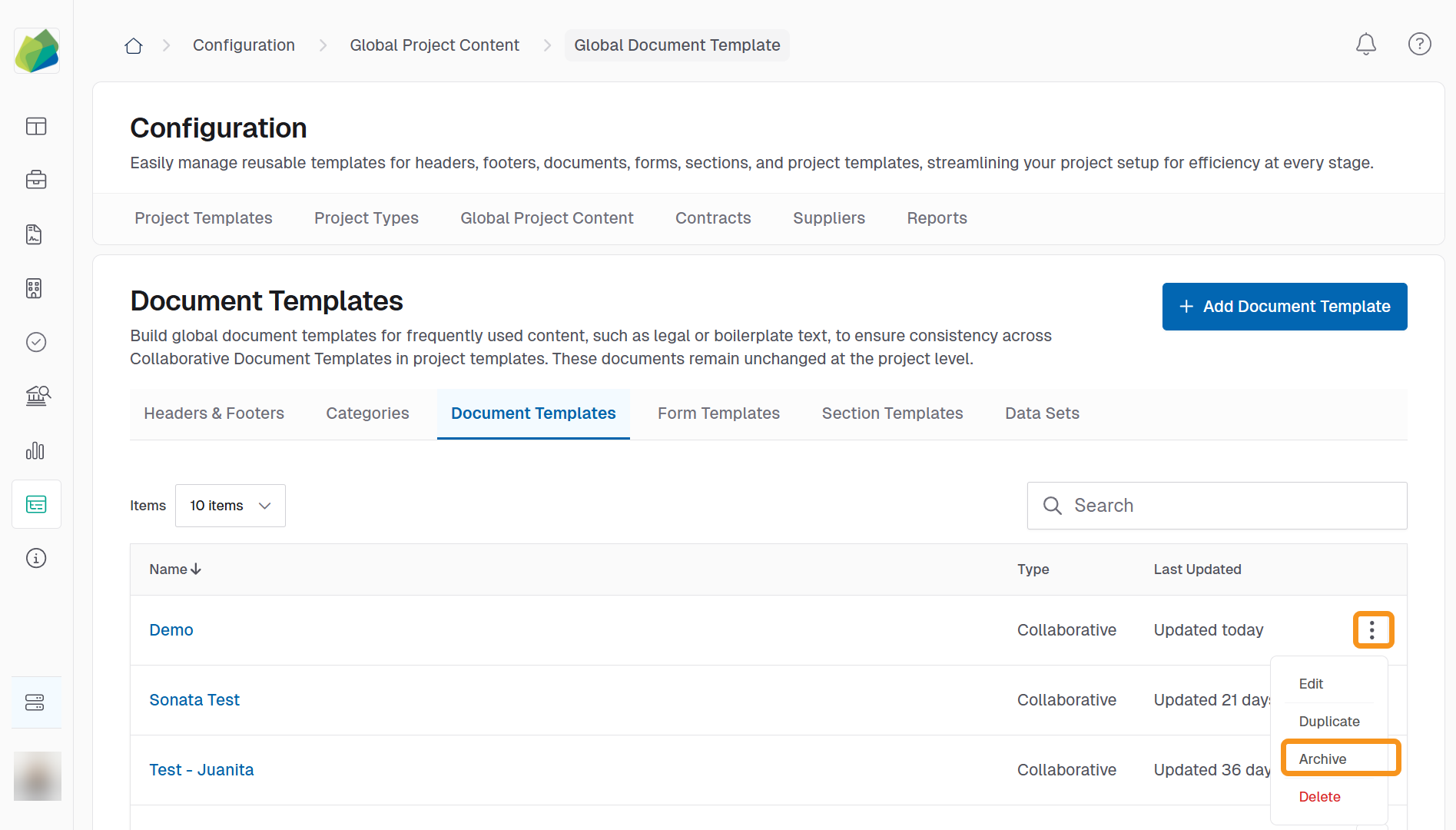
- Open the three-dot menu next to the template name in the Document Templates list.
- Select Archive to remove the template from active selection.
- If you wish to label the template clearly as archived, you must rename it before archiving (e.g., adding a suffix like
(Archived)). - Archived templates will remain visible in older projects and can be reactivated later if needed.
Note
Deleting a document breaks its link in templates or projects referencing it. Prefer archiving over deletion to avoid issues.
See Also
To complement your knowledge of this process, check the following pages: