View Approval Step Details
This guide explains how to view the detailed configuration of each approval step in a Multi-Step Approval Routing workflow. This includes reviewing assigned users, placeholders, and associated content.
When to View Approval Step Details
You should view approval step details when:
- You want to verify which users or placeholders are assigned to a step.
- You need to check which content is routed for approval at each step.
- You’re auditing or troubleshooting the approval process setup.
To View Approval Step Details
- On the Approval Workflow page, locate the approval step you want to inspect.
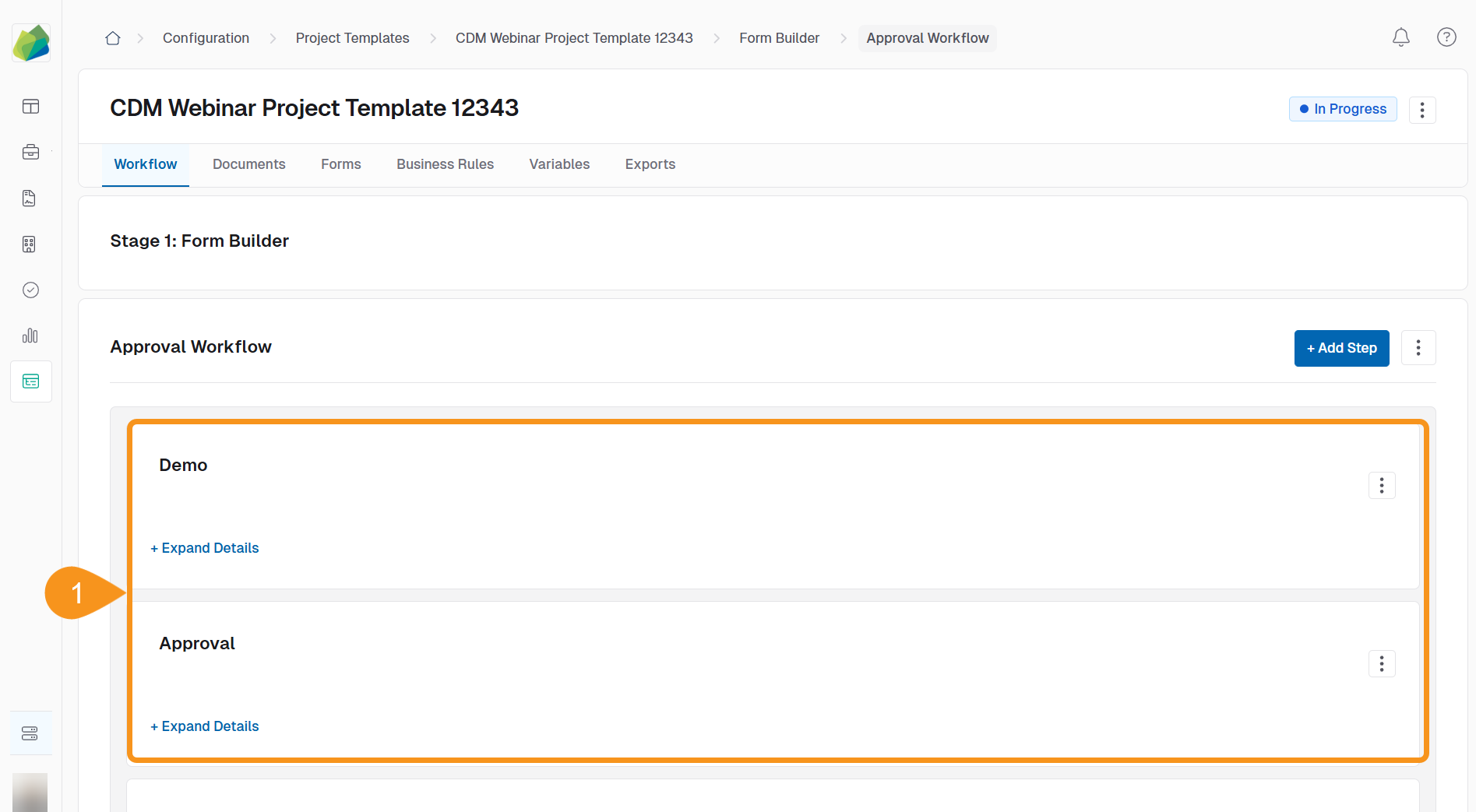
- Click the Expand Details link beneath the step name.
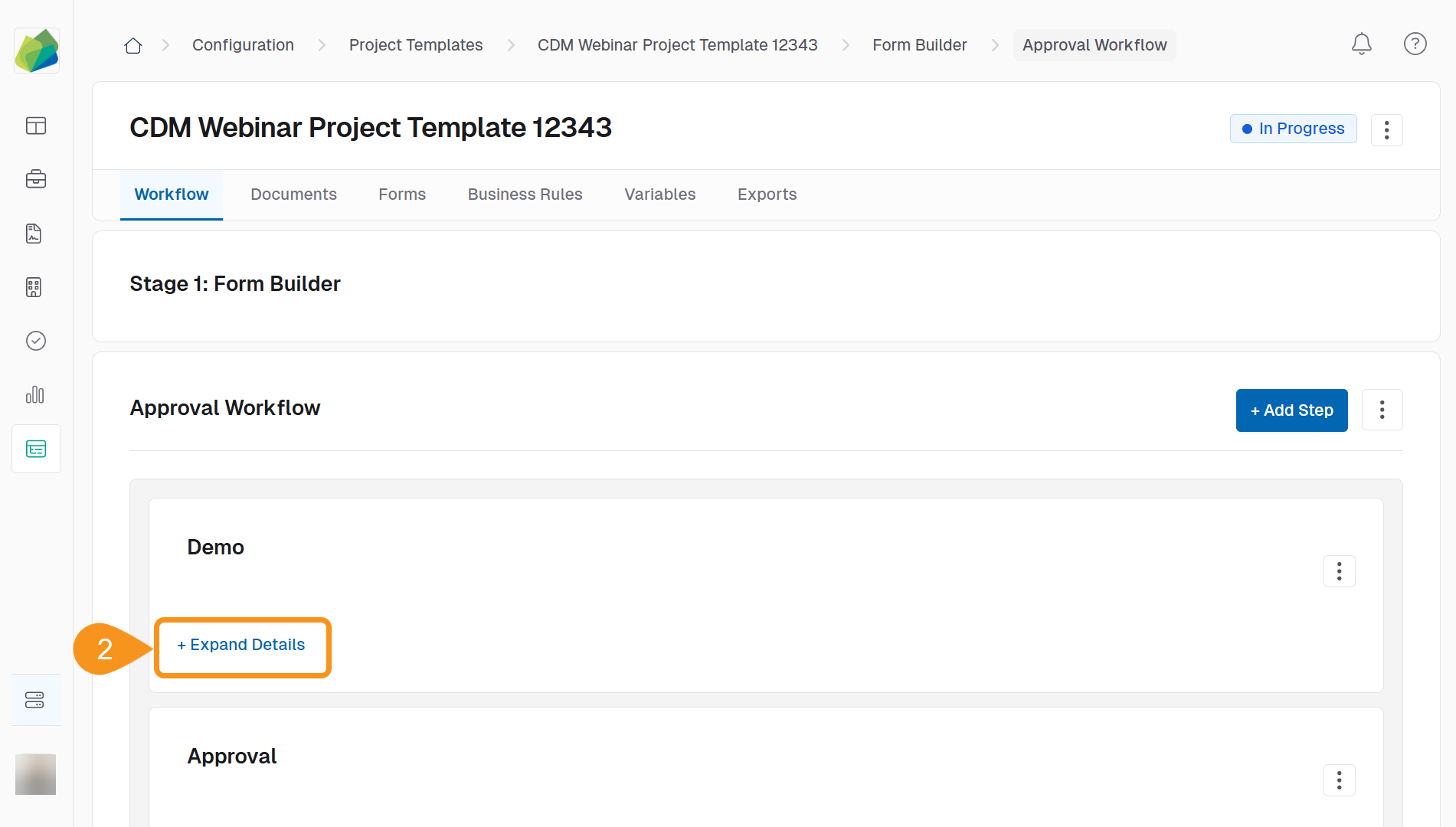
Once expanded, the step will show:
- Assigned Users or a message indicating No users added yet.
- Linked Content, such as forms or documents.
- The Approval Rule, like All Must Approve.
- Whether Signature is Required.
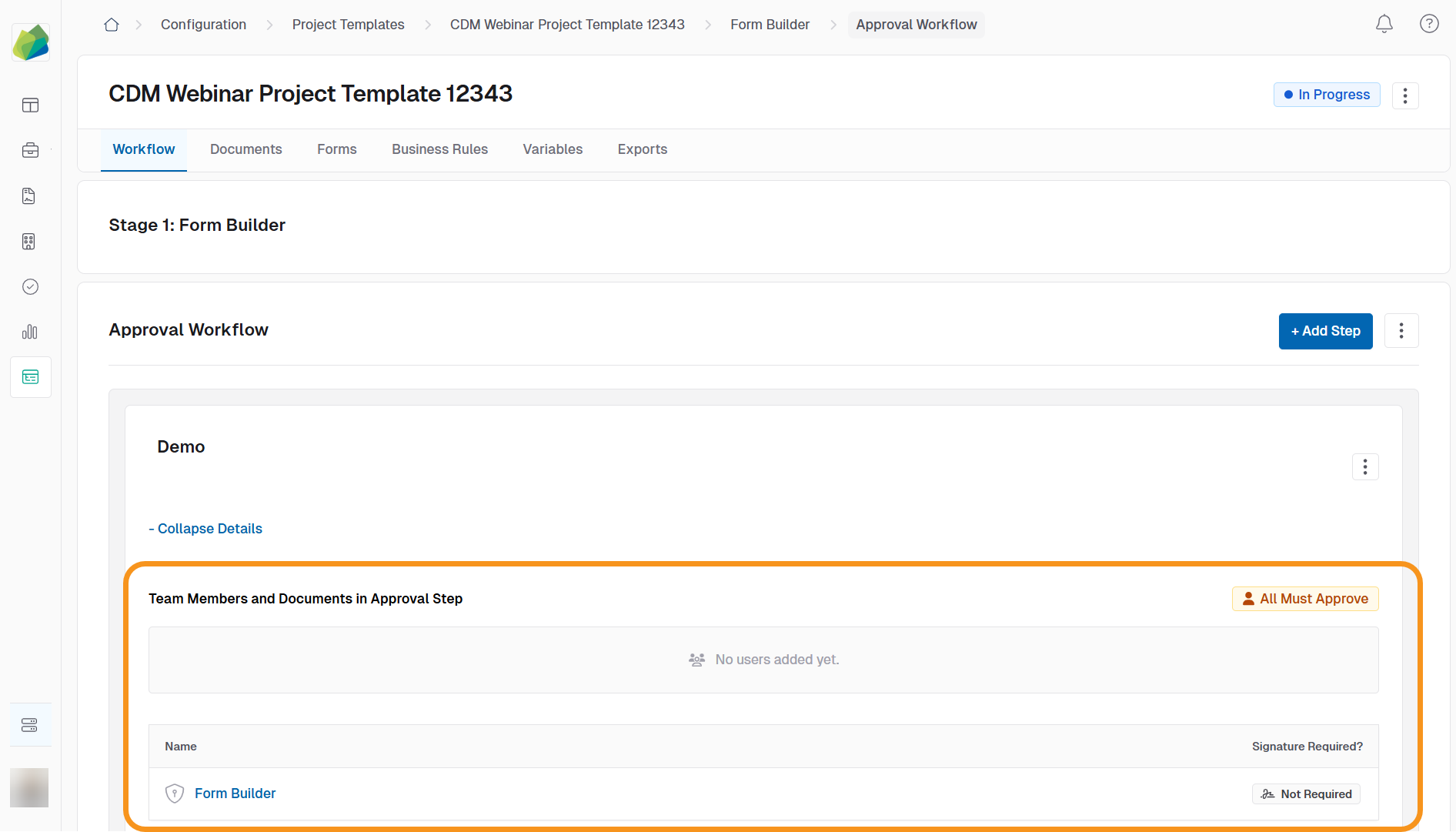
This view helps you quickly confirm how each step is configured without entering the full edit mode.
See Also
To complement your knowledge of this process, feel free to check the following pages: